Employee Recognition System
Complete guide for employee recognition, awards management, and leaderboard system. Select a topic below to get started.
System Overview
Learn about the recognition system features, points system, and user engagement.
Accessing the System
How to access and navigate the recognition dashboard.
Leaderboard
Understanding the leaderboard, top performers, and ranking system.
Award Types Management
Create, manage, and customize award types with points and categories.
Creating Recognitions
How to recognize employees with awards and personalized messages.
Interacting with Recognitions
Liking, commenting, and engaging with recognition posts.
Search & Navigation
Finding recognitions, filtering, and navigating the feed.
Troubleshooting
Solutions to common issues and error handling.
System Overview
The Employee Recognition System provides a comprehensive platform for acknowledging employee achievements, managing award types, and tracking recognition through a dynamic leaderboard.
Key Features
🏆 Interactive Leaderboard
Dynamic ranking system with visual podium for top 3 performers.
🎖️ Custom Award Types
Create and manage customizable award types with points and categories.
💬 Social Engagement
Like and comment functionality on recognition posts.
👤 Employee Avatars
Visual employee cards with photos/gradient avatars and personalized information.
🔍 Advanced Search
Search recognitions and filter through recognition feed.
📊 Real-time Stats
Live statistics dashboard showing monthly performance metrics.
Points System
- Each award type has predefined points value
- Points range from 50 to 1000+ depending on award significance
- Points accumulate on employee profiles
- Points contribute to leaderboard ranking
- Monthly points reset with leaderboard rankings
- Total points = sum of all recognition points received
- Ranking based on total points earned
- Monthly leaderboard resets with recognition of top performers
- Historical data preserved for analytics
Color System
- Primary accent: Light blue (#AFE0FF) used for modal headers and CTAs
- Recognition cards: 10 alternating pastel colors for visual variety
- Award types: Custom colors defined per award type
- Status indicators: Green for success, red for errors, yellow for warnings
User Roles & Permissions
- View leaderboard and recognition feed
- Create recognitions for colleagues
- Like and comment on recognitions
- View award types and points system
- Search and filter recognitions
- All regular employee permissions
- Create, edit, and delete award types
- Manage award categories and points values
- Access advanced analytics and reporting
- Configure system settings
Accessing the Recognition System
How to access and navigate the employee recognition dashboard interface.
- Access through main application navigation menu
- Navigate to "Recognition" or "Employee Recognition" section
- System requires organization ID for data isolation
- Dashboard loads automatically with default tab (Leaderboard)
- Initial data loading shows LoadingFlower animation
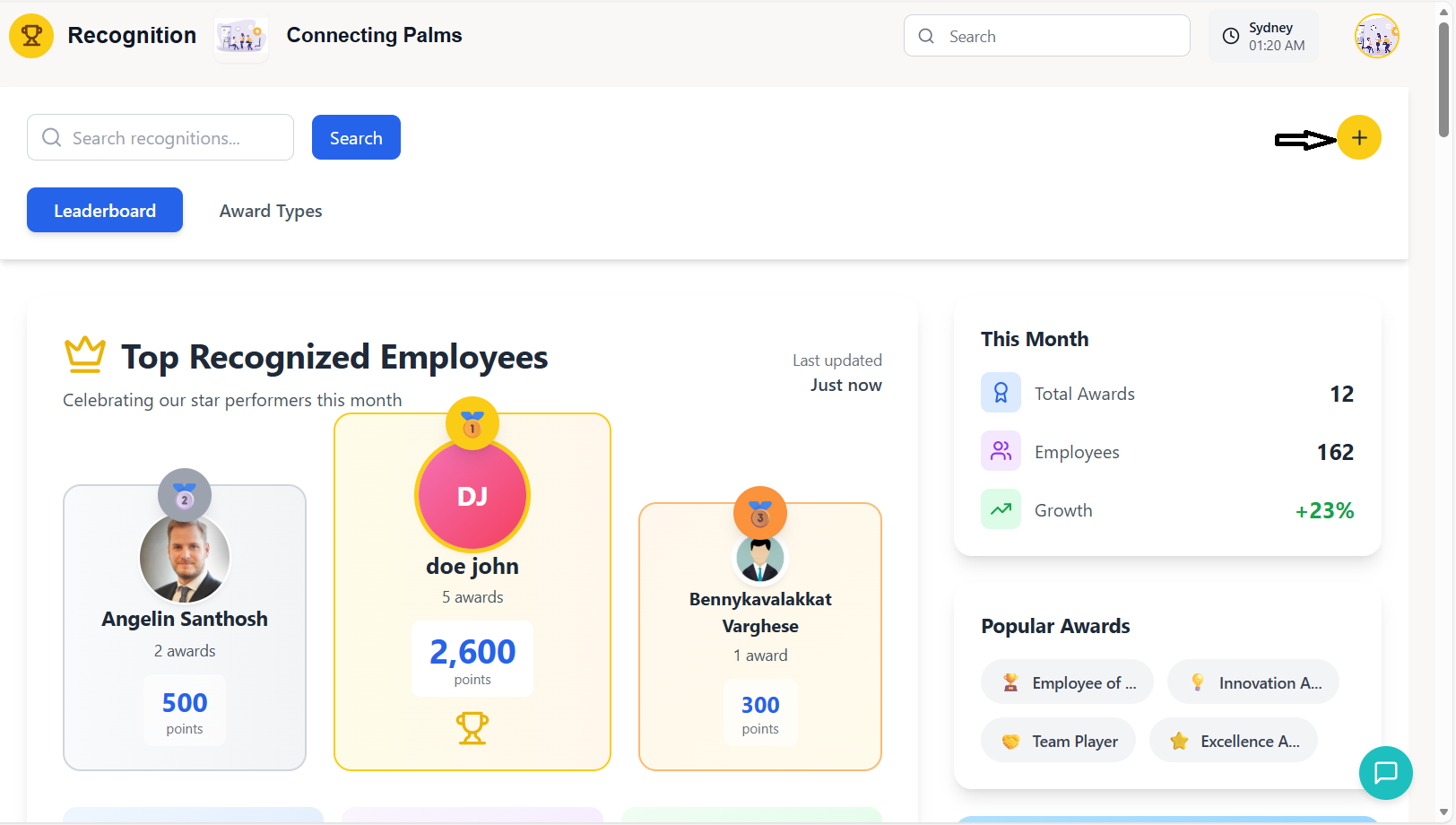
The recognition dashboard is organized into three main sections:
- Header Section: Search bar, recognition creation button, and tab navigation
- Main Content Area (2/3 width): Leaderboard or recognition feed based on active tab
- Sidebar (1/3 width): Statistics, popular awards, and call-to-action cards
When the system loads, it automatically fetches:
- Recognition feed (most recent recognitions)
- Leaderboard data (top performers)
- Recognition statistics (monthly metrics)
- Award types (available award categories)
- Employee dropdown data (for recognition creation)
Loading states are shown with the LoadingFlower component
Dashboard Components
🔍 Search Bar
Top-left search field for finding specific recognitions by content or employee name.
➕ Create Button
Yellow circular button with plus icon in top-right corner for creating new recognitions.
📊 Tab Navigation
Two main tabs: Leaderboard (default) and Award Types management.
🏆 Recognition Feed
Scrollable feed of recent recognitions with interactive cards.
- The system remembers your last active tab between sessions
- Leaderboard is the default view on first access
- Click any recognition card to view details and interactions
- Use browser refresh (F5) if data appears stale or incomplete
Leaderboard System
Understanding the leaderboard, ranking system, and top performer visualization.
Leaderboard Features
The leaderboard features a distinctive podium layout for top 3 performers:
- 🥇 1st Place (Center): Elevated position with yellow theme
- 🥈 2nd Place (Left): Slightly lower position with silver theme
- 🥉 3rd Place (Right): Lower position with bronze theme
- Visual Hierarchy: Heights indicate ranking (1st > 2nd > 3rd)
- Special Effects: Winner gets trophy icon and larger avatar
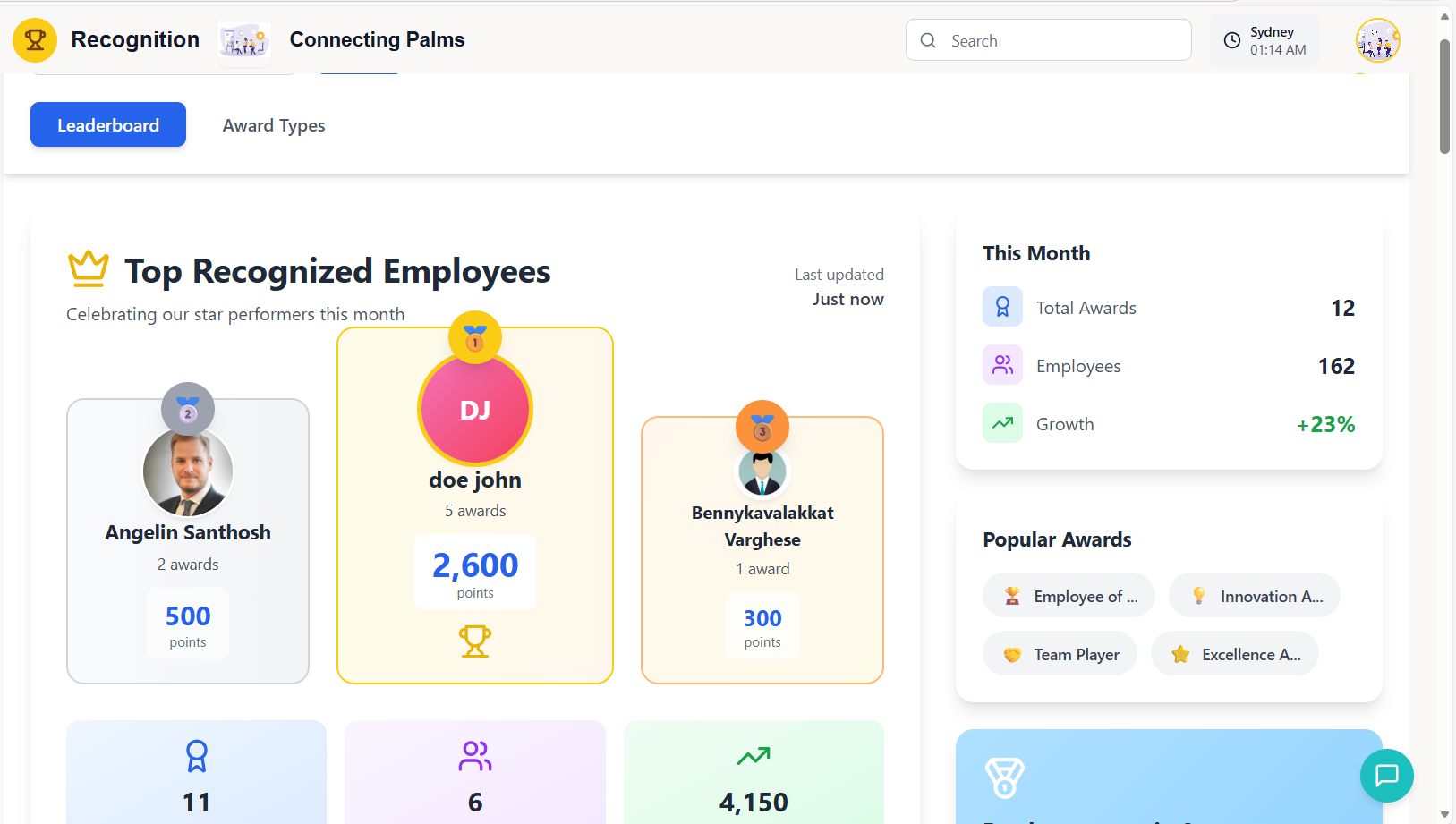
Each leaderboard entry includes:
- Employee Avatar: Photo or gradient initials circle
- Employee Name: Full name prominently displayed
- Award Count: Number of recognitions received
- Total Points: Sum of all points from recognitions
- Rank Badge: Medal emoji indicating position (🥇🥈🥉)
The leaderboard includes summary statistics at the bottom:
- Total Awards: Sum of all recognitions given
- Top Performers: Count of employees on leaderboard
- Total Points: Sum of all points awarded
- Last Updated: Timestamp of latest leaderboard refresh
Scoring Algorithm
Employee receives award
Based on award type points value
Added to employee's total
Sort by total points descending
Real-time ranking display
Leaderboard Behavior
- Leaderboard loads automatically on tab selection
- Default limit: Top 10 performers
- Loading state shows LoadingFlower animation
- Error states display appropriate messages
- Empty state shows encouraging message to create recognitions
- Automatic refresh when new recognition is created
- Manual refresh via browser reload (F5)
- Monthly leaderboard resets while preserving historical data
- Real-time updates for points and rankings
- Only active employees appear on leaderboard
- Ties in points are broken by number of recognitions received
- Minimum 3 recognitions required to appear on leaderboard
- Points from different award types are weighted equally
- Leaderboard shows current month's performance by default
Podium Visualization Details
| Position | Visual Characteristics | Height | Badge | Theme Color |
|---|---|---|---|---|
| 1st Place | Elevated, largest avatar, trophy icon | 320px | 🥇 | Yellow/Gold gradient |
| 2nd Place | Left side, medium avatar | 256px | 🥈 | Silver/Gray gradient |
| 3rd Place | Right side, smaller avatar | 240px | 🥉 | Bronze/Orange gradient |
Award Types Management
Create, customize, and manage award types with points, categories, and visual styling.
Award Type Structure
Each award type consists of:
- Name: Descriptive title (e.g., "Excellence Award")
- Description: Detailed explanation of when to award
- Icon Emoji: Visual representation (🏆, ⭐, 💎, etc.)
- Color Code: Hex color for visual theme
- Points Value: Points awarded (1-10000)
- Category: Classification (SPOT, MONTHLY, LEADERSHIP, etc.)
- Frequency: How often can be awarded (DAILY, WEEKLY, ANYTIME, etc.)
- Requires Approval: Boolean flag for manager approval
| Category | Purpose | Typical Points |
|---|---|---|
| SPOT | Immediate recognition for specific achievements | 50-200 |
| MONTHLY | Monthly performance awards | 200-500 |
| PEER | Peer-to-peer recognition | 100-300 |
| EXCELLENCE | Exceptional performance | 300-1000 |
| LEADERSHIP | Leadership and management | 400-800 |
| INNOVATION | Creative problem solving | 300-700 |
| TEAMWORK | Collaboration and team support | 150-400 |
Creating Award Types
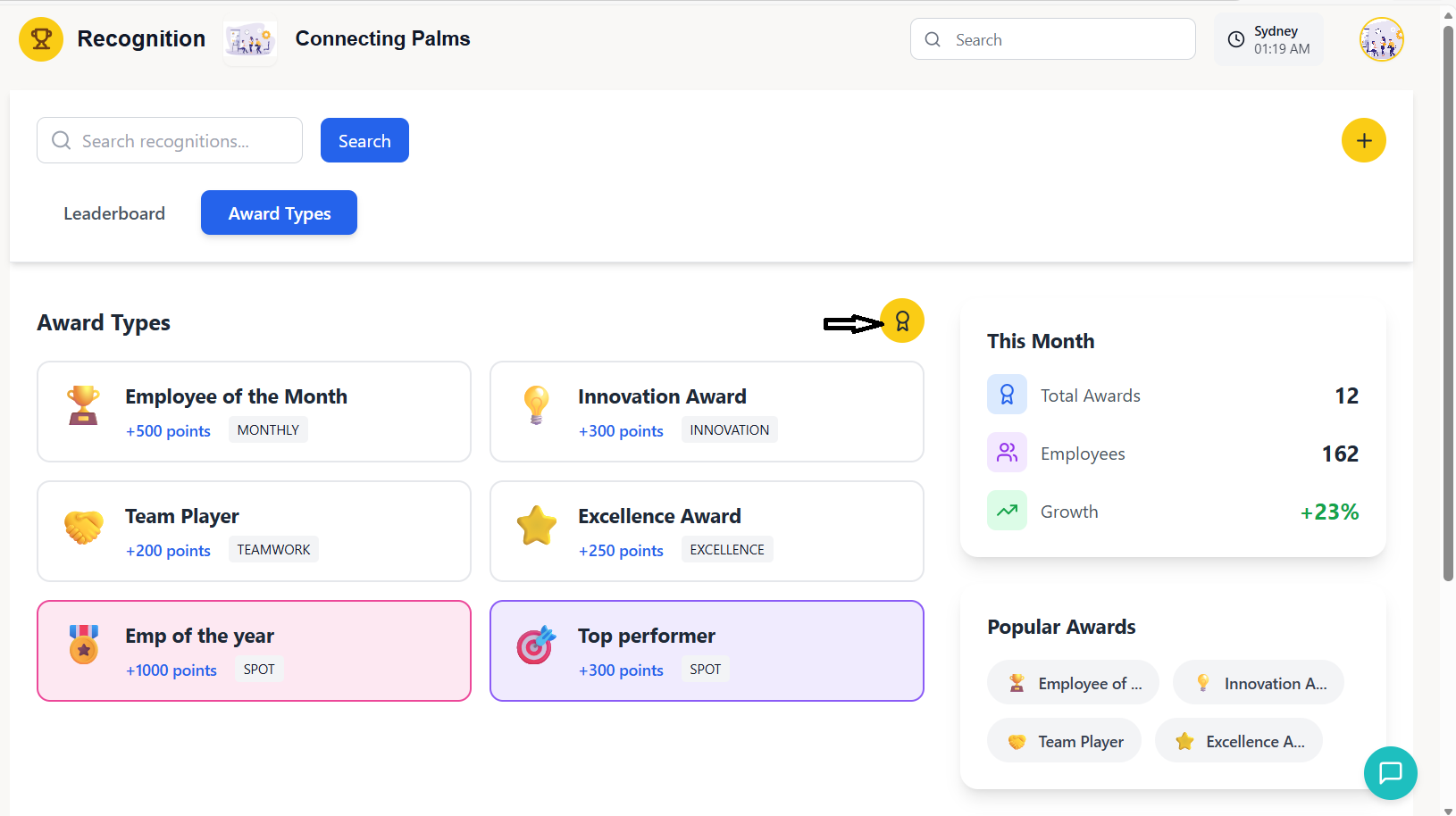
- Navigate to "Award Types" tab from main navigation
- Click the yellow circular award button (🏆) in top-right
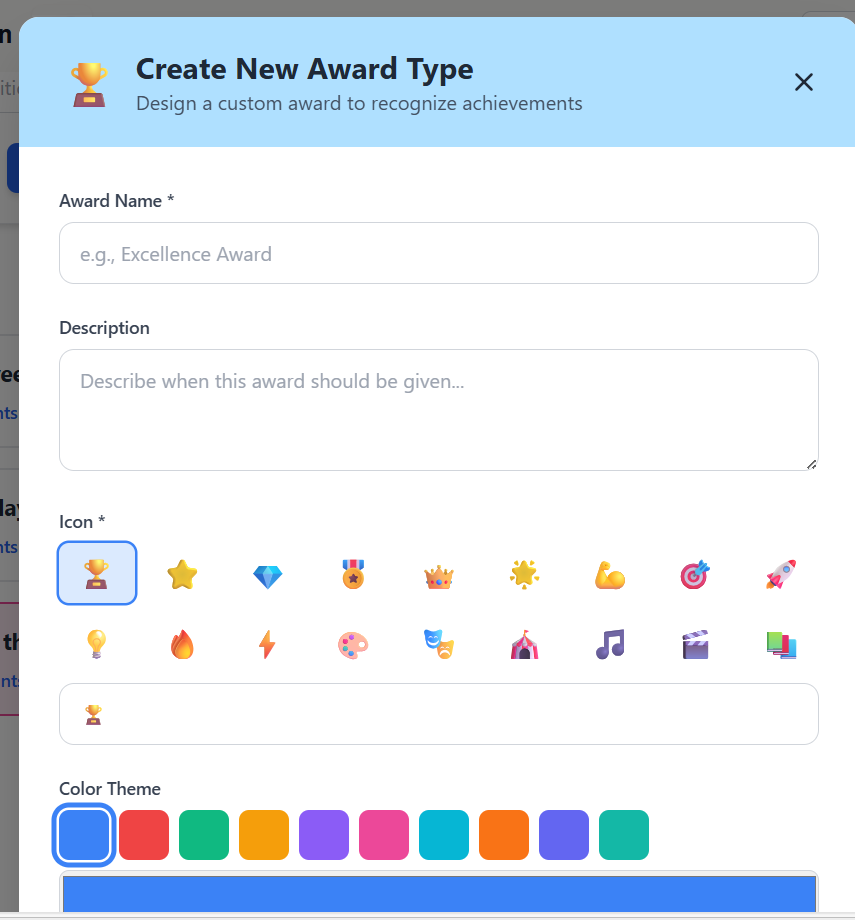
- Creation modal opens with all configuration options
- Form fields are organized in logical sections
Choose from 18 preset emojis or enter custom emoji:
Choose from 10 preset colors or use color picker:
- Minimum: 1 point
- Maximum: 10,000 points
- Default: 100 points
- Recommended: 50-500 for regular awards
- Special Awards: 500-1000 for exceptional achievements
Managing Award Types
- Award types display in 2-column grid on desktop
- Each card shows icon, name, description, and points
- Color theme applied as background tint
- Hover over cards to reveal delete button
- Categories shown as badges on cards
- Hover over award type card to reveal delete button (trash icon)
- Click delete button to open confirmation modal
- Review warning message about permanent deletion
- Confirm deletion or cancel operation
- If award has been used, it's marked inactive instead of deleted
Best Practices
🎯 Clear Naming
Use descriptive names that clearly indicate award purpose (e.g., "Team Player Award" vs "Award 1").
⚖️ Balanced Points
Maintain logical points progression between different award categories and levels.
🎨 Consistent Styling
Use color themes that match award significance (e.g., gold for top awards).
📝 Detailed Descriptions
Provide clear criteria for when each award should be given to ensure consistent application.
Creating Recognitions
How to recognize employees with awards and personalized messages through the recognition creation modal.
Accessing Recognition Creation
Three ways to start creating a recognition:
- Header Button: Click yellow circular "+" button in top-right corner
- Empty State: Click "Create Recognition" button when no recognitions exist
- Sidebar CTA: Click "Start Recognizing" button in right sidebar
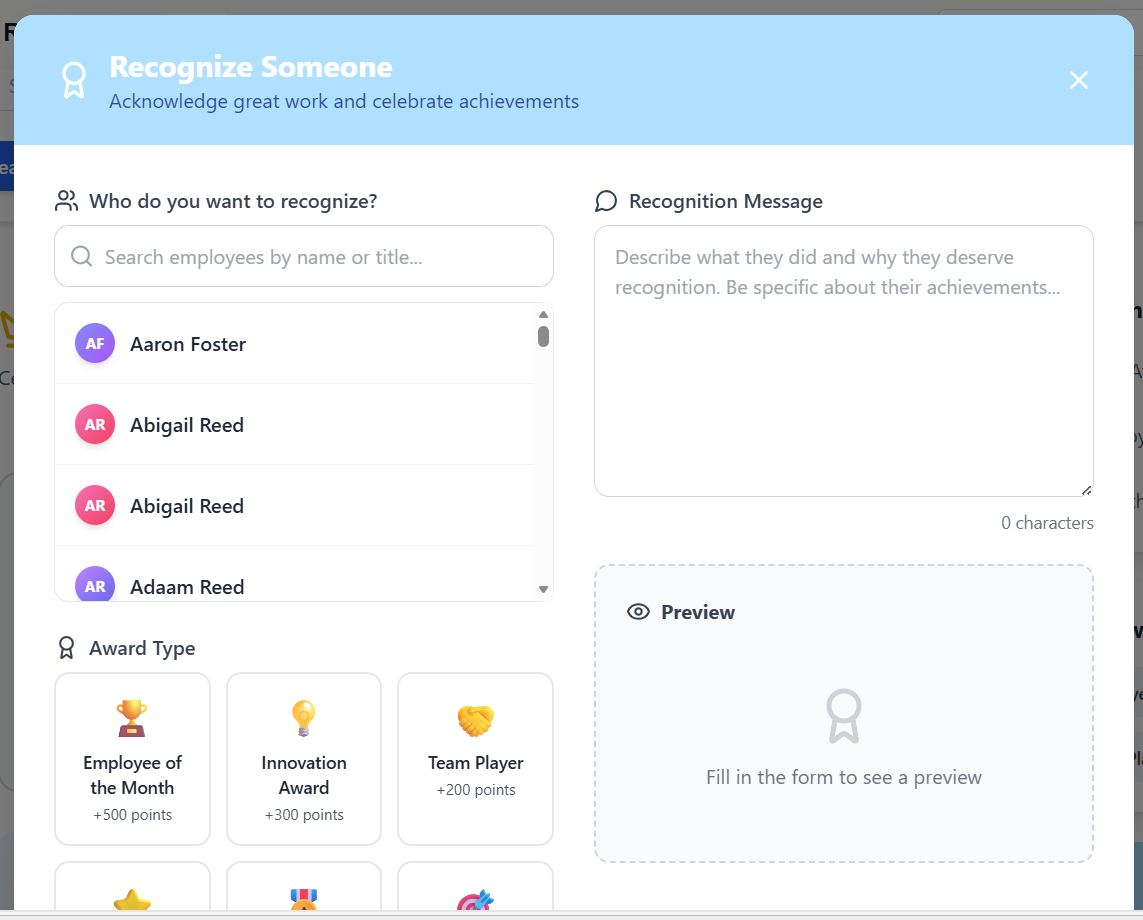
The recognition creation modal has two main sections:
- Left Column: Form fields for recognition details
- Right Column: Live preview of how recognition will appear
- Header: Blue theme with "Recognize Someone" title
- Footer: Action buttons (Cancel and Send Recognition)
Step-by-Step Creation Process
- Click in "Search employees by name or title..." field
- Start typing employee name to filter list
- Browse through filtered results showing avatars and titles
- Click on desired employee to select them
- Selected employee shows checkmark and highlighted background
- Employee avatar appears in preview section
Required Field: Must select an employee to proceed
- Browse available award types in 2-3 column grid
- Each award shows icon, name, and points value
- Click on desired award type to select it
- Selected award gets blue border and background highlight
- Award details appear in preview section
- Points value added to recognition total
Required Field: Must select an award type to proceed
- Purpose: Brief summary of recognition (appears in bold)
- Format: Short, descriptive phrase
- Examples: "Excellent team leadership", "Outstanding client presentation"
- Character Limit: 200 characters maximum
- Validation: Title cannot be empty
- Preview: Appears prominently in recognition card
- Purpose: Detailed explanation of why employee deserves recognition
- Format: Paragraph describing specific achievements
- Minimum Length: 10 characters
- Best Practices: Be specific, mention impact, use positive language
- Examples: "John demonstrated exceptional leadership by..."
- Character Counter: Shows current length below field
- Public (Default): Visible to entire organization
- Private: Only visible to recipient and recognizer
- Toggle: Switch control with ON/OFF states
- Indicator: Badge shows visibility status in preview
- Recommendation: Use public for celebrating achievements, private for sensitive feedback
Live Preview Feature
The right column shows real-time preview of the recognition:
- Employee Info: Avatar, name, and title
- Award Details: Icon, name, and points
- Title: Recognition title in preview card
- Visibility Badge: Public/Private indicator
- Date Stamp: Current date for context
- Empty State: Instructional message when form incomplete
- Updates in real-time as form fields are filled
- Shows validation errors visually
- Provides immediate feedback on recognition appearance
- Helps ensure recognition is properly formatted before submission
Validation & Submission
The system validates all fields before submission:
| Field | Validation Rules | Error Message |
|---|---|---|
| Employee | Must be selected | "Please select an employee" |
| Award Type | Must be selected | "Please select an award type" |
| Title | Required, max 200 chars | "Title is required", "Title must be less than 200 characters" |
| Message | Required, min 10 chars | "Message is required", "Message must be at least 10 characters" |
- Click "Send Recognition" button (blue with send icon)
- System validates all fields
- If validation passes, submission begins
- Button shows loading state with spinner
- Modal closes automatically on success
- New recognition appears in feed immediately
- Leaderboard updates with new points
- Modal closes smoothly
- New recognition appears at top of feed
- Leaderboard updates in real-time
- Points added to employee's total
- Statistics update to reflect new recognition
Best Practices for Recognition
🎯 Be Specific
Mention specific actions or achievements rather than general praise.
💡 Highlight Impact
Explain how the employee's actions benefited the team or organization.
⏰ Timeliness
Recognize achievements soon after they occur for maximum impact.
🌟 Appropriate Awards
Match award type and points to significance of achievement.
Interacting with Recognitions
Liking, commenting, and engaging with recognition posts in the recognition feed.
Recognition Card Components
Each recognition card contains these elements:
- Header: Award type with icon, name, and points on colored background
- Employee Section: Recipient avatar, name, title, and recognition timestamp
- Recognition Content: Title (bold) and detailed message
- Recognizer Info: Avatar and name of person giving recognition
- Interaction Bar: Like and comment buttons with counts
- Comment Section: Expandable area for viewing and adding comments
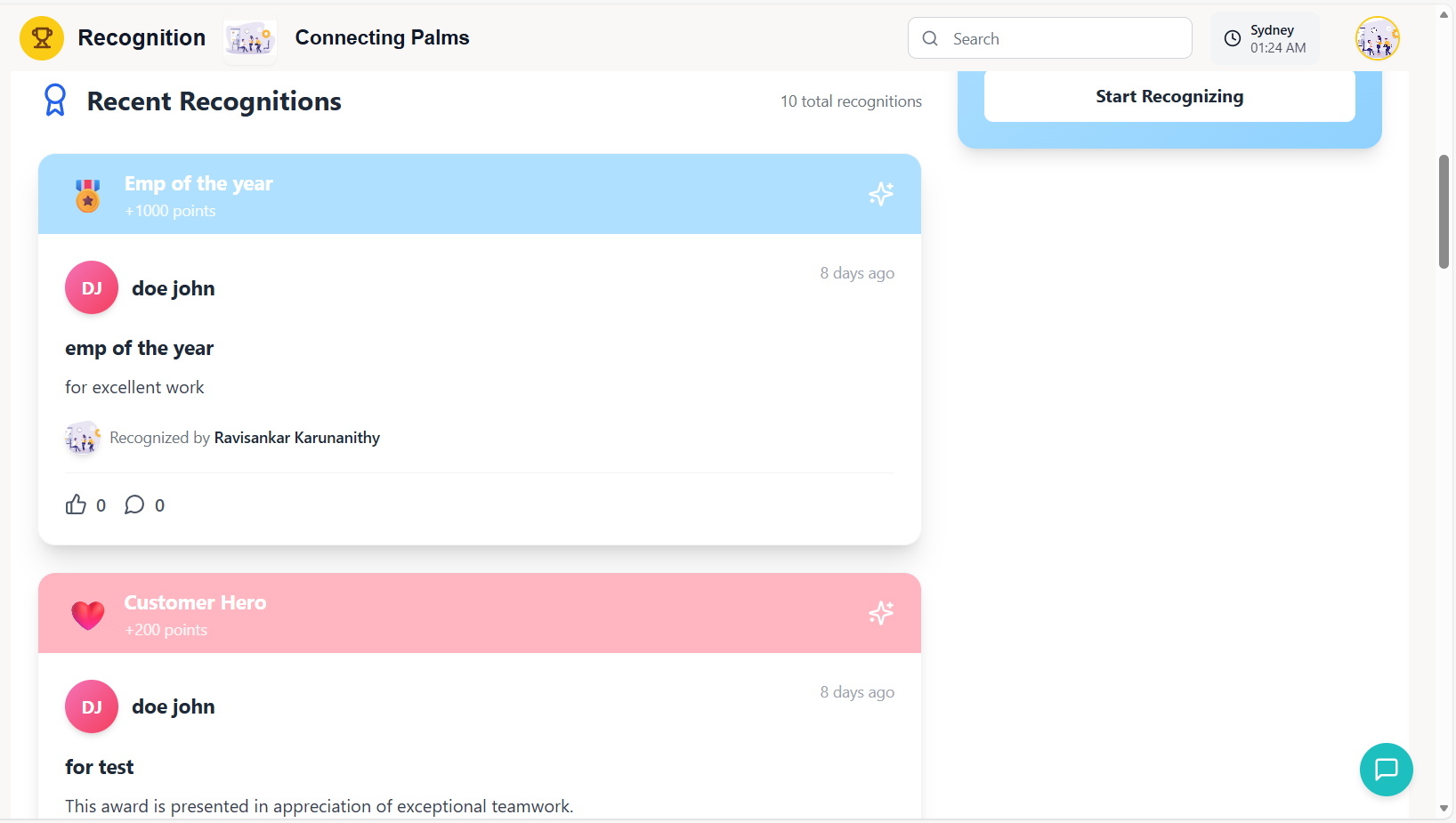
10 alternating pastel colors for visual variety:
Colors rotate sequentially through recognition cards for visual appeal.
Liking Recognitions
- Click the thumbs-up icon (👍) on any recognition card
- Button turns blue when liked by current user
- Like count increments immediately
- Click again to unlike (toggle functionality)
- Like count updates in real-time
- No limit on number of recognitions you can like
- Default State: Gray thumbs-up icon with count
- Liked State: Blue thumbs-up icon with count
- Hover Effect: Color change on hover
- Count Display: Number shown next to icon
- Visual Feedback: Smooth transition between states
Commenting on Recognitions
- Click the message bubble icon (💬) on any recognition card
- First click expands comment input field below the card
- Subsequent clicks toggle comment section visibility
- Comment count shows number of existing comments
- Only one comment section can be open at a time per card
- Click comment icon to expand input field
- Type your comment in the text input field
- Press Enter or click "Post" button to submit
- Comment appears immediately in the recognition feed
- Comment count increments by one
- Input field clears after successful submission
- Comment section collapses automatically after posting
- Real-time Updates: Comments appear immediately
- Focus Management: Input field auto-focuses when expanded
- Keyboard Support: Enter key to submit comment
- Character Limit: No strict limit, but very long comments may be truncated
- Error Handling: Empty comments cannot be submitted
Viewing Recognition Details
Each recognition shows detailed information about:
- Recipient: Avatar, full name, job title/department
- Recognizer: Avatar and name of person giving recognition
- Award Details: Type, icon, points value, and category
- Timing: Relative time ago (e.g., "2 hours ago")
- Visibility: Public/Private indicator (badge)
- Like Count: Total number of likes received
- Comment Count: Total number of comments
- Points Awarded: Points value of the award
- Popularity Indicator: High engagement shown by large numbers
Best Practices for Interaction
👍 Meaningful Likes
Like recognitions that genuinely resonate with you or celebrate achievements you value.
💬 Constructive Comments
Add comments that build on the recognition or share additional praise.
👥 Inclusive Engagement
Engage with recognitions across different teams and departments.
🎯 Relevant Responses
Keep comments focused on the achievement being recognized.
- All interactions are public and visible to the organization
- Be respectful and professional in all comments
- Focus on work-related achievements and positive contributions
- Avoid repetitive or spammy interactions
- Report inappropriate content through proper channels
Search & Navigation
Finding recognitions, filtering content, and navigating through the recognition feed efficiently.
Search Functionality
- Location: Top-left corner of the dashboard header
- Components: Magnifying glass icon, text input field, search button
- Placeholder: "Search recognitions..."
- Keyboard Shortcut: Focus search field with Ctrl+F (browser standard)
- Search Button: Blue button labeled "Search" to initiate search
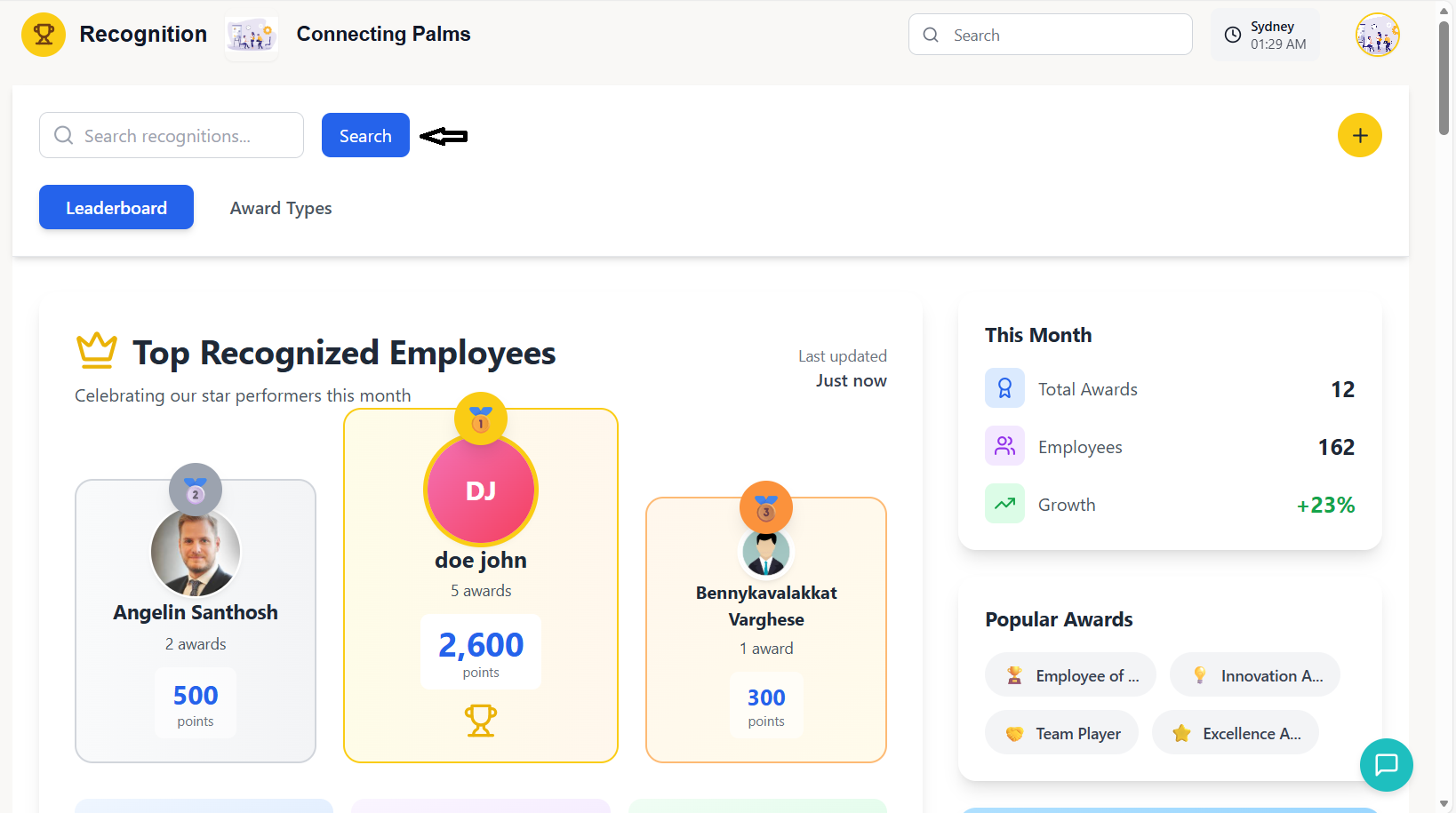
The search function looks through multiple recognition attributes:
- Recognition Title: Main recognition headline
- Recognition Message: Detailed description text
- Employee Names: Recipient's full name
- Award Type Names: Name of award given
- Recognizer Names: Name of person giving recognition
- Partial Matches: Searches within text, not just exact matches
- Click in search field or use Ctrl+F to focus
- Type search terms (case-insensitive)
- Press Enter or click "Search" button
- System displays matching recognitions
- Search results replace current feed view
- Clear search field to return to full recognition feed
Tab Navigation
| Tab | Purpose | Default State | Keyboard Shortcut |
|---|---|---|---|
| Leaderboard | View top performers and rankings | Active on first visit | Alt+1 (Browser specific) |
| Award Types | Manage award categories and configurations | Inactive | Alt+2 (Browser specific) |
- Visual Indicators: Active tab has blue background and white text
- Inactive Tabs: Gray text with hover effects
- Transition: Smooth animation between tab contents
- State Persistence: System remembers last active tab between sessions
- Loading States: Tab-specific loading indicators when fetching data
Recognition Feed Navigation
The recognition feed is organized with these characteristics:
- Chronological Order: Most recent recognitions first
- Pagination: Initial load shows 10 recognitions
- Load More: Click button to load additional recognitions
- Infinite Scroll: Manual load more instead of automatic infinite scroll
- Real-time Updates: New recognitions appear at top automatically
- Scroll to bottom of recognition feed
- Click "Load More Recognitions" button
- System fetches next page of recognitions
- New recognitions append to existing feed
- Button shows loading state during fetch
- Button disappears when no more recognitions available
Sidebar Navigation
Right sidebar provides quick access to metrics:
- This Month Section: Monthly performance statistics
- Popular Awards: Most frequently used award types
- Call-to-Action: "Start Recognizing" button for quick access
- Quick Links: Direct access to common actions
| Statistic | Description | Icon | Update Frequency |
|---|---|---|---|
| Total Awards | Number of recognitions given this month | 🏆 | Real-time |
| Employees Recognized | Unique employees receiving recognition | 👥 | Real-time |
| Growth Percentage | Month-over-month recognition growth | 📈 | Daily |
Keyboard Navigation
| Shortcut | Action | Applicable Area |
|---|---|---|
| Ctrl+F / Cmd+F | Focus search field | Global |
| Enter | Submit search or comment | Search field, Comment input |
| Esc | Close modal or clear search | Modals, Search field |
| Tab | Navigate between form fields | Modals, Forms |
- Use search to find specific recognitions or employees
- Switch between tabs to access different features
- Load more recognitions when you want to see older posts
- Check sidebar statistics for quick performance insights
- Use keyboard shortcuts for faster navigation
Troubleshooting Guide
Solutions to common issues and problems you may encounter with the Employee Recognition System.
Common Issues
Possible Causes:
- Network connectivity issues
- API server down or unreachable
- Authentication/authorization problems
- Organization ID missing or invalid
- Browser CORS policy restrictions
Solutions:
- Check internet connection and network status
- Verify you're logged in with valid credentials
- Check browser console for API errors (F12)
- Refresh the page (F5)
- Clear browser cache and cookies
- Contact system administrator
Possible Causes:
- Required fields missing in form
- Employee or award type not selected
- Title or message validation failures
- Network issues during submission
- Permission restrictions
Solutions:
- Check for red error messages below form fields
- Ensure all required fields are filled (marked with *)
- Verify employee and award type are selected
- Check character limits for title (200) and message (min 10)
- Try submitting again after fixing validation errors
Possible Causes:
- Network connectivity issues
- API rate limiting
- Browser JavaScript errors
- Session timeout
- Permission restrictions
Solutions:
- Check network connection status
- Refresh page to renew session
- Check browser console for JavaScript errors (F12)
- Wait a few minutes if rate limited, then try again
- Clear browser cache and try again
Possible Causes:
- Employee has no profile image uploaded
- Image server down or unreachable
- CORS policy blocking image loading
- Slow network causing timeout
- Browser cache issues
Solutions:
- Check if other employees' images load
- Verify image API endpoint is accessible
- Clear browser cache and hard refresh (Ctrl+F5)
- Wait for images to load (gradient initials are normal fallback)
- Contact admin if multiple employees have missing images
Possible Causes:
- Real-time updates delayed
- Data caching issues
- API synchronization problems
- Browser caching old data
- Monthly leaderboard reset in progress
Solutions:
- Refresh page to force data reload
- Clear browser cache and hard refresh (Ctrl+F5)
- Wait a few minutes for real-time sync
- Check if new recognitions appear in feed
- Contact admin if issue persists
Error Message Reference
| Error Message | Possible Cause | Solution |
|---|---|---|
| "Please select an employee" | No employee selected in recognition form | Select an employee from the dropdown |
| "Please select an award type" | No award type selected in recognition form | Choose an award type from the grid |
| "Title is required" | Title field empty in recognition form | Enter a title for the recognition |
| "Message must be at least 10 characters" | Message too short in recognition form | Write a more detailed message |
| "Network Error" | API unreachable or network issues | Check internet connection and retry |
| "Unauthorized" | Session expired or invalid credentials | Re-login to the application |
Browser Compatibility
- Chrome: Version 80+ (Recommended)
- Firefox: Version 75+
- Safari: Version 13.1+
- Edge: Version 80+ (Chromium-based)
Unsupported:
- Internet Explorer (all versions)
- Older mobile browsers
Developer Tools
- Browser Console: Check for JavaScript errors (F12)
- Network Tab: Monitor API requests and responses
- Redux DevTools: Inspect application state (if installed)
- Performance Tab: Identify rendering bottlenecks
- Application Tab: Check local storage and cache
Contact Support
- Persistent errors after trying all solutions
- Data appears incorrect or missing
- Performance issues on capable hardware
- Feature requests or enhancements
- Security concerns or data privacy issues
Information to Provide:
- Browser name and version
- Operating system and version
- Steps to reproduce the issue
- Error messages (screenshot if possible)
- Network conditions and location
- Time and date when issue occurred
Quick Reference Guide
🔄 Refresh
Shortcut: F5 or Ctrl+R
When: Data not loading, UI stuck
🔍 Search
Shortcut: Ctrl+F
When: Finding specific recognitions
➕ Create
Location: Top-right yellow button
When: Recognizing an employee
🏆 Awards
Tab: Award Types tab
When: Managing award configurations
Performance Tips
- Use search instead of scrolling through all recognitions
- Close other browser tabs to free memory
- Use modern browsers (Chrome recommended)
- Clear browser cache regularly
- Report performance issues to IT for investigation