PayLevel Management System
Complete guide for PayLevel management. Select a topic below to get started.
System Overview
Learn about the system features, components, and architecture.
Accessing the System
How to access and navigate the PayLevel management module.
PayLevel List View
Understanding the PayLevel list interface and functionality.
Adding a PayLevel
Process for adding new PayLevels to the system.
Editing PayLevel Details
How to modify PayLevel information and settings.
Dark Mode Implementation
How dark mode is implemented and managed.
Error Handling
Understanding error management and user feedback.
Data Validation
Input validation rules and requirements.
Troubleshooting
Solutions to common issues and problems.
System Overview
The PayLevel Management System enables organizations to manage pay rate classifications and associated rates in a centralized platform.
Key Features
💰 Comprehensive PayLevel Management
Complete pay rate information including classification, weekly, hourly, and special rates.
➕ Add New PayLevels
Slide-in panel for adding new pay rate classifications with all rate types.
✏️ Inline Editing
Edit pay rates directly in the table with inline editing functionality.
🌙 Dark Mode Support
Full dark mode implementation with consistent theming.
🔄 Redux State Management
Centralized state management using Redux for consistent data flow.
⚠️ Error Handling
Comprehensive error handling with user-friendly error messages.
✅ Data Validation
Input validation for all fields with appropriate error feedback.
📱 Responsive Design
Fully responsive design that works on all device sizes.
Technical Architecture
- PayLevel Component: Main container component
- Redux Integration: State management via Redux slices
- API Integration: Connection to backend services
- UI Components: Custom UI elements with consistent styling
- Initial Load: Fetch pay rates on component mount
- Add Operation: Dispatch addPayRate action
- Edit Operation: Dispatch updatePayRate action
- Error Handling: Global error state management
PayLevel Data Structure
| Field | Type | Description | Required |
|---|---|---|---|
| classification | String | Pay rate classification name | Yes |
| weeklyPayRate | Number | Weekly pay rate amount | Yes |
| hourlyPayRate | Number | Hourly pay rate amount | Yes |
| saturday | Number | Saturday pay rate amount | Yes |
| sunday | Number | Sunday pay rate amount | Yes |
| publicHoliday | Number | Public holiday pay rate amount | Yes |
| afternoonShift | Number | Afternoon shift pay rate amount | Yes |
| nightShift | Number | Night shift pay rate amount | Yes |
| organizationId | String | Organization identifier | Yes |
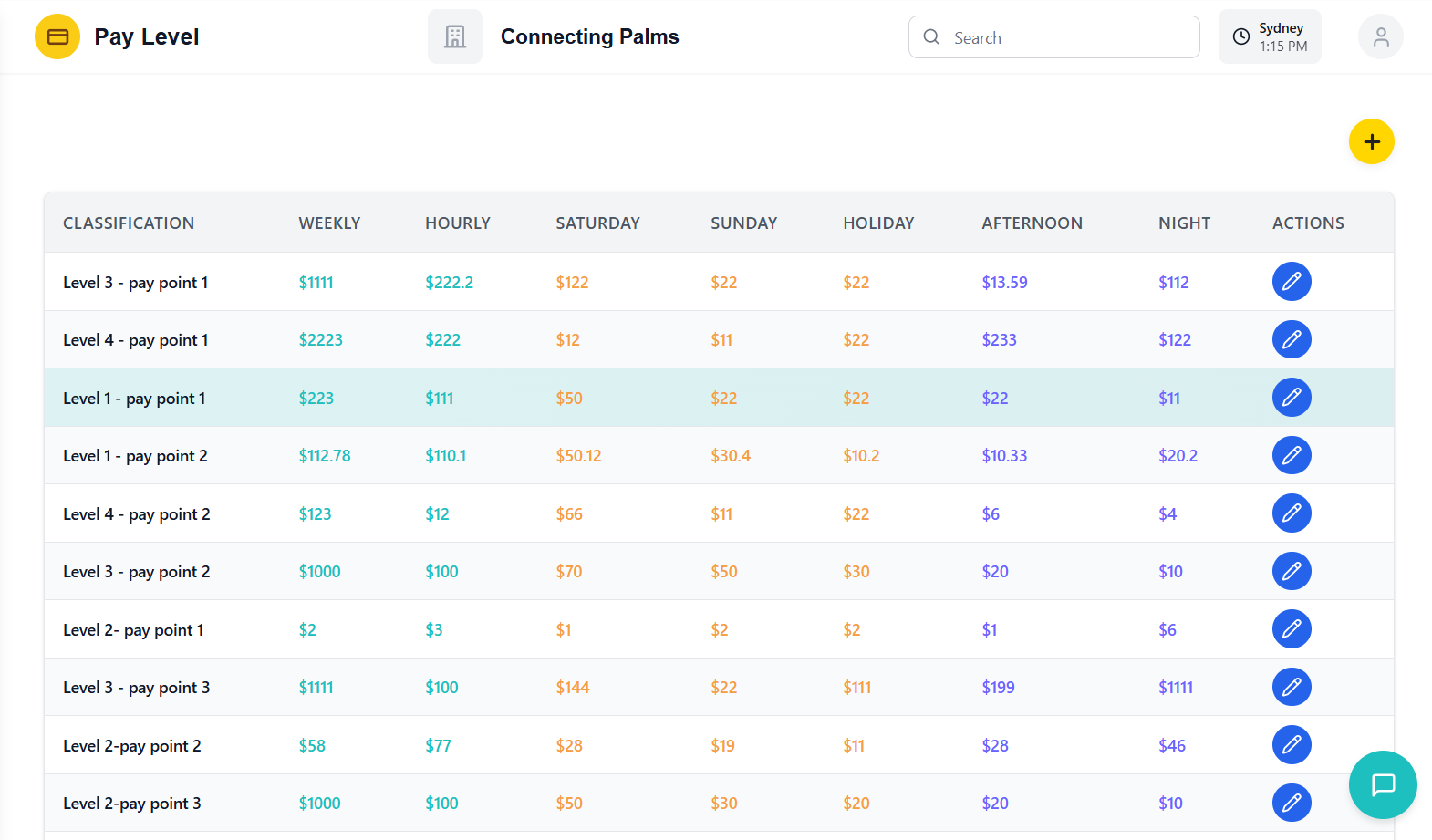
Accessing the PayLevel System
How to access and navigate the PayLevel management module.
The PayLevel component is typically integrated into a larger application structure. It receives the following props:
- darkMode: Boolean indicating dark mode status
- organizationId: String identifier for the organization
Example usage:
<PayLevel darkMode={isDarkMode} organizationId={currentOrgId} />
- Component automatically fetches pay rates on mount
- Uses Redux
fetchPayRatesaction - Requires valid
organizationId - Shows loading state during data fetch
PayLevel List View
Understanding the PayLevel list interface and functionality.
Understanding the PayLevel List Interface
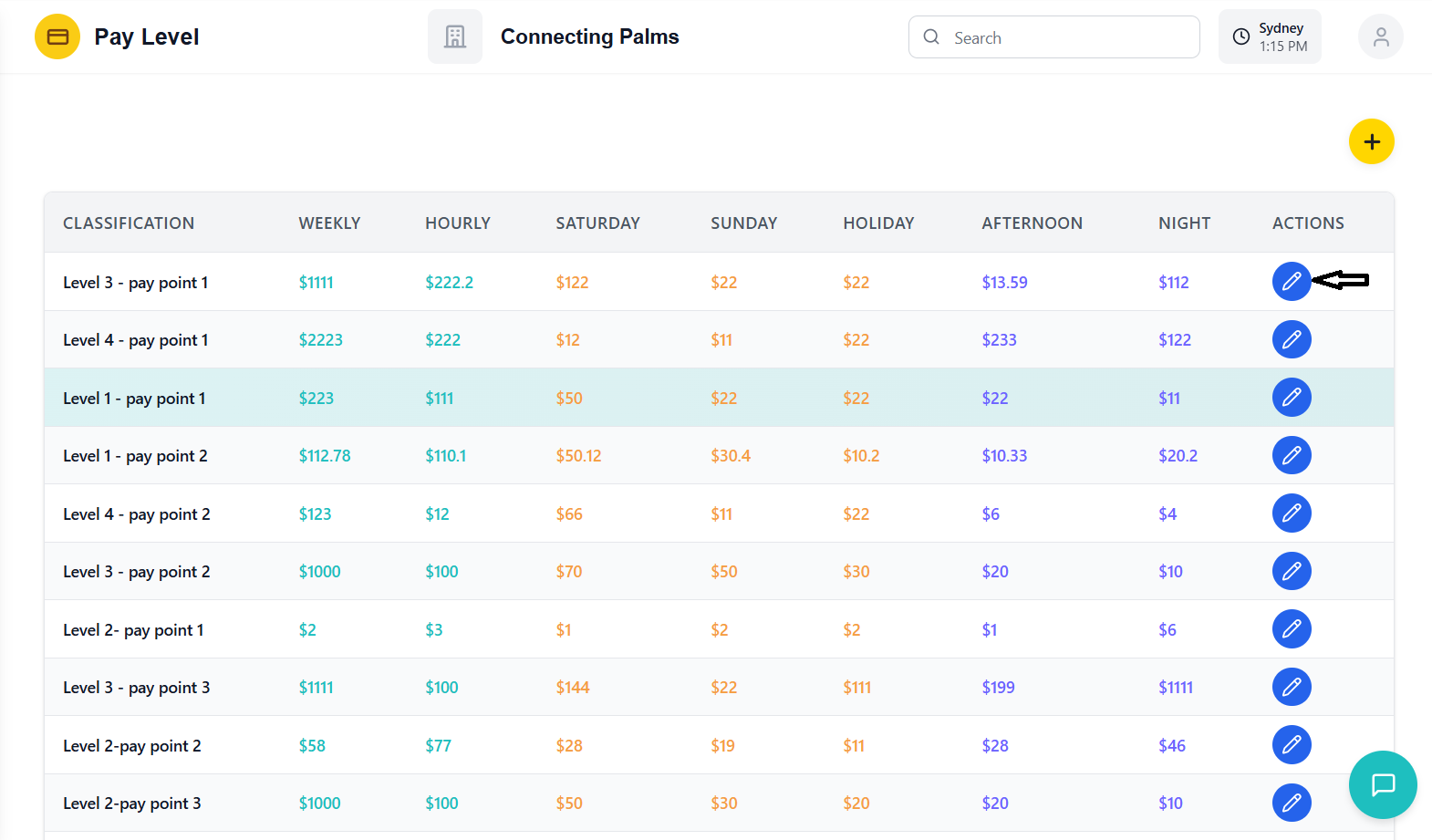
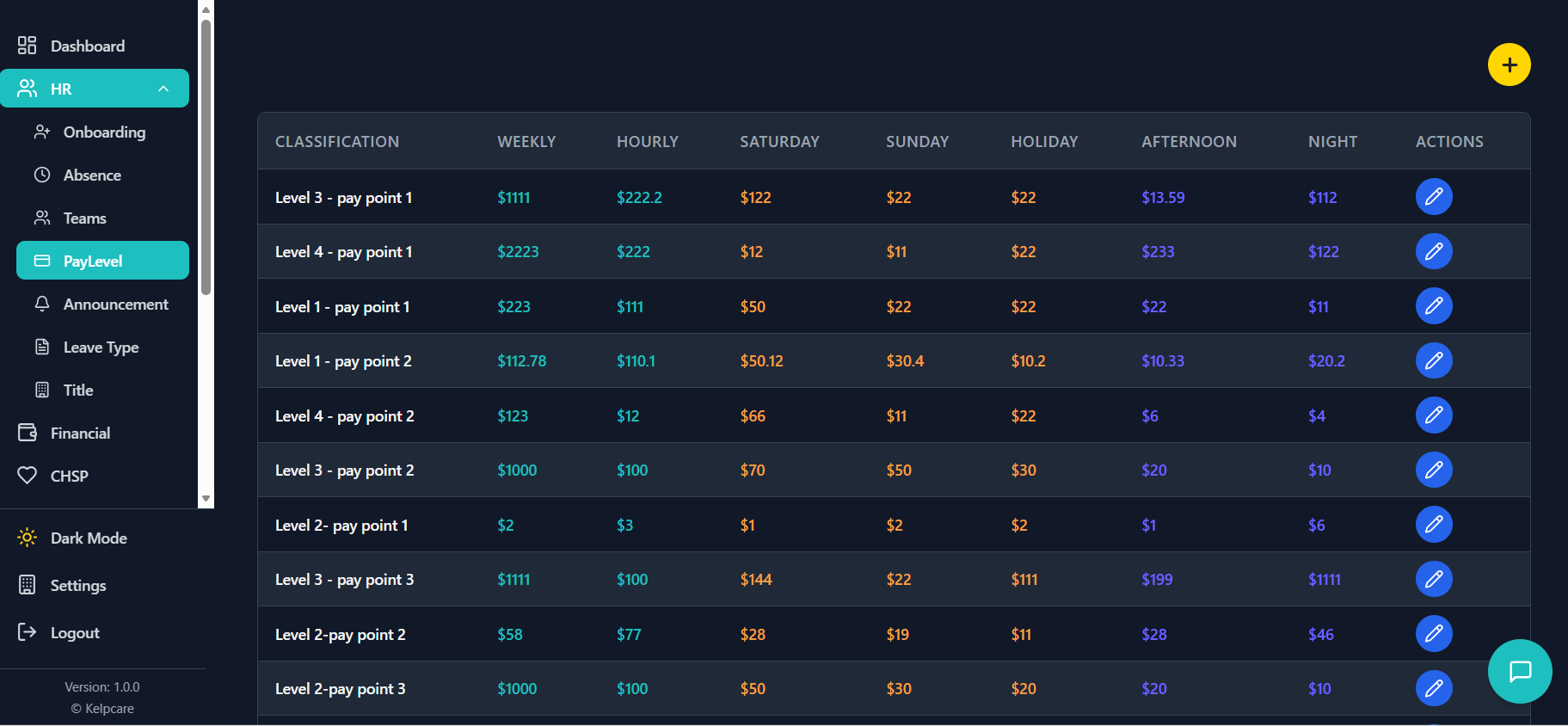
- Page Title: "Pay Levels" with gradient styling
- Add Button: Yellow circular button with plus icon
- Error Display: Top-aligned error messages when present
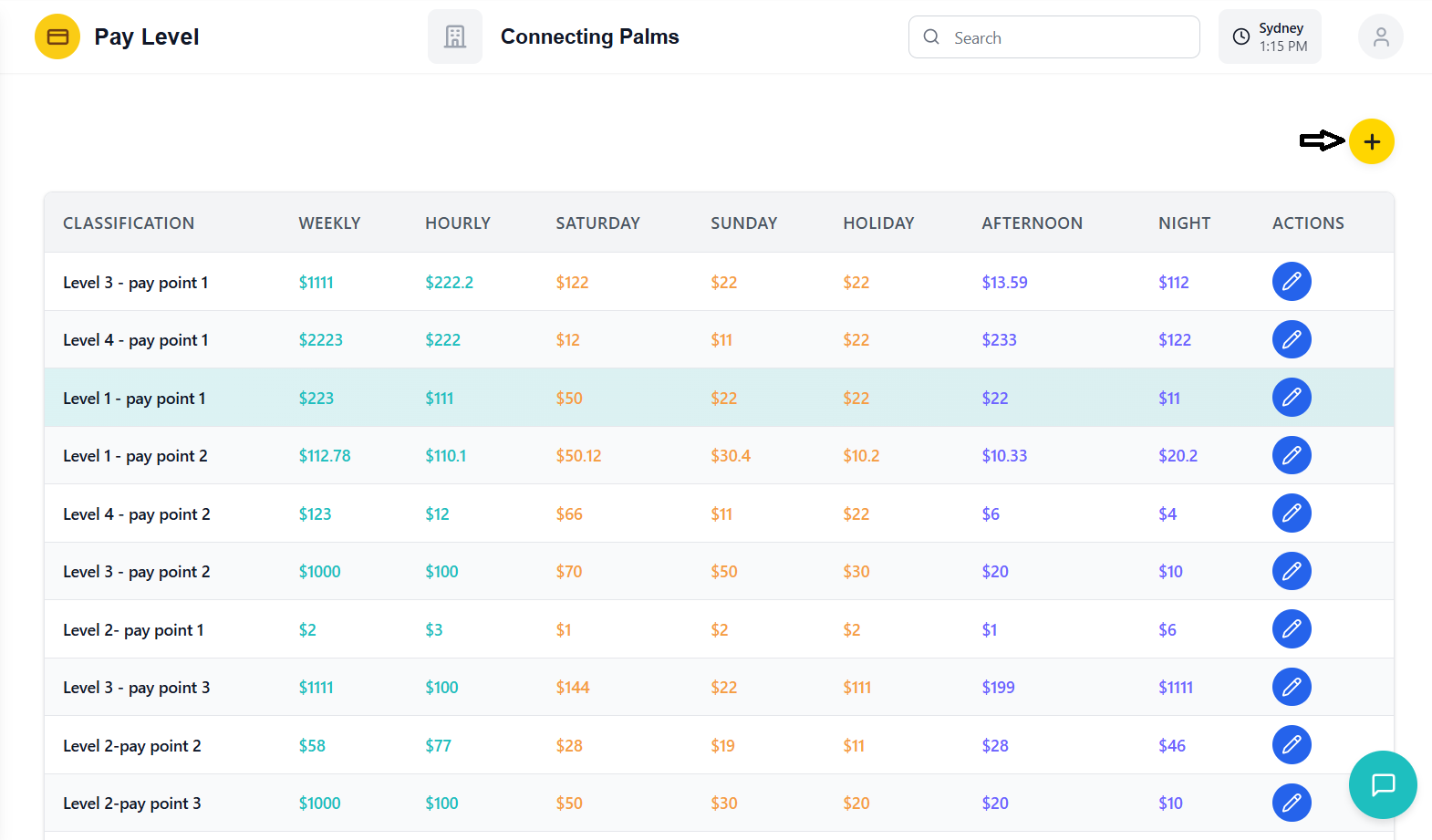
| Column | Description | Styling |
|---|---|---|
| Classification | Pay rate classification name | Standard text |
| Weekly | Weekly pay rate amount | Teal color (#1EBFBF) |
| Hourly | Hourly pay rate amount | Teal color (#1EBFBF) |
| Saturday | Saturday pay rate amount | Orange color (#F59E42) |
| Sunday | Sunday pay rate amount | Orange color (#F59E42) |
| Holiday | Public holiday pay rate amount | Orange color (#F59E42) |
| Afternoon | Afternoon shift pay rate amount | Purple color (#6C63FF) |
| Night | Night shift pay rate amount | Purple color (#6C63FF) |
| Actions | Edit button for each row | Blue button with pencil icon |
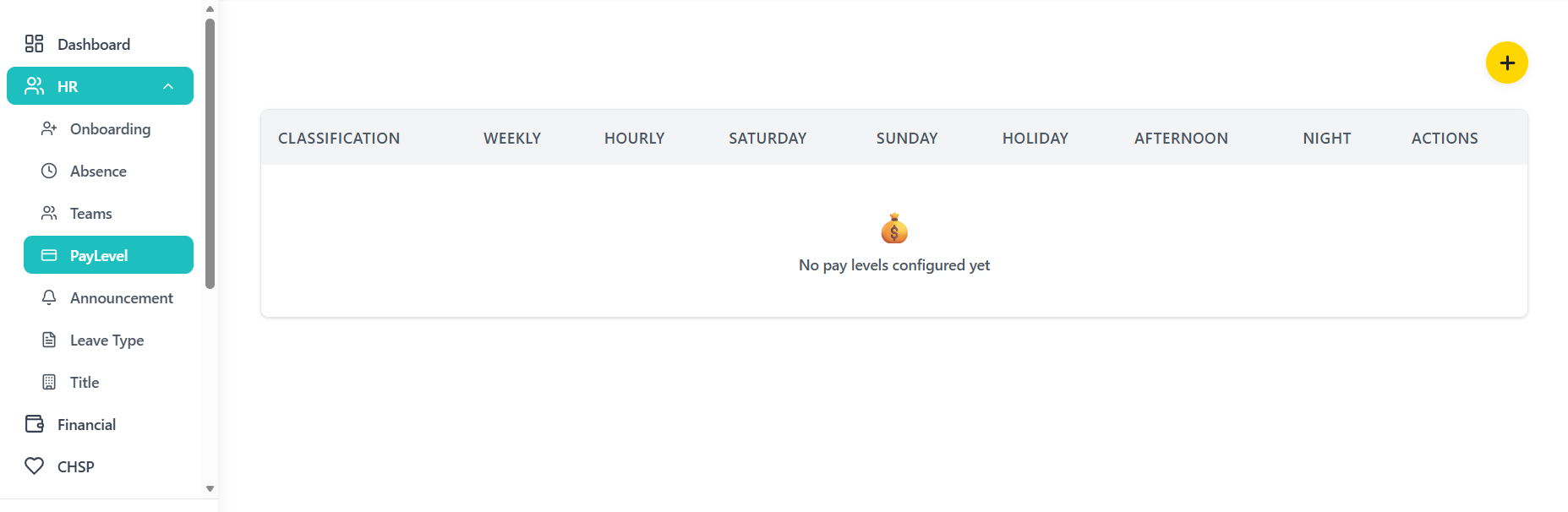
Empty State
When no pay levels exist in the system:
- Centered empty state with money bag emoji (💰)
- Message: "No pay levels configured yet"
- Subdued text color based on dark mode
Adding a PayLevel
Process for adding new PayLevels to the system.
Accessing the Add Form
- Click the yellow "Add" button with plus icon in the header
- Slide-in panel opens from the right
- Overlay with dark background appears
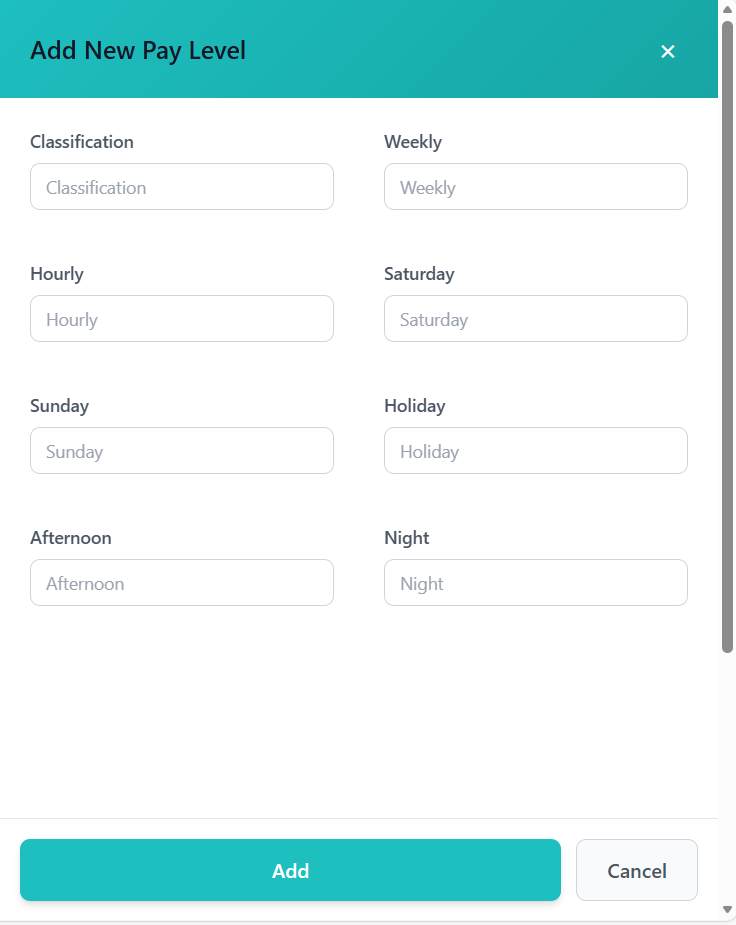
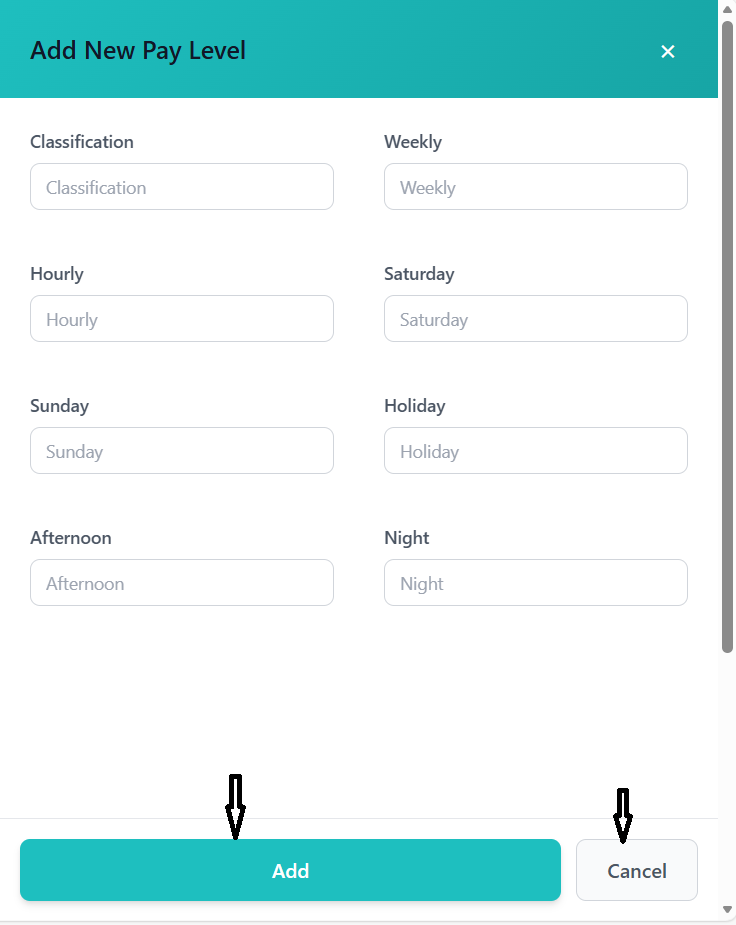
- Form has gradient header with title "Add New Pay Level"
Form Fields
- Classification: Text input for pay rate classification name
- Weekly: Number input for weekly pay rate
- Hourly: Number input for hourly pay rate
- Saturday: Number input for Saturday pay rate
- Sunday: Number input for Sunday pay rate
- Holiday: Number input for holiday pay rate
- Afternoon: Number input for afternoon shift rate
- Night: Number input for night shift rate
Form Layout
- Two-column grid layout on medium screens and larger
- Single column on mobile devices
- Consistent spacing between fields
- Labels above inputs for clarity
- Add Button: Primary teal-colored button
- Cancel Button: Secondary button with border
- Fixed position at bottom of panel
- Consistent with dark mode theming
Submission Process
- Click "Add" button to submit form
- All fields are required and validated
- Numeric fields must contain valid numbers
- Organization ID is automatically included
- Form closes automatically on success
- New pay level appears in the table
- Table refreshes to include the new entry
- No explicit success message - changes are visible immediately
Editing PayLevel Details
How to modify PayLevel information and settings.
Inline Editing Feature
- Locate the pay level you want to edit in the table
- Click the blue "Edit" button (pencil icon) in the Actions column
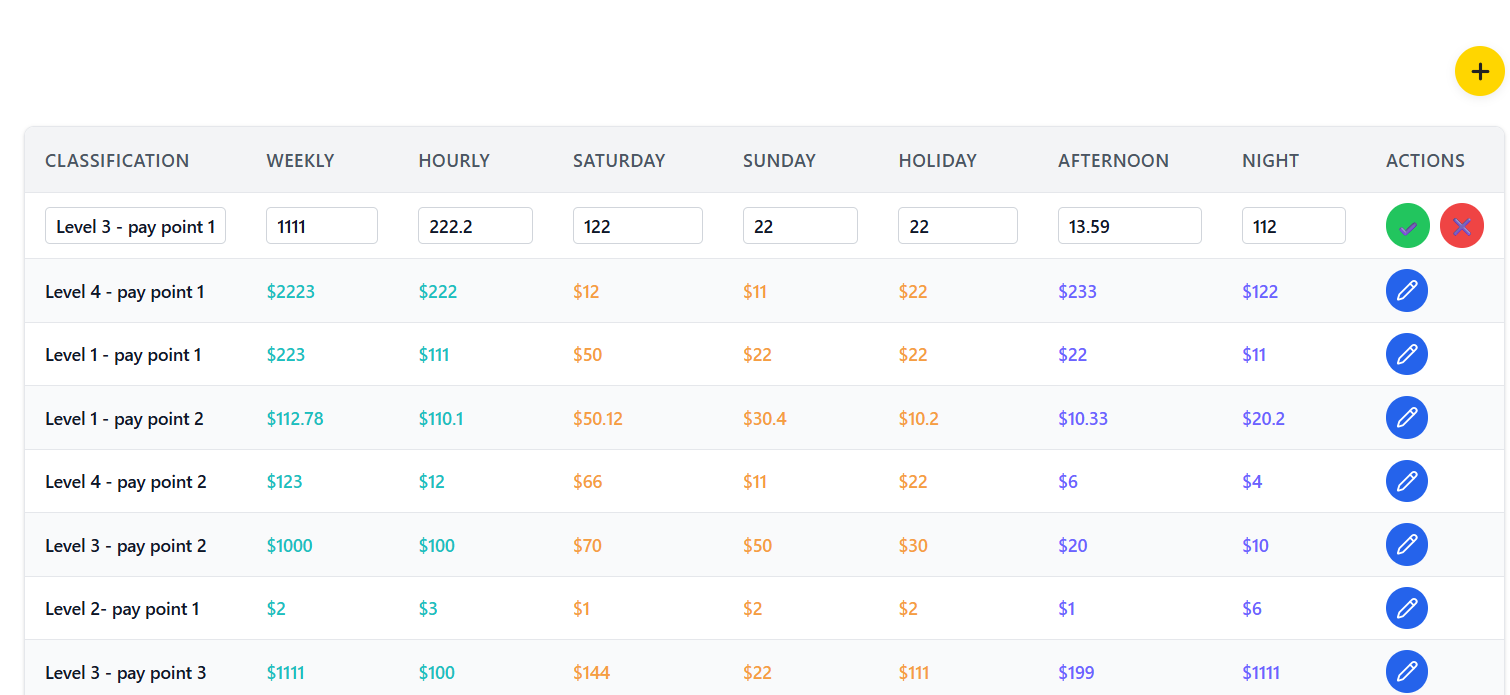
- The row transforms into editable input fields
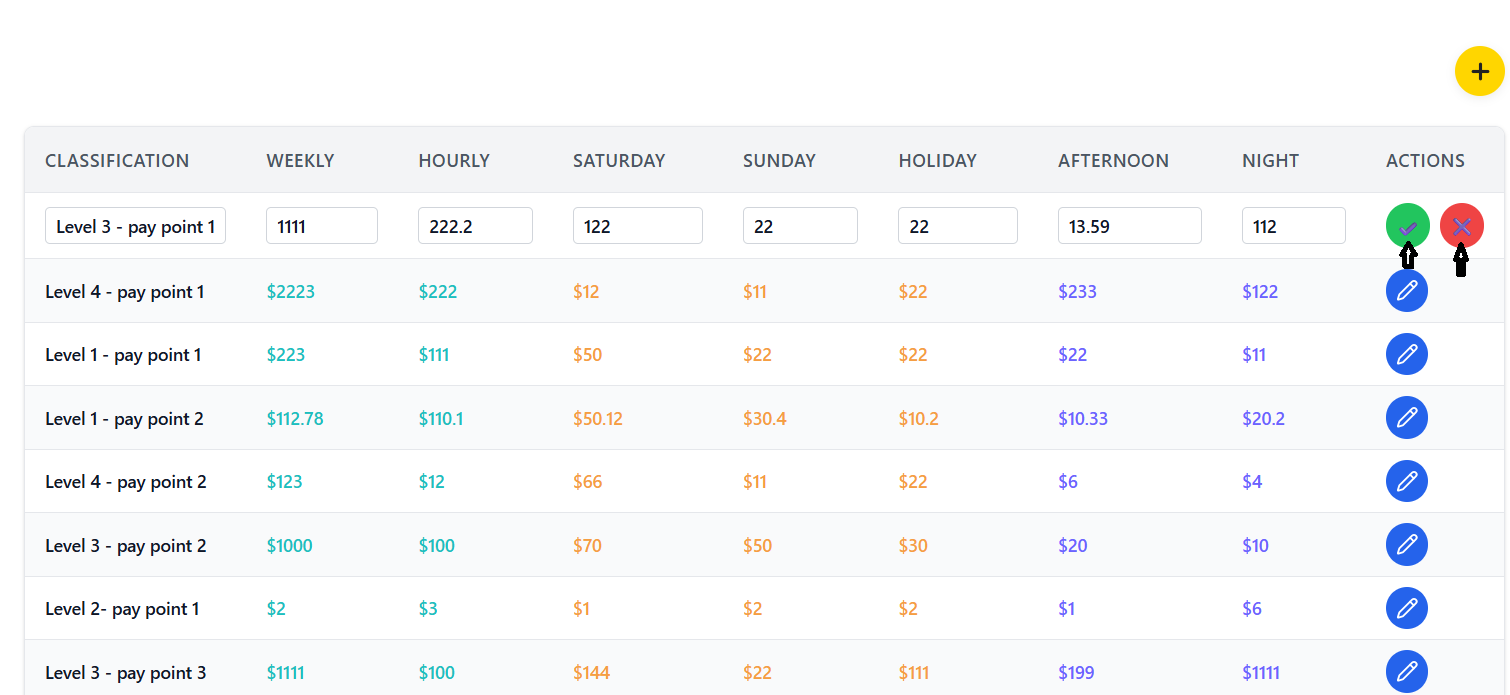
- Save and Cancel buttons appear in the Actions column
Editable Fields
- Classification: Text input field
- Weekly: Number input field
- Hourly: Number input field
- Saturday: Number input field
- Sunday: Number input field
- Holiday: Number input field
- Afternoon: Number input field
- Night: Number input field
Edit Actions
- Click the green "Save" button (checkmark icon)
- System validates all changes
- Numeric fields must contain valid numbers
- Redux
updatePayRateaction is dispatched
- Row returns to read-only mode
- Changes are immediately reflected in the table
- No explicit success message - changes are visible immediately
- Click the red "Cancel" button (X icon) to discard changes
- Row returns to read-only mode without saving
- All edited values are reverted to their original state
Dark Mode Implementation
How dark mode is implemented and managed.
Dark Mode Props
The PayLevel component receives a darkMode prop:
This boolean prop determines the color scheme:
true: Dark mode colors appliedfalse: Light mode colors applied
The component uses conditional class generation based on the darkMode prop:
This pattern is used throughout the component for consistent theming.
Color Scheme Variables
| Element | Light Mode | Dark Mode |
|---|---|---|
| Background | bg-white | bg-gray-900 |
| Text | text-gray-900 | text-gray-100 |
| Card Background | bg-white | bg-gray-800 |
| Input Background | bg-white | bg-gray-700 |
| Input Border | border-gray-300 | border-gray-600 |
| Table Header | bg-gray-100 | bg-gray-800 |
| Table Row (even) | bg-white | bg-gray-900 |
| Table Row (odd) | bg-gray-50 | bg-gray-800 |
Consistent Accent Colors
Despite the dark/light mode toggle, certain accent colors remain consistent:
- Primary Accent: #1EBFBF (teal) - Used for weekly and hourly rates
- Secondary Accent: #F59E42 (orange) - Used for weekend and holiday rates
- Tertiary Accent: #6C63FF (purple) - Used for shift rates
- Action Buttons: Maintain their distinctive colors in both modes
Error Handling
Understanding error management and user feedback.
Error Display
- Positioned at the top of the component
- Red background with white text
- Sticky positioning to remain visible while scrolling
- Close button (X icon) to dismiss the error
- Displays the exact error message from Redux state
- Errors stored in Redux
payRatesErrorstate useEffecthook shows error when present- User can dismiss errors with close button
clearPayRateErroraction clears the error state- Errors automatically cleared on component mount
Loading States
- Displayed during initial data fetch
- Centered vertically and horizontally
- Uses custom
LoadingFlowercomponent - Prevents user interaction during loading

Form Validation
- All form fields marked as required
- Numeric inputs validate for number format
- Browser-native validation used for simplicity
- Form submission prevented if validation fails
- Backend validates data before persistence
- Organization ID required for all operations
- Data type validation on server side
- Error messages returned from API for display
Data Validation
Input validation rules and requirements.
Frontend Validation
All form fields in the Add PayLevel form are required:
- Classification: Non-empty string
- Weekly: Valid number
- Hourly: Valid number
- Saturday: Valid number
- Sunday: Valid number
- Holiday: Valid number
- Afternoon: Valid number
- Night: Valid number
- Numeric fields use
type="number"input - Browser prevents non-numeric input
- Values converted to numbers before API submission
- Negative numbers allowed (for rate adjustments)
Backend Validation
The backend API validates all incoming data:
- Organization ID: Must be valid and exist in system
- Classification: Non-empty string, unique per organization
- Numeric Fields: Valid numbers, reasonable ranges
- Data Types: Correct data types for all fields
Backend returns appropriate error messages for validation failures:
- Field-specific error messages
- HTTP status codes indicating error type (400, 404, 500)
- Consistent error response format
- User-friendly error messages for display
Edit Mode Validation
- Same validation rules as add form
- Numeric inputs must contain valid numbers
- Empty fields not allowed
- Validation occurs before save operation
- Save button disabled if validation fails
- User must correct errors before saving
- Cancel button always available to discard changes
Troubleshooting Guide
Solutions to common issues and problems you may encounter.
Common Issues
Possible Causes:
- Invalid or missing organizationId
- Network connection issues
- Backend API unavailable
- Authentication problems
Solutions:
- Verify organizationId is passed correctly to component
- Check network connection and API status
- Verify user has proper permissions
- Check browser console for error messages
Possible Causes:
- Missing required fields
- Invalid data in numeric fields
- Duplicate classification name
- Backend validation failure
Solutions:
- Ensure all form fields are filled
- Verify numeric fields contain valid numbers
- Check for duplicate classification names
- Review error message for specific issue
Possible Causes:
- JavaScript errors preventing edit mode activation
- Invalid row data
- Network issues during save operation
Solutions:
- Check browser console for errors
- Verify pay level data is valid
- Try refreshing the page
- Check network connection
Possible Causes:
- darkMode prop not passed correctly
- CSS class conflicts
- Browser caching issues
Solutions:
- Verify darkMode prop is boolean true/false
- Check for CSS specificity issues
- Clear browser cache and hard refresh
- Test in different browser
Possible Causes:
- Error state not properly updated in Redux
- Error message too long for display
- CSS hiding error element
Solutions:
- Check Redux devtools for error state
- Verify error message format
- Inspect element to check CSS styles
- Test with known error condition
Error Message Reference
| Error Message | Meaning | Solution |
|---|---|---|
| "Failed to load pay rates" | Network or API issue during data fetch | Check network connection and API status |
| "Organization ID is required" | Missing organizationId prop | Verify organizationId is passed to component |
| "Failed to add pay rate" | API error during pay rate creation | Check backend logs and validation rules |
| "Failed to update pay rate" | API error during pay rate update | Verify pay rate exists and data is valid |
| "Please fill out this field" | Browser validation - missing required field | Complete all form fields before submission |
Developer Tools
- Use React DevTools to inspect component props and state
- Use Redux DevTools to monitor state changes and actions
- Check browser Network tab for API request/response details
- Monitor browser Console for JavaScript errors
- Verify all required props are passed correctly
Contact Support
- Persistent errors after trying all solutions
- Data not saving despite no error messages
- UI rendering issues in specific browsers
- Performance problems with large datasets
Information to Provide:
- Browser and version
- Steps to reproduce the issue
- Error messages from console
- Network tab screenshots if applicable
- Any recent changes to the system