Case Notes Management System
Complete guide for case notes management. Select a topic below to get started.
System Overview
Learn about the system features, user roles, and permissions.
Accessing the System
How to access the case notes module and navigate the interface.
User Permissions & ACL
Understanding role-based access control and permissions.
Viewing Case Notes
How to view and navigate through case notes.
Filtering & Search
Using filters and search to find specific case notes.
Creating Case Notes
How to create new case notes with proper validation.
Security Features
Security measures and data protection features.
AI Summary Generation
Using AI to generate summaries of case notes.
Analytics & Charts
Visualizing case note data with charts and analytics.
Pagination & Navigation
Navigating through large sets of case notes.
Troubleshooting
Solutions to common issues and problems.
System Overview
The Case Notes Management System enables carers and administrators to document client interactions, observations, and care activities in a secure and organized manner.
Key Features
🔐 Role-Based Access Control
Granular permissions for viewing, creating, and managing case notes based on user roles.
📝 Multi-Type Note Support
Support for various note types including MEDICATION, CARE_PLAN, GENERAL, INCIDENT, and more.
🔍 Advanced Filtering
Filter by client, employee, date range, and search across all note content.
🤖 AI-Powered Summarization
Generate intelligent summaries of case notes using AI technology.
📊 Visual Analytics
Interactive charts showing case note trends by date and employee.
🔒 Security-First Design
Token-based authentication and employee ID validation for all operations.
User Roles & Permissions
| Feature | Carer (Employee) | Administrator/Manager |
|---|---|---|
| View Own Case Notes | ✓ | ✓ |
| View All Case Notes | ✗ | ✓ |
| Create Case Notes | ✓ | ✓ |
| Edit Case Notes | ✓ | ✓ |
| Delete Case Notes | ✓ | ✓ |
| View Employee Dropdown | ✗ | ✓ |
| Generate AI Summaries | ✓ | ✓ |
| Access Analytics | ✓ | ✓ |
Note Type Categories
MEDICATION
Documentation of medication administration, changes, or observations
CARE_PLAN
Updates to client care plans and treatment strategies
GENERAL
General observations and daily care activities
INCIDENT
Documentation of incidents, accidents, or unusual events
ASSESSMENT
Client assessments and evaluation notes
PROGRESS
Progress notes and client improvement tracking
Accessing the Case Notes System
How to access and navigate the case notes management module.
- Login to the main application with your credentials
- Navigate to the "Case Notes" section from the main menu
- System automatically loads based on your permissions
Header Section
- Action Buttons: AI Summary, Chart Toggle, Add Note
- Quick Actions: Circular buttons for common tasks
Filter Section
- Client Dropdown: Filter by specific clients
- Employee Dropdown: Filter by carers (admin only)
- Search Field: Search across all note content
Main Content Area
- Timeline View: Chronological display of case notes
- Chart Section: Visual analytics (toggleable)
- Pagination: Navigation through multiple pages
- System automatically fetches case notes based on your permissions
- Dropdowns populate with clients and employees (if permitted)
- Loading indicator shows during data fetch
- Error messages display if data loading fails
User Permissions & Access Control
Understanding role-based access control and permission management.
Permission System Architecture
The system uses a granular permission system with the following key permissions:
CaseNote_View- Permission to view case notesCaseNote_Create- Permission to create new case notesCaseNote_Edit- Permission to edit existing case notesCaseNote_Delete- Permission to delete case notesCaseNote_Emp_Dropdown- Permission to see employee dropdown
- System extracts employee ID from JWT token
- All case note operations are validated against this ID
- Employees without dropdown permission can only see their own notes
- Employee ID is automatically set in create forms for security
Employee View (No Dropdown Permission)
- Can only view their own case notes
- Employee dropdown shows only themselves
- Cannot change employee selection
- Create forms auto-populate with their employee ID
Administrator View (With Dropdown Permission)
- Can view all case notes across organization
- Employee dropdown shows all employees
- Can filter by any employee
- Full access to all features
Permission Flow Diagram
Access Denied Scenarios
| Scenario | User Type | System Response |
|---|---|---|
| No CaseNote_View permission | Any User | Shows "Access Denied" message with lock icon |
| Employee without dropdown permission | Employee | Shows only own notes, dropdown disabled |
| No employee ID in token | Any User | Shows error and prevents note creation |
| No CaseNote_Create permission | Any User | Add Note button hidden or disabled |
Viewing Case Notes
How to view and navigate through case notes in the system.
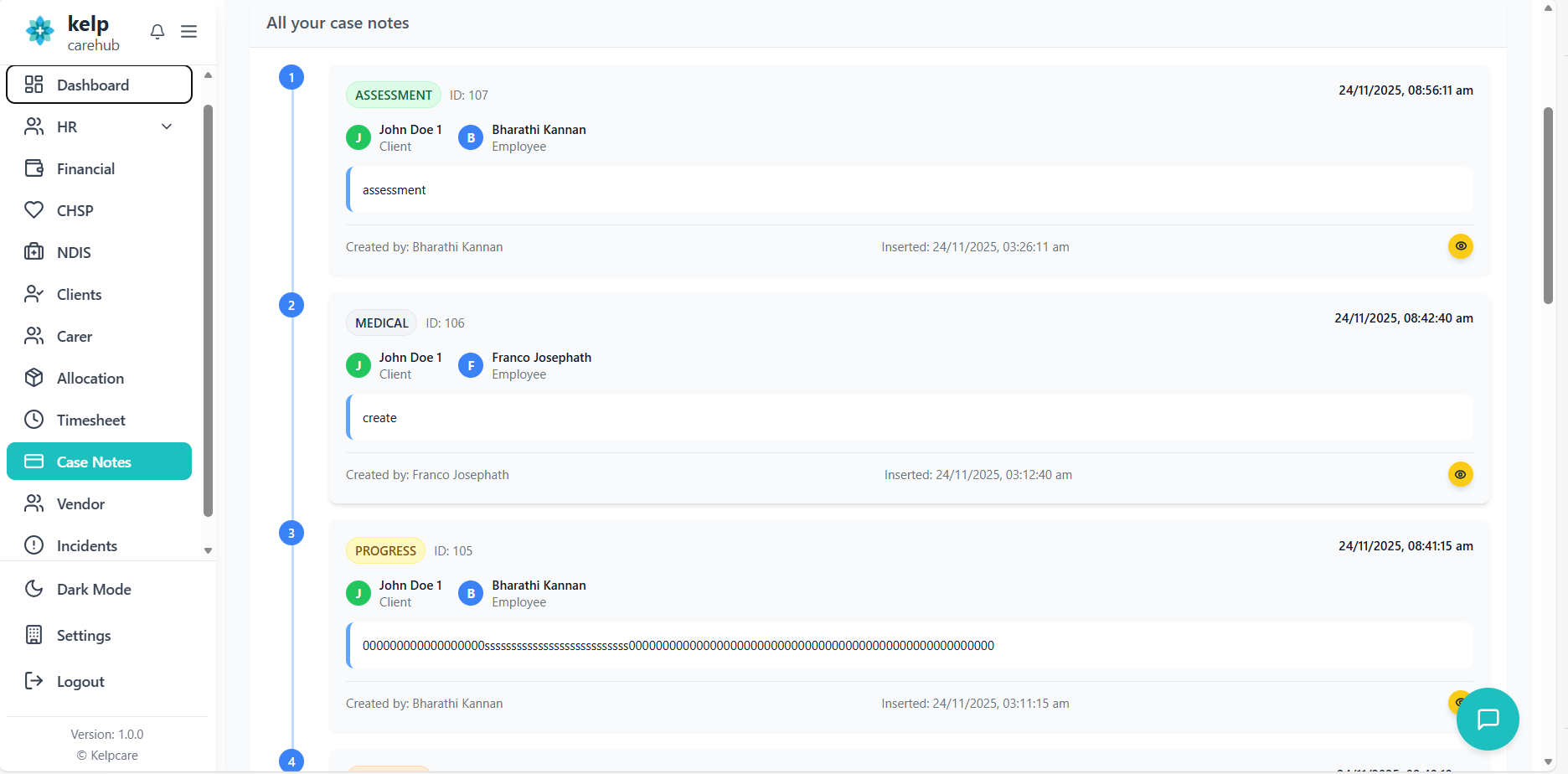
Timeline Interface
- Vertical Timeline: Notes displayed chronologically with connecting line
- Numbered Indicators: Each note has a sequential number based on page position
- Card Design: Each note in a separate card with hover effects
Header Section
- Note Type Badge: Color-coded badge showing note category
- Note ID: Unique identifier for the case note
- Date/Time: When the note was created (IST format)
Client & Employee Info
- Client Avatar: Green circle with client initial
- Client Name: Name of the client
- Employee Avatar: Blue circle with employee initial
- Employee Name: Name of the carer who created the note
Note Content
- Description Box: Main note content in bordered container
- Formatting: Preserves line breaks and formatting
- Empty State: Shows "No description available" if empty
Footer Section
- Created By: User who created the note
- Insert Date/Time: When note was saved to system
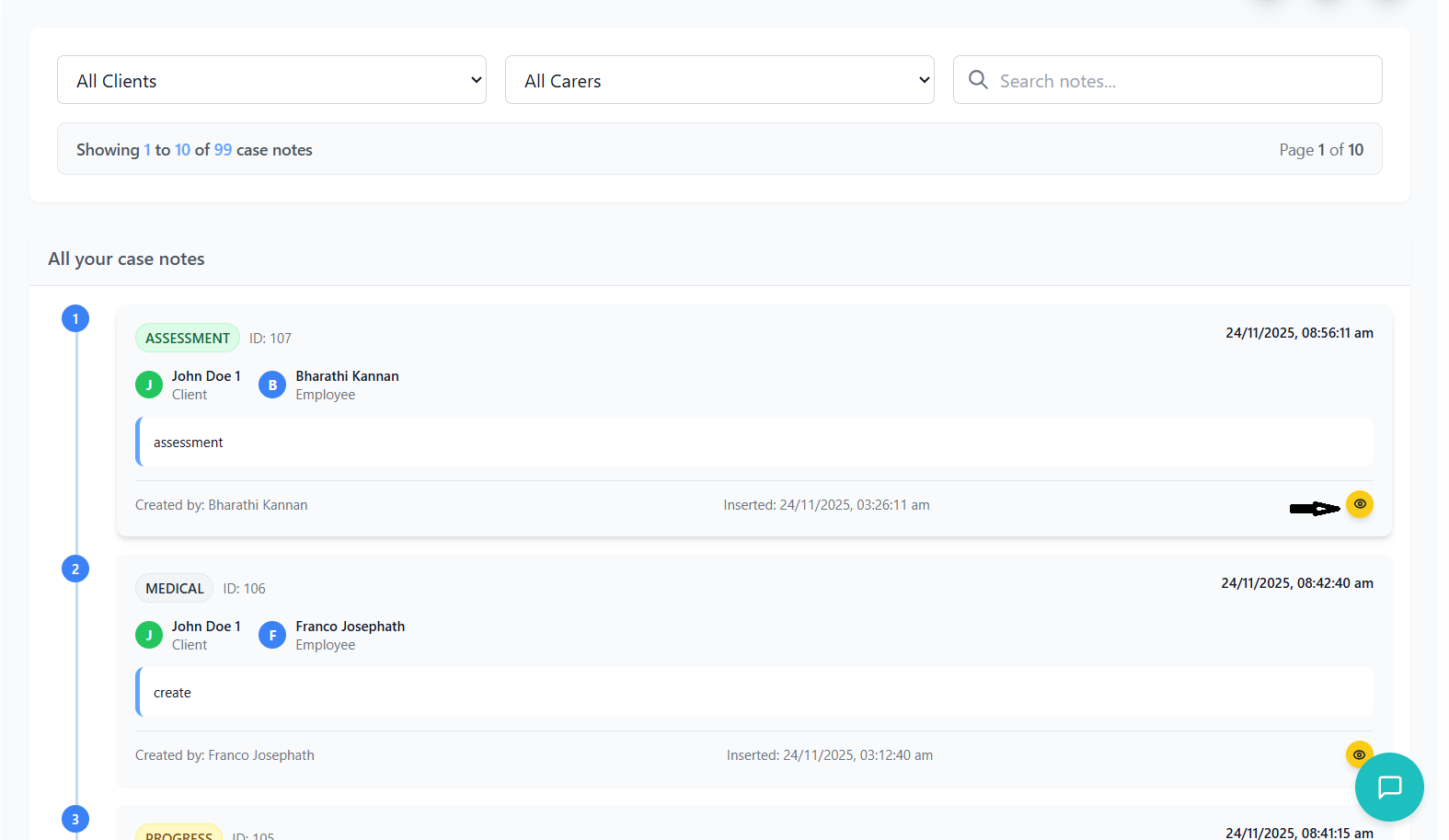
- View Button: Eye icon to view full details
Viewing Note Details
- Click the eye icon (View Details) on any case note card
- Modal opens with full note information
- Background dims to focus on note details
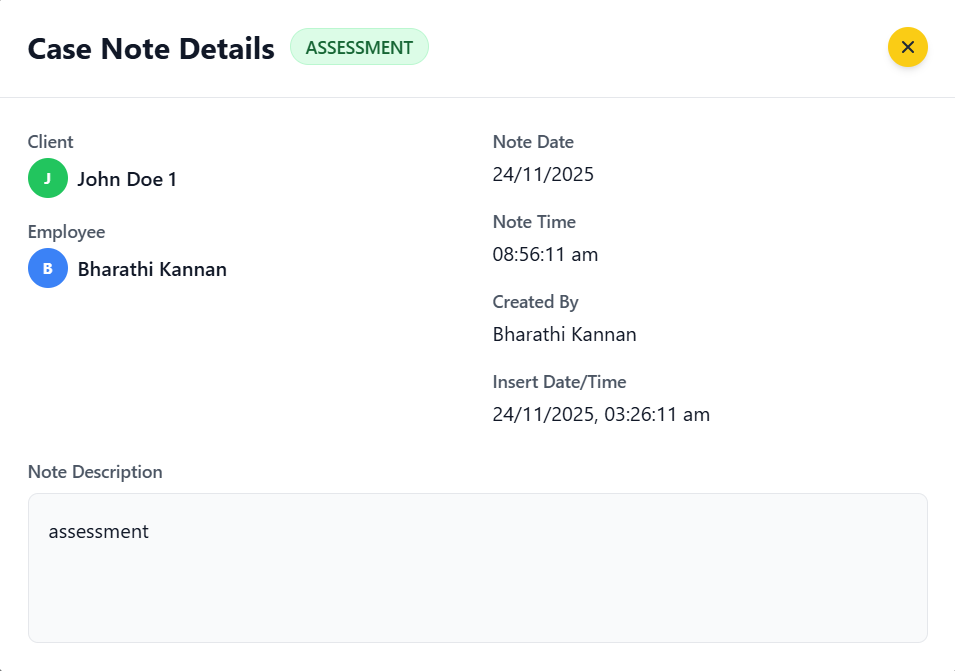
Header
- Title: "Case Note Details"
- Note Type Badge: Prominently displayed
- Close Button: Yellow circular button with X icon
Information Grid
- Left Column: Client and Employee information with avatars
- Right Column: Date, time, created by, and insert datetime
Note Description
- Full Content: Complete note text in scrollable area
- Formatting: Preserves original formatting and line breaks
- Empty State: Shows message if no description
- Click the X button in top-right corner
- Click outside the modal on the dimmed background
- Press Escape key on keyboard
- Returns to main case notes view
Filtering & Search
Using filters and search functionality to find specific case notes.
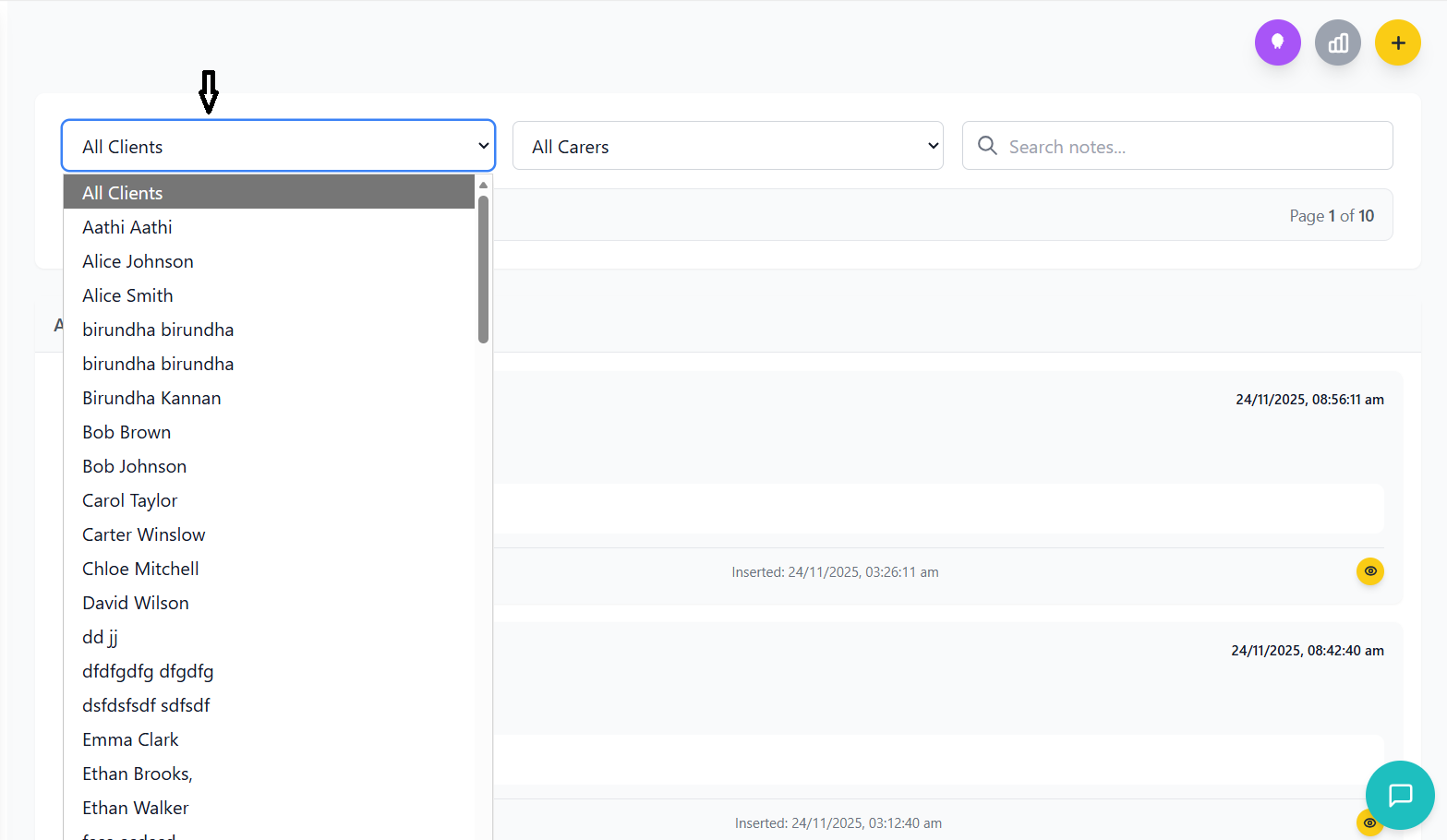
Filter Components
- Dropdown: Shows all clients in the organization
- Default: "All Clients" option selected
- Behavior: Filters notes by selected client only
- Loading: Shows loading state while fetching clients
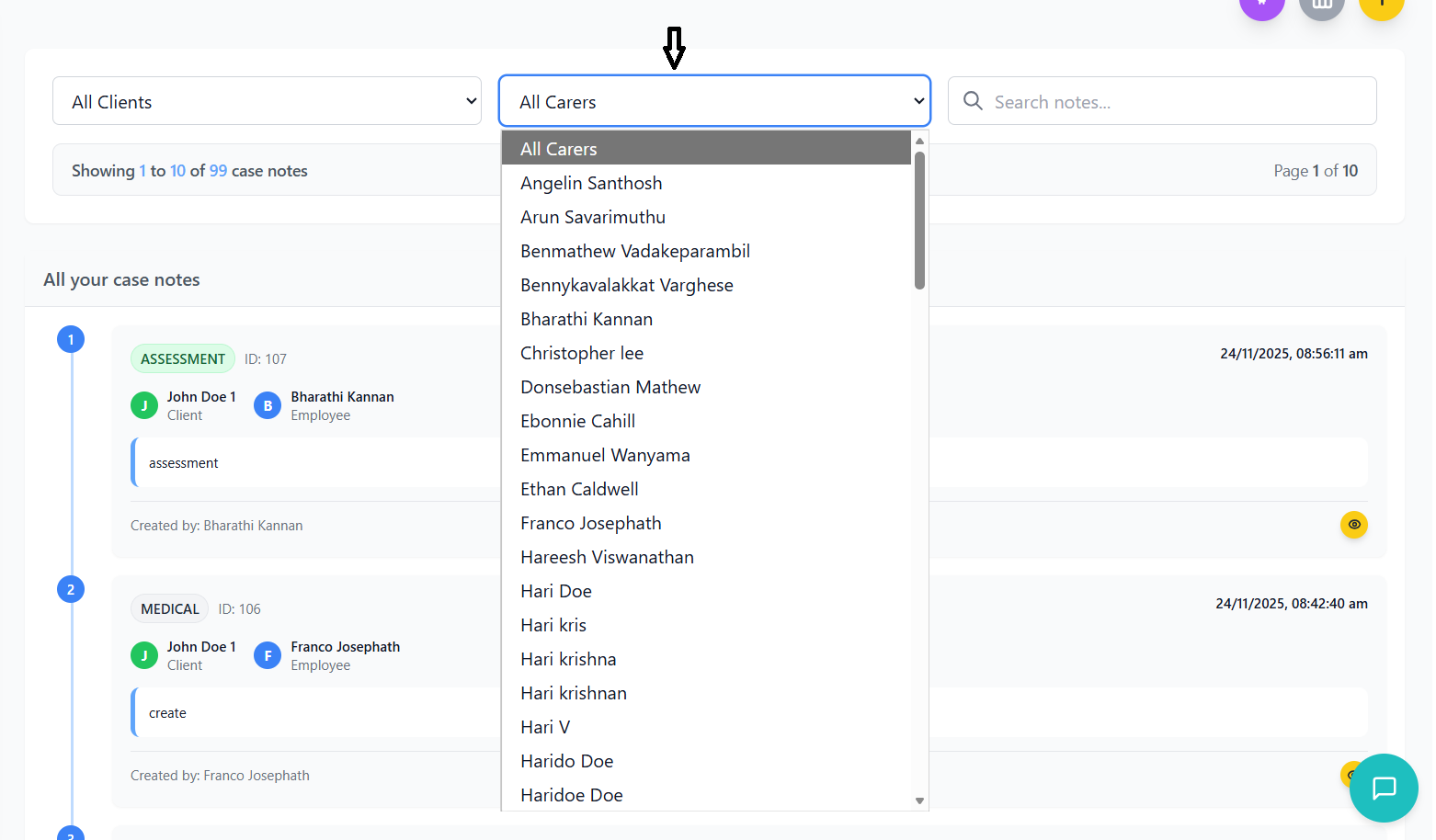
- Role-Based: Content varies based on user permissions
- Admin View: Shows "All Carers" and all employees
- Employee View: Shows only themselves, dropdown disabled
- Security: Employees cannot change their selection
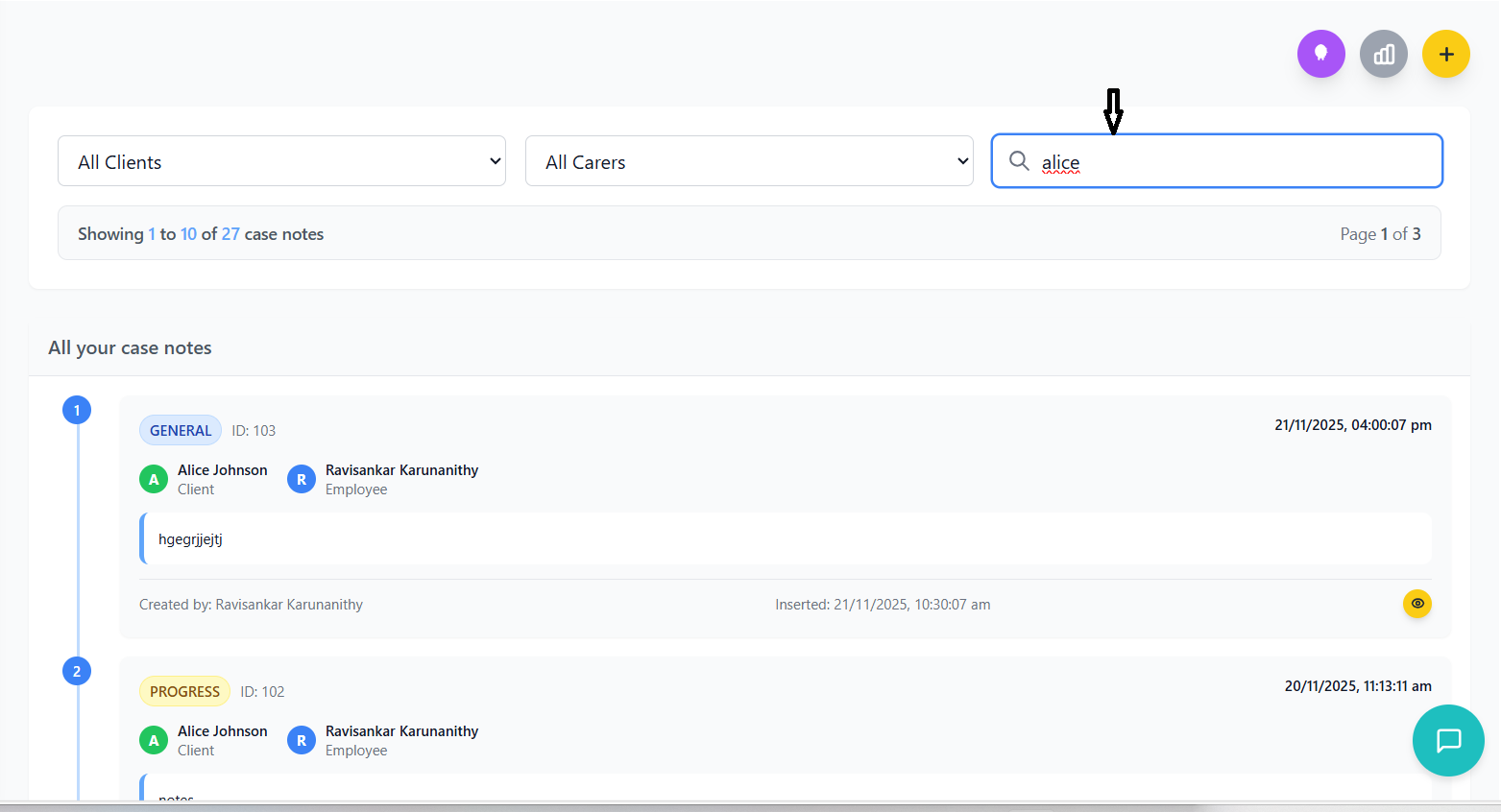
- Real-time Search: Filters results as you type
- Comprehensive Search: Searches across all note fields:
- Note ID
- Note Type
- Note Description
- Client ID and Name
- Employee ID and Name
- Dates and Times
- Created By user
- Case Insensitive: Search is not case-sensitive
- Visual Feedback: Search icon in input field
Filter Combinations
| Filter Combination | Result |
|---|---|
| All Clients + All Carers + No Search | Shows all notes based on user permissions |
| Specific Client + All Carers | Shows all notes for that client |
| All Clients + Specific Carer | Shows all notes by that carer |
| Specific Client + Specific Carer | Shows notes for that client by that carer |
| Any filters + Search Term | Applies both filter and search constraints |
Filter Display Text
The system shows contextual text above the case notes list indicating what filters are currently applied:
- "All your case notes" - Employee viewing their own notes
- "Your notes for [Client Name]" - Employee viewing notes for specific client
- "All notes" - Admin viewing all notes without filters
- "All client notes by [Employee Name]" - Admin filtered by employee
- "All carer notes for [Client Name]" - Admin filtered by client
- "Notes for [Client Name] by [Employee Name]" - Admin filtered by both
Creating Case Notes
How to create new case notes with proper validation and security measures.
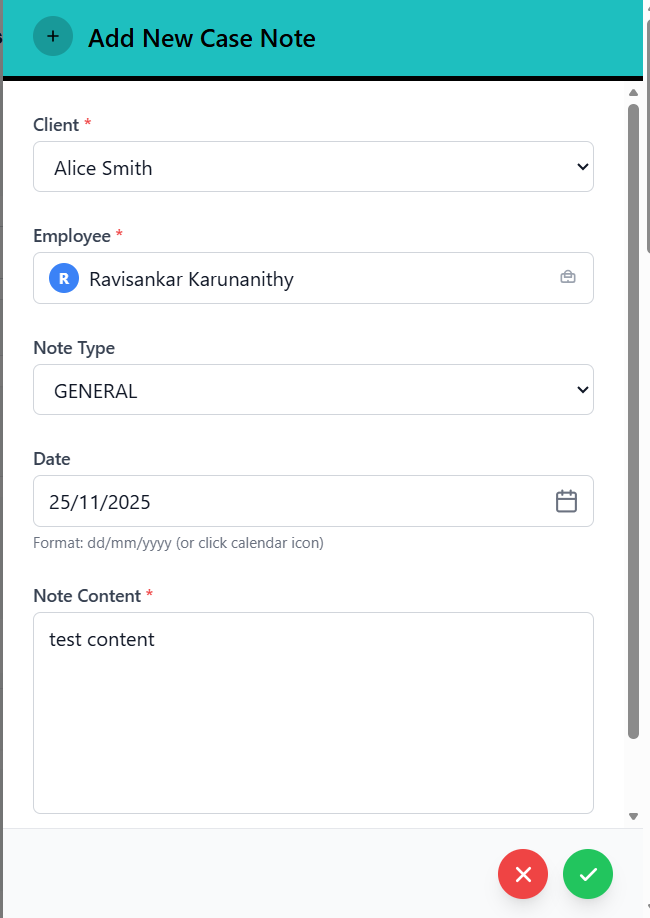
Accessing Create Form
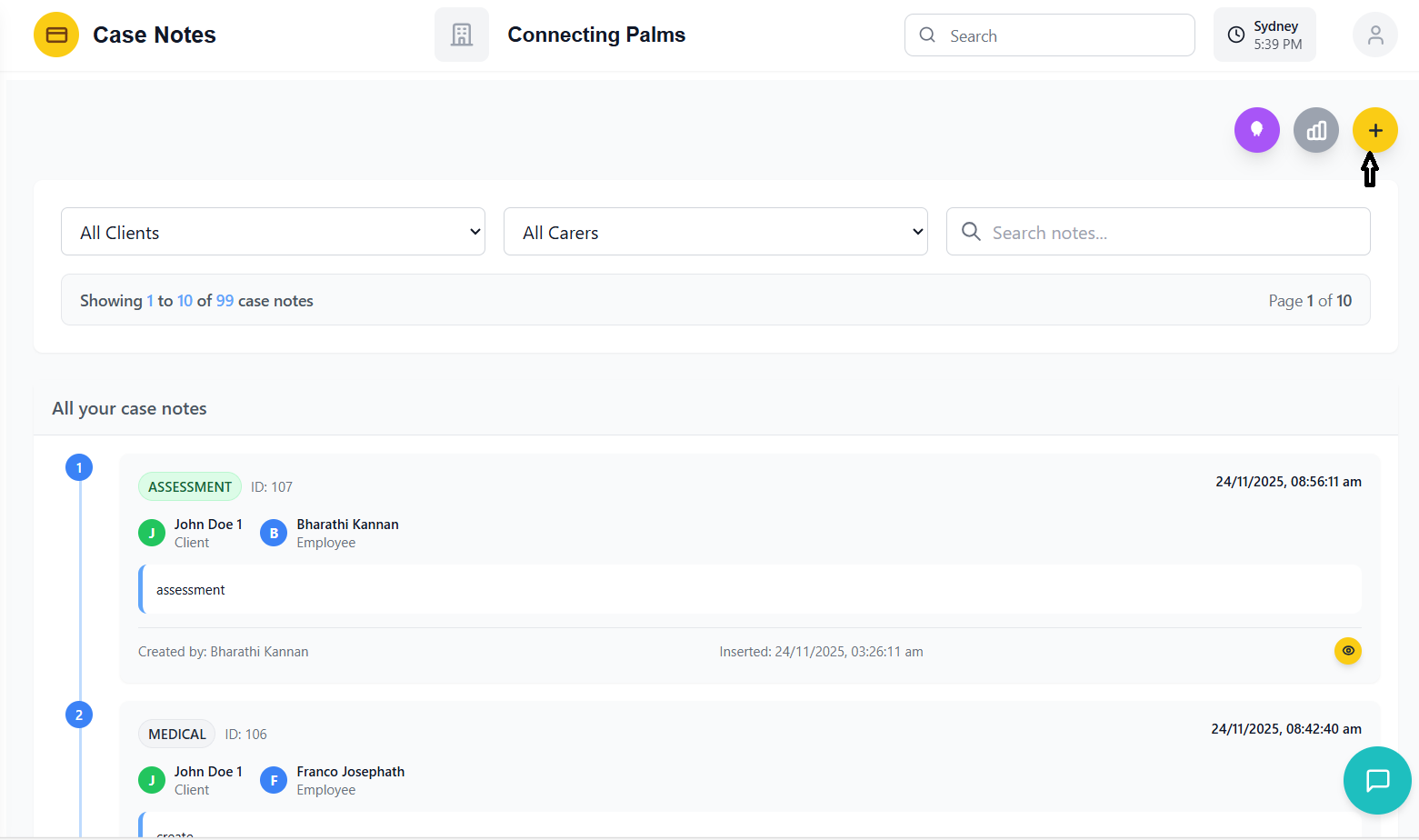
- Click the yellow "Add Case Note" button in top-right corner
- Right-side panel slides in from the right
- Background dims to focus on form
- Form auto-populates with current user information
- System validates user has
CaseNote_Createpermission - Extracts employee ID from JWT token for security
- Pre-populates employee field with current user
- Employee field is disabled to prevent tampering
Form Fields & Validation
- Field: Dropdown with all organization clients
- Validation: Must select a client
- Error: "Please select a client" if empty
- Loading: Shows loading state while fetching clients
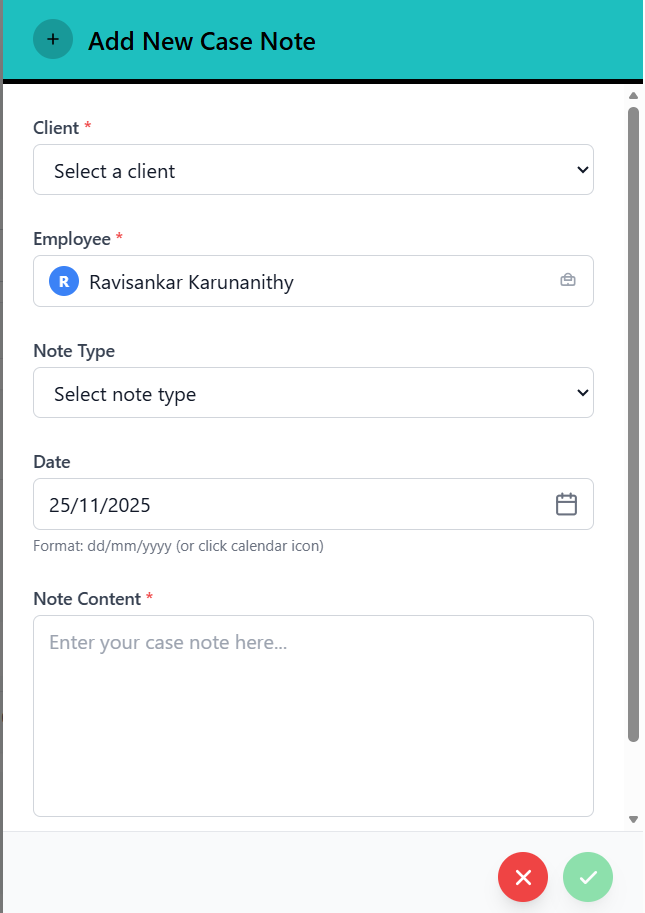
- Field: Display-only field showing current user
- Security: Automatically set from token, cannot be changed
- Visual: Shows user avatar and name
- Validation: Always valid since system-controlled
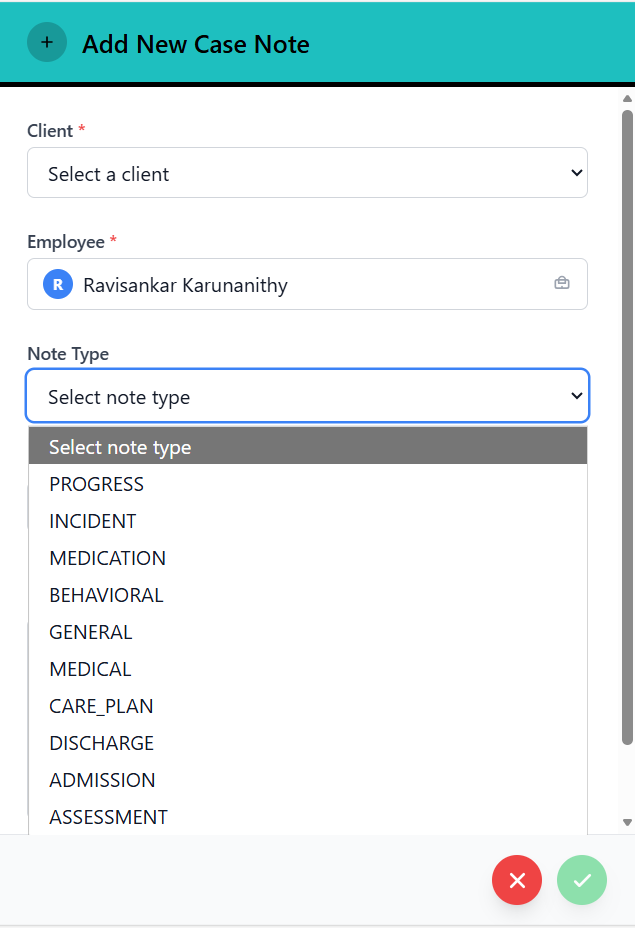
- Field: Dropdown with available note types
- Options: MEDICATION, CARE_PLAN, GENERAL, INCIDENT, etc.
- Default: Empty (no selection)
- Validation: Optional field
- Field: Text input with calendar picker
- Format: dd/mm/yyyy with auto-formatting
- Default: Current date
- Features:
- Auto-adds slashes as you type
- Calendar icon opens date picker
- Custom calendar component
- Click outside to close picker
- Field: Textarea for note description
- Validation: Cannot be empty or only whitespace
- Error: "Please enter note content" if empty
- Size: 6 rows by default, scrollable for longer content
- Field: Checkbox for private notes
- Default: Unchecked (note is not private)
- Purpose: Marks note as private (access restrictions may apply)
- Validation: Optional field
Submission Process
- System validates all required fields are filled
- Client must be selected
- Note content cannot be empty
- Employee ID is automatically validated from token
- Date converted from dd/mm/yyyy to yyyy-mm-dd format
- Employee ID forced to token value (security measure)
- Organization ID added from context
- Created by field set to "current-user"
- Dispatch
createCaseNoteaction with form data - Show loading state on submit button
- Handle success/error responses
- Automatic refresh of case notes list on success
- Form closes automatically on success
- Success message displayed
- Case notes list refreshes to show new note
- Pagination resets to page 1
- Form resets for next use
Security Features
Security measures and data protection features in the Case Notes system.
Authentication & Authorization
- All API calls require valid JWT token
- Token contains user identity and permissions
- Employee ID extracted from token for all operations
- Automatic token refresh handled by application
- UI elements show/hide based on user permissions
- Employee dropdown only visible with
CaseNote_Emp_Dropdownpermission - Add Note button only visible with
CaseNote_Createpermission - AI Summary button only visible with
CaseNote_Viewpermission
- Employees can only view their own case notes
- Administrators can view all case notes
- Server-side validation of data access permissions
- Frontend filtering as additional security layer
Form Security Measures
- Employee field in create form is disabled
- Employee ID always taken from JWT token, not form
- Prevents users from creating notes for other employees
- Visual indicator shows "Auto-assigned to your account"
- Client-side validation for all required fields
- Server-side validation as security backup
- Date format validation with auto-correction
- Content sanitization to prevent XSS attacks
- Generic error messages to avoid information leakage
- Automatic error clearing after 5 seconds
- Rate limit detection and user-friendly messages
- Network error handling with retry options
Data Protection
| Feature | Description | Security Benefit |
|---|---|---|
| Token-Based Auth | JWT tokens for all API requests | Prevents unauthorized access |
| Role-Based Access | Permissions determine data visibility | Data segregation by role |
| Input Sanitization | Clean and validate all user inputs | Prevents injection attacks |
| HTTPS Enforcement | All communications encrypted | Data confidentiality |
| Rate Limiting | API rate limits on sensitive operations | Prevents abuse and DoS |
- Never share your login credentials
- Log out when using shared devices
- Report any suspicious activity immediately
- Use strong, unique passwords
- Keep your device software updated
AI Summary Generation
Using AI technology to generate intelligent summaries of case notes.
Accessing AI Summary
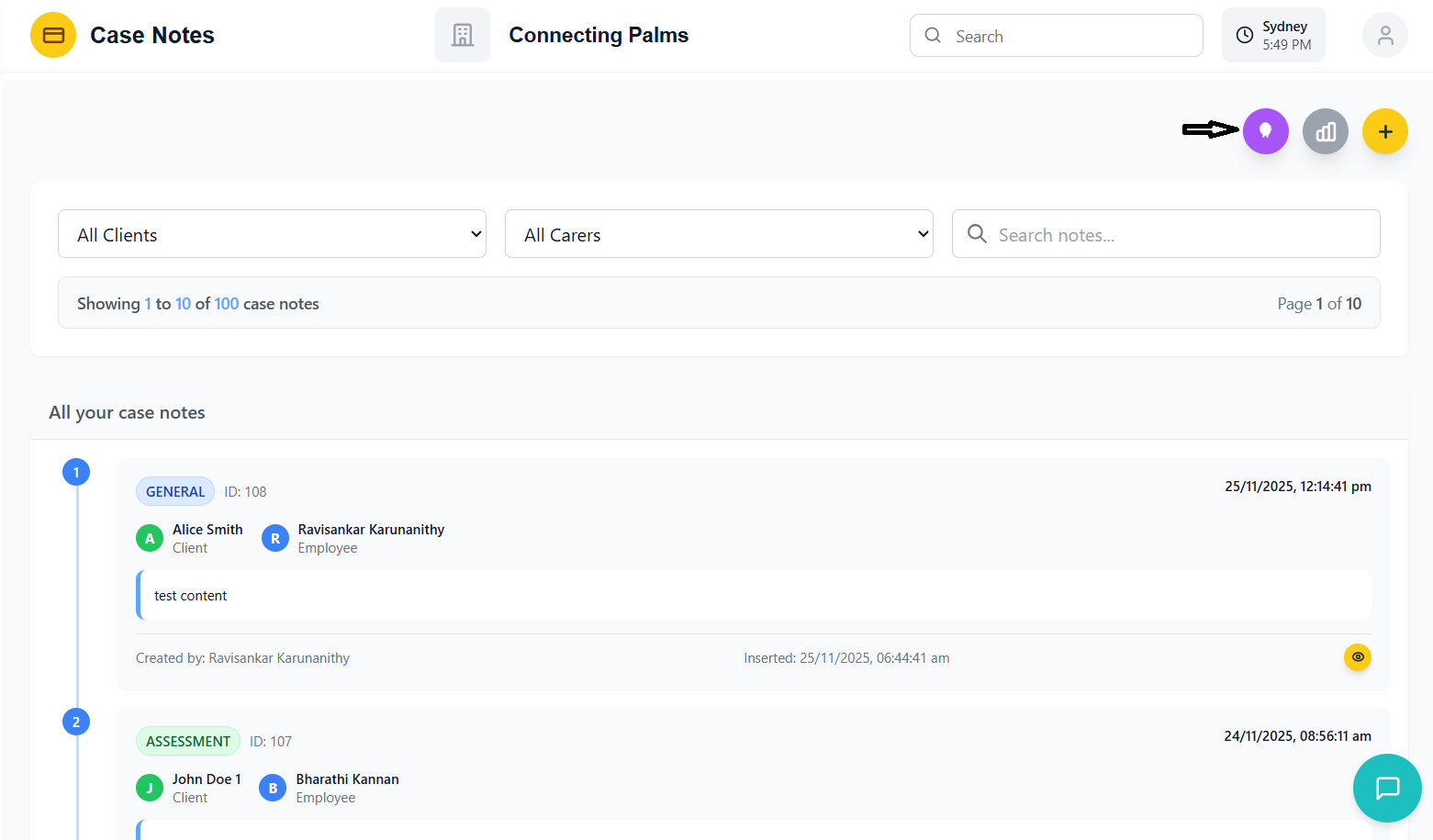
- Purple circular button with AI brain icon in top-right
- Only visible when there are case notes to summarize
- Disabled during generation to prevent multiple requests
- Shows loading spinner when processing
- Requires
CaseNote_Viewpermission - Validates user can view the notes being summarized
- Shows error message if permission denied
- Uses current filters and pagination settings
- Sends organization ID for context
- Includes client and employee filters if applied
- Respects current page and items per page settings
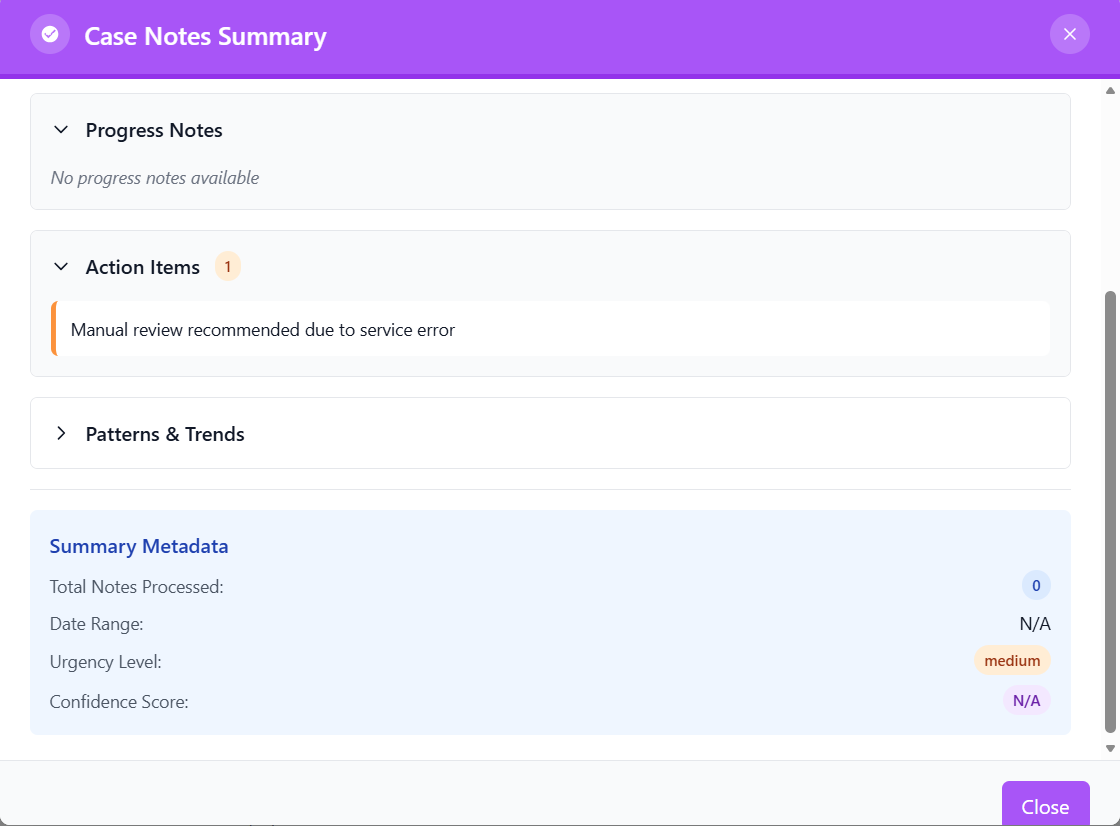
AI Summary Modal
Header
- Title: "Case Notes Summary" with purple theme
- Badge: "Powered by AI" indicator
- Close Button: Standard X button
Content Areas
- Executive Summary: High-level overview (expanded by default)
- Key Observations: Important findings and patterns
- Care Activities: Summary of care provided
- Progress Notes: Client progress and changes
- Action Items: Recommended next steps
- Patterns & Trends: Recurring themes and trends
Metadata Section
- Total Notes Processed: Count of notes analyzed
- Date Range: Time period covered
- Urgency Level: Priority assessment
- Confidence Score: AI confidence in analysis
- Note Types: Categories of notes included
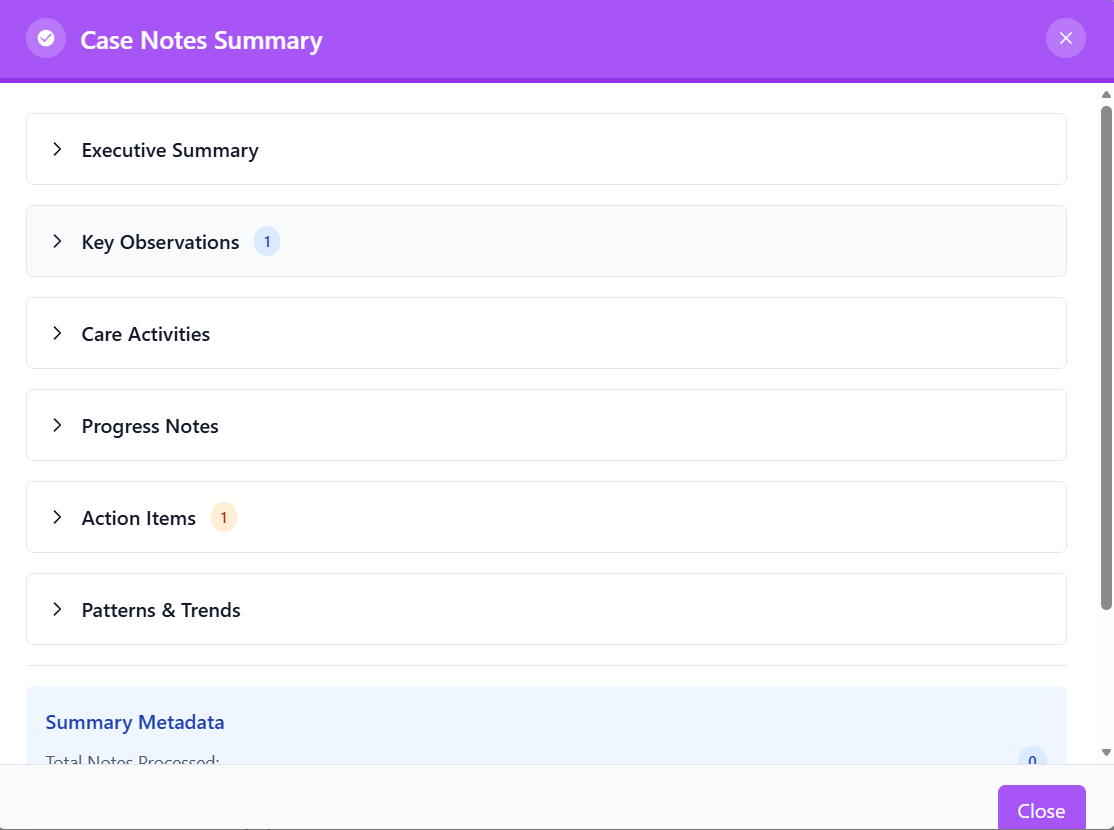
- Expandable/Collapsible: Click section headers to toggle
- Color-Coded: Different colors for each section type
- Item Counts: Badges showing number of items in lists
- Empty States: Messages when no data available
AI Processing Features
🤖 Natural Language Processing
AI understands and processes natural language in case notes
🔍 Pattern Recognition
Identifies patterns, trends, and anomalies across multiple notes
📈 Trend Analysis
Analyzes changes over time and identifies developing situations
⚠️ Risk Assessment
Flags potential risks and urgent situations needing attention
📋 Action Item Extraction
Extracts concrete action items and recommendations
🔒 PII Protection
Anonymizes personally identifiable information during processing
Error Handling
- Rate Limit Exceeded: Too many requests in short time
- Processing Timeout: Summary generation taking too long
- No Data Available: No case notes to summarize
- Network Issues: Connection problems during generation
- Model Unavailable: AI service temporarily unavailable
- Generate summaries for focused data sets (specific client/time period)
- Use filters to narrow down notes before generating summary
- Review AI recommendations before taking action
- Combine AI insights with professional judgment
- Be aware of potential biases in AI analysis
Analytics & Charts
Visualizing case note data with interactive charts and analytics.
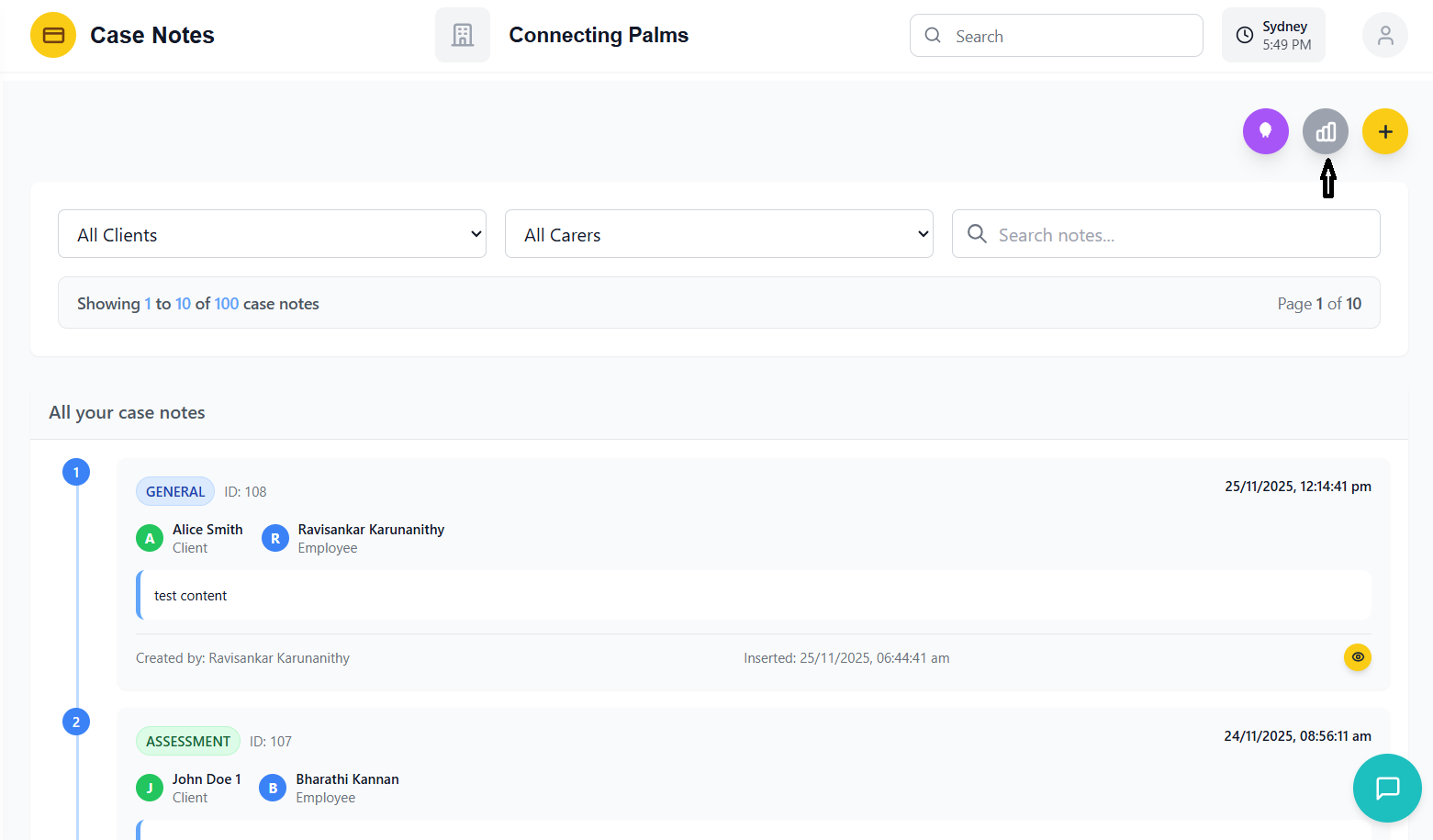
Chart Toggle
- Blue circular chart button in top-right action area
- Toggles chart visibility on/off
- Button color indicates chart state (blue=visible, gray=hidden)
- Only visible when there are case notes to chart
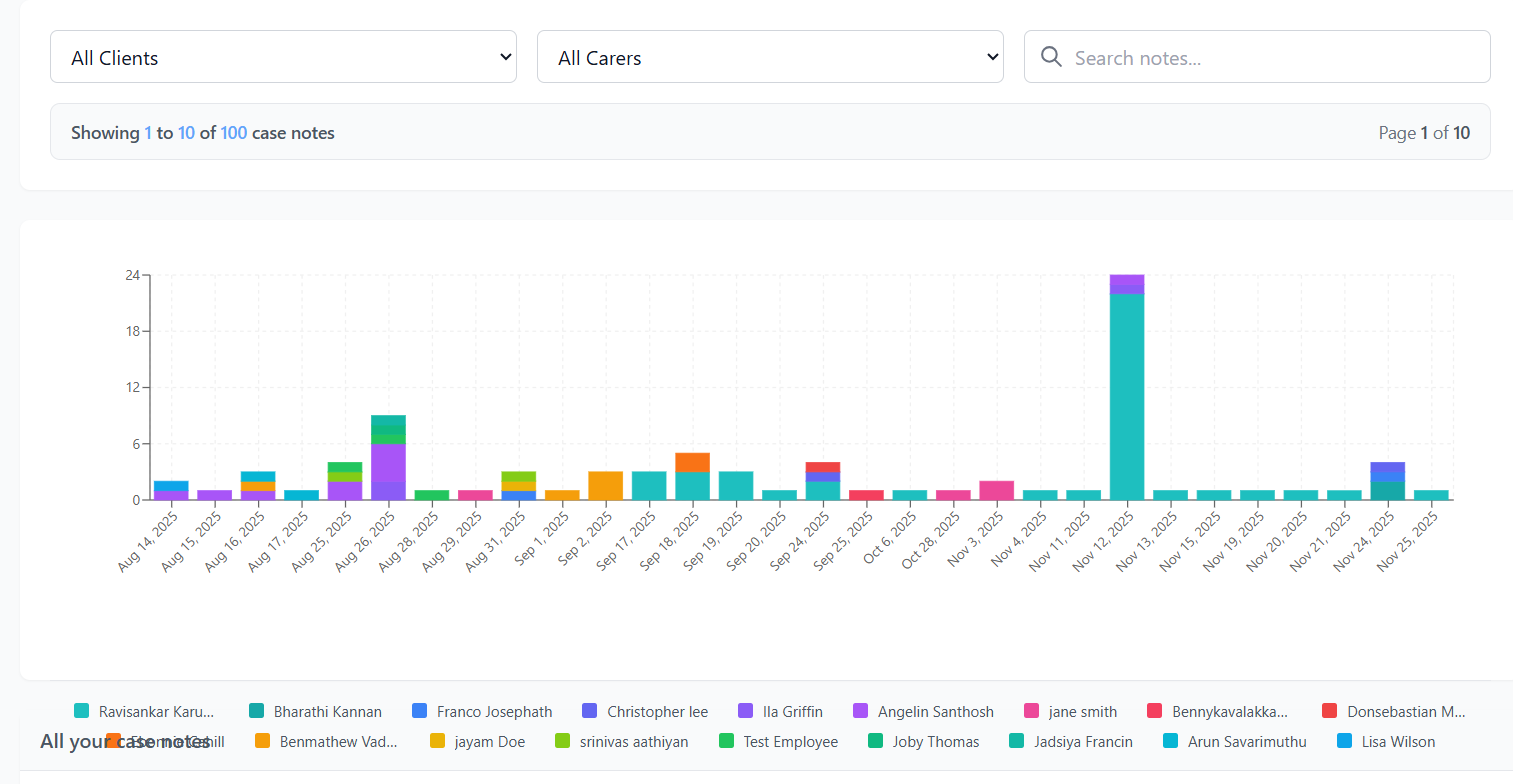
- Groups case notes by date and employee
- Shows last 30 days of data
- Stacks employee contributions for each date
- Automatically updates when filters change
Chart Components
X-Axis (Dates)
- Shows dates in "Mon DD, YYYY" format
- 45-degree angle for better readability
- Shows last 30 dates with case notes
Y-Axis (Note Count)
- Shows number of case notes
- Uses whole numbers only (no decimals)
- Auto-scales based on data range
Bars (Employee Contributions)
- Stacked bars showing each employee's contributions
- Different colors for each employee
- Hover tooltips show exact counts
Tooltips
- Hover over bars to see details
- Shows date, employee name, and note count
- Dark/light theme based on system setting
Legend
- Color-coded employee names below chart
- Shows all employees with case notes in date range
- Horizontal layout with wrapping for many employees
Grid & Styling
- Dashed grid lines for readability
- Theme-appropriate colors (dark/light mode)
- Responsive design for different screen sizes
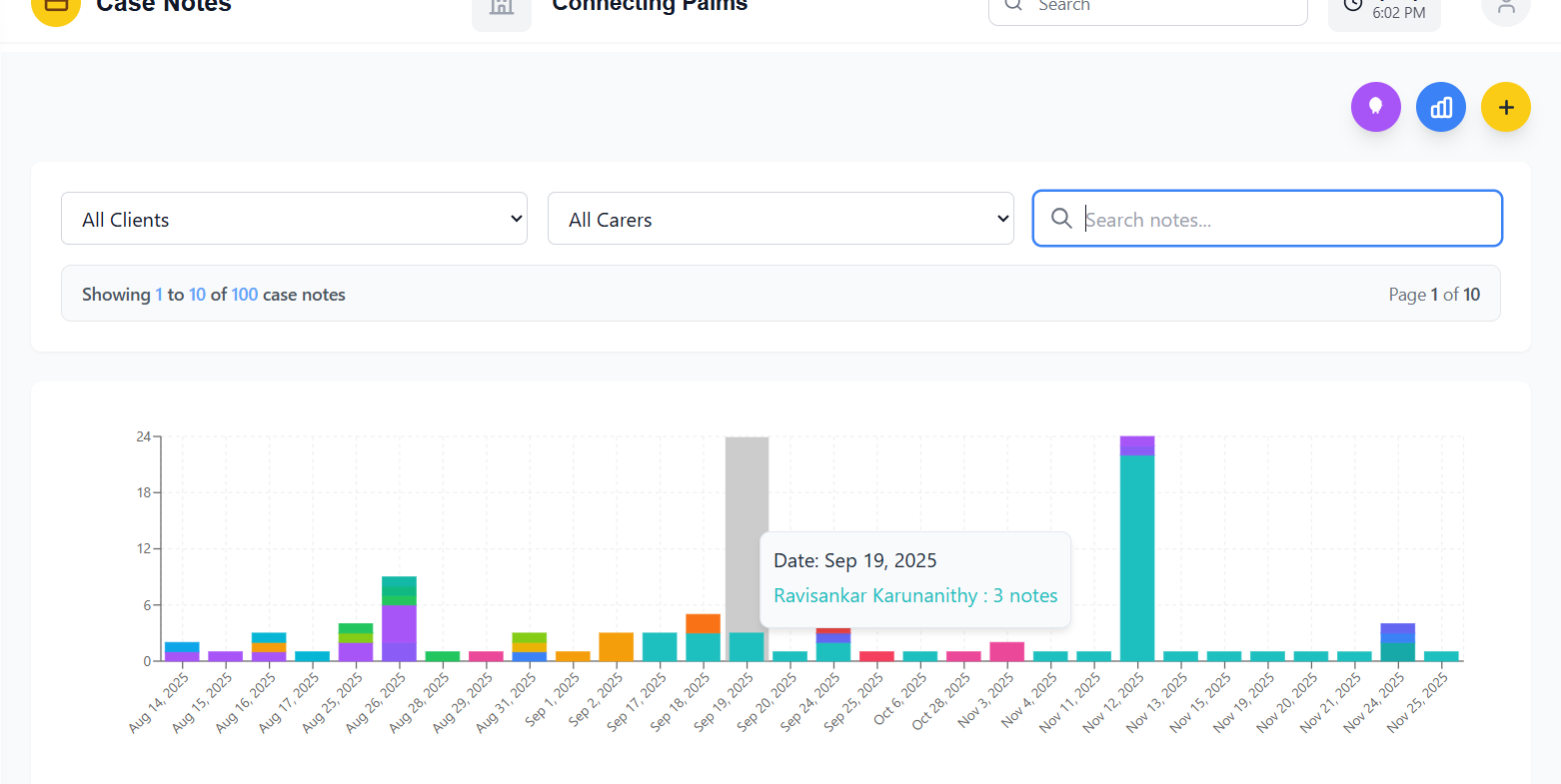
Chart Data Interpretation
| Chart Pattern | Possible Interpretation |
|---|---|
| Consistent bars across dates | Steady case note activity, normal operations |
| Spikes on specific dates | Increased activity, possible incidents or assessments |
| One employee dominating | Primary carer for client, or specialized role |
| Even distribution among employees | Shared care responsibilities, team approach |
| Gaps in dates | No case notes recorded, possible data entry issues |
Empty States
The chart shows appropriate empty states when no data is available:
- No case notes: Shows message and chart icon when no notes exist
- No chart data: Shows message when data cannot be processed for chart
- Loading state: Shows spinner while processing data
- Shows maximum of last 30 days for performance
- Limited to ~20 employees for readable legend
- Does not show note types or content details
- For detailed analysis, use AI summary or export data
Pagination & Navigation
Navigating through large sets of case notes efficiently.
Pagination System
- Items Per Page: Fixed at 10 notes per page
- Server-Side: Pagination handled by server API
- Current Page: Tracks which page is being viewed
- Total Pages: Calculated based on total items
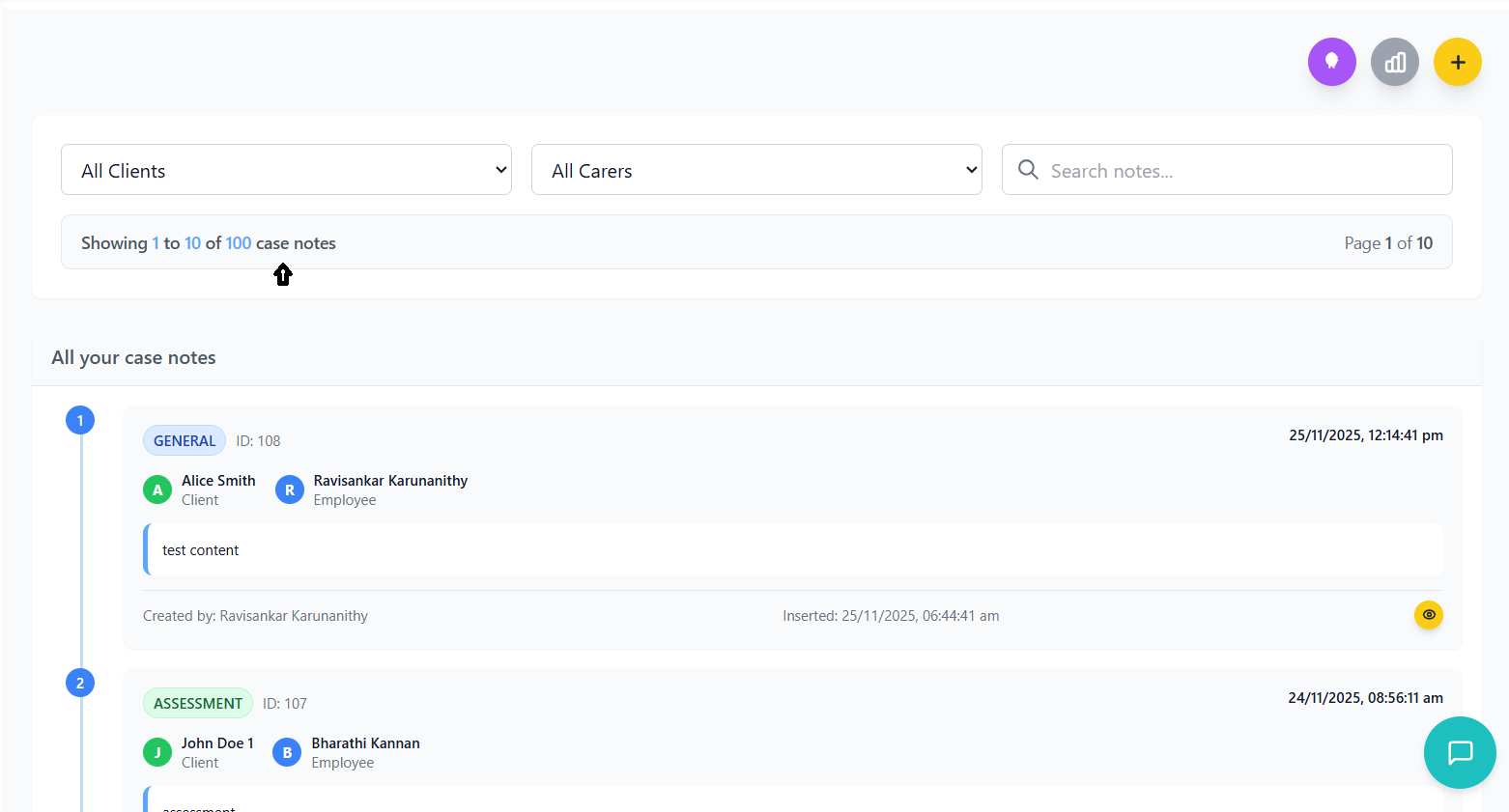
Summary Bar
- Shows current range: "Showing X to Y of Z case notes"
- Page indicator: "Page A of B"
- Located above the case notes list
- Updates automatically when filters change
Timeline Numbering
- Each note shows its position on the current page
- Numbers reset to 1 on each new page
- Helps track position within current view
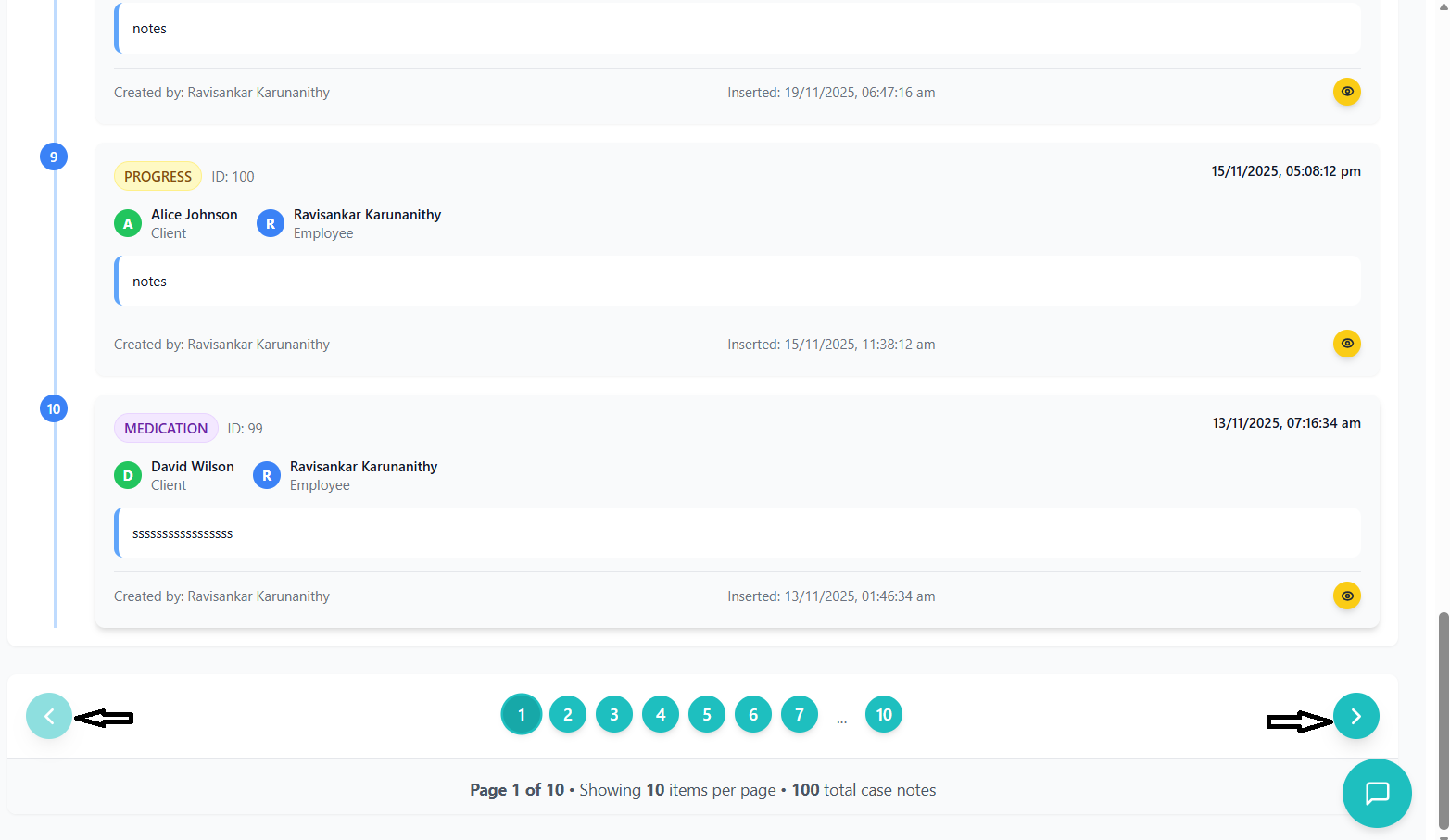
Navigation Controls
- Previous Button: Left arrow, goes to previous page
- Next Button: Right arrow, goes to next page
- Disabled States: Grayed out when at first/last page
- Hover Effects: Scale animation on hover
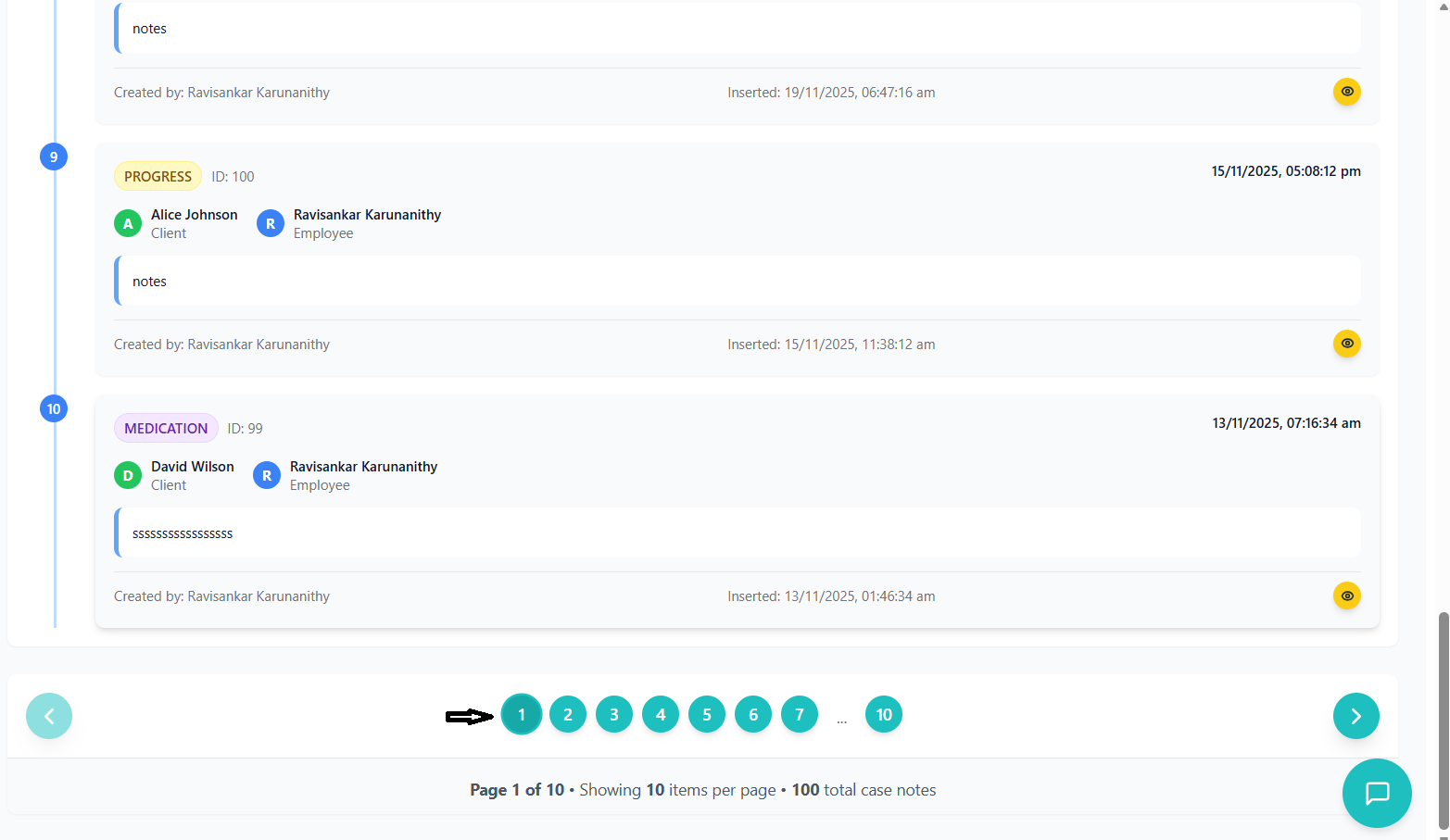
- Desktop: Shows up to 7 page numbers with ellipsis
- Mobile: Shows only current page and total
- Current Page: Highlighted with different color
- Click to Navigate: Direct jump to any page
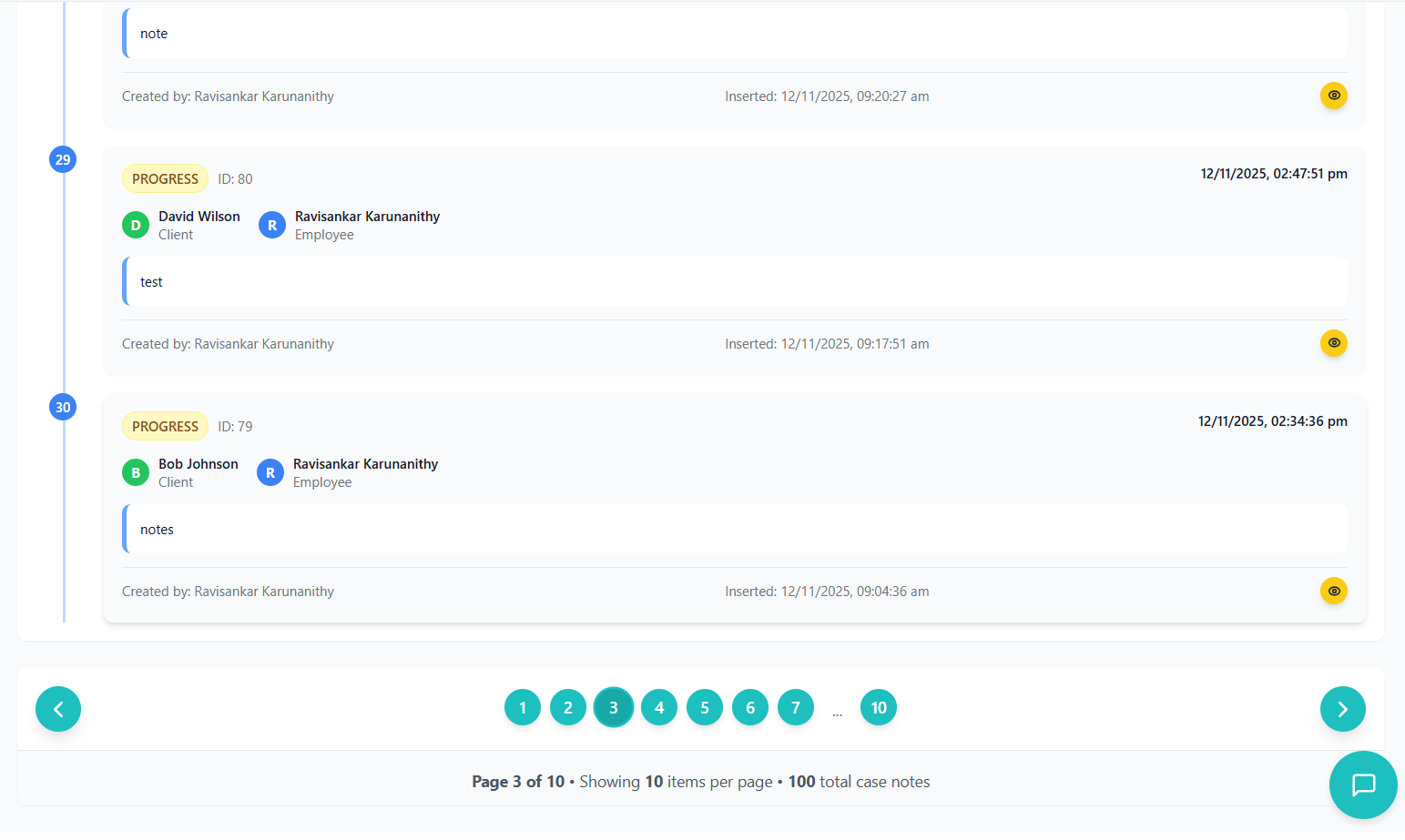
- First/Last Pages: Always shown with ellipsis for gaps
- Current Page Centered: Shows pages around current page
- Ellipsis: Indicates skipped pages for navigation
- Responsive: Adapts based on total pages available
Pagination Behavior
| Action | Pagination Response |
|---|---|
| Change filters | Resets to page 1, recalculates total pages |
| Create new case note | Resets to page 1 to show new note |
| Search | Resets to page 1, shows filtered results |
| Navigate to last page | Shows most recent notes (depending on sort order) |
| No results | Shows empty state, disables pagination |
Pagination Summary Section
The bottom pagination section provides comprehensive information:
- Page X of Y: Clear current position
- Items per page: Constant 10 items setting
- Total case notes: Overall count of filtered notes
- Visual separation: Distinct section with border
- Each page change triggers new API call
- Large datasets may have loading delays
- Consider using filters to reduce data volume
- Server-side pagination improves performance for large datasets
Troubleshooting Guide
Solutions to common issues and problems you may encounter.
Common Issues
Possible Causes:
- No
CaseNote_Viewpermission - Network connection issues
- Server downtime or maintenance
- Browser cache or cookie problems
Solutions:
- Contact administrator to verify permissions
- Check internet connection and try again
- Clear browser cache and cookies
- Try refreshing the page (F5)
- Try different browser or incognito mode
Possible Causes:
- No
CaseNote_Createpermission - Required fields not filled
- Employee ID validation failure
- Form validation errors
Solutions:
- Verify you have create permission
- Ensure client is selected and note content is entered
- Check that you're properly logged in
- Read error messages and correct specified issues
Error Messages:
"Rate Limit Exceeded" or "AI service unavailable"
Solutions:
- Wait a few minutes and try again (rate limits reset)
- Try with fewer case notes (use filters)
- Check if AI service is under maintenance
- Use manual review if AI is temporarily unavailable
Possible Causes:
- No case notes available to chart
- JavaScript errors in browser
- Chart library loading issues
Solutions:
- Ensure there are case notes to display
- Check browser console for errors (F12)
- Refresh the page and try again
- Try different browser if issue persists
Possible Causes:
- Token contains wrong employee ID
- Session needs refresh
- Permission changes not reflected
Solutions:
- Log out and log back in to refresh token
- Contact administrator to verify employee assignment
- Clear browser storage and restart
Error Message Reference
| Error Message | Meaning | Solution |
|---|---|---|
| "Access Denied" | No permission to view case notes | Contact administrator for permissions |
| "Rate Limit Exceeded" | Too many API requests in short time | Wait and try again later |
| "Please select a client" | Client not selected in create form | Select a client from dropdown |
| "Please enter note content" | Note description is empty | Enter text in note content field |
| "Unable to verify employee identity" | Token validation failed | Log out and log back in |
| "Network error" | Connection to server failed | Check internet connection |
Contact Support
- Persistent permission errors after verification
- System performance issues
- Data appears incorrect or missing
- Feature not working as described in SOP
- Security concerns or suspicious activity
Information to Provide:
- Your employee ID and name
- Detailed description of the issue
- Steps to reproduce the problem
- Screenshots of error messages
- Browser and operating system information
- Date and time when issue occurred