Case Notes
Record what happened during a visit — typed, voice-recorded and AI-transcribed, or extracted straight into a structured template — all from Care Records.
- Overview
- Adding a Case Note
- Viewing a Case Note
- Attaching Documents
- Voice Note
- Templates
- AI Summary
- Show Chart
- Chatbot
Overview
Case Notes lives under Care Records in the Side Menu, alongside Incidents. Every note is listed with its type and status tags, the client and staff member involved, a preview of the content, and who created it.
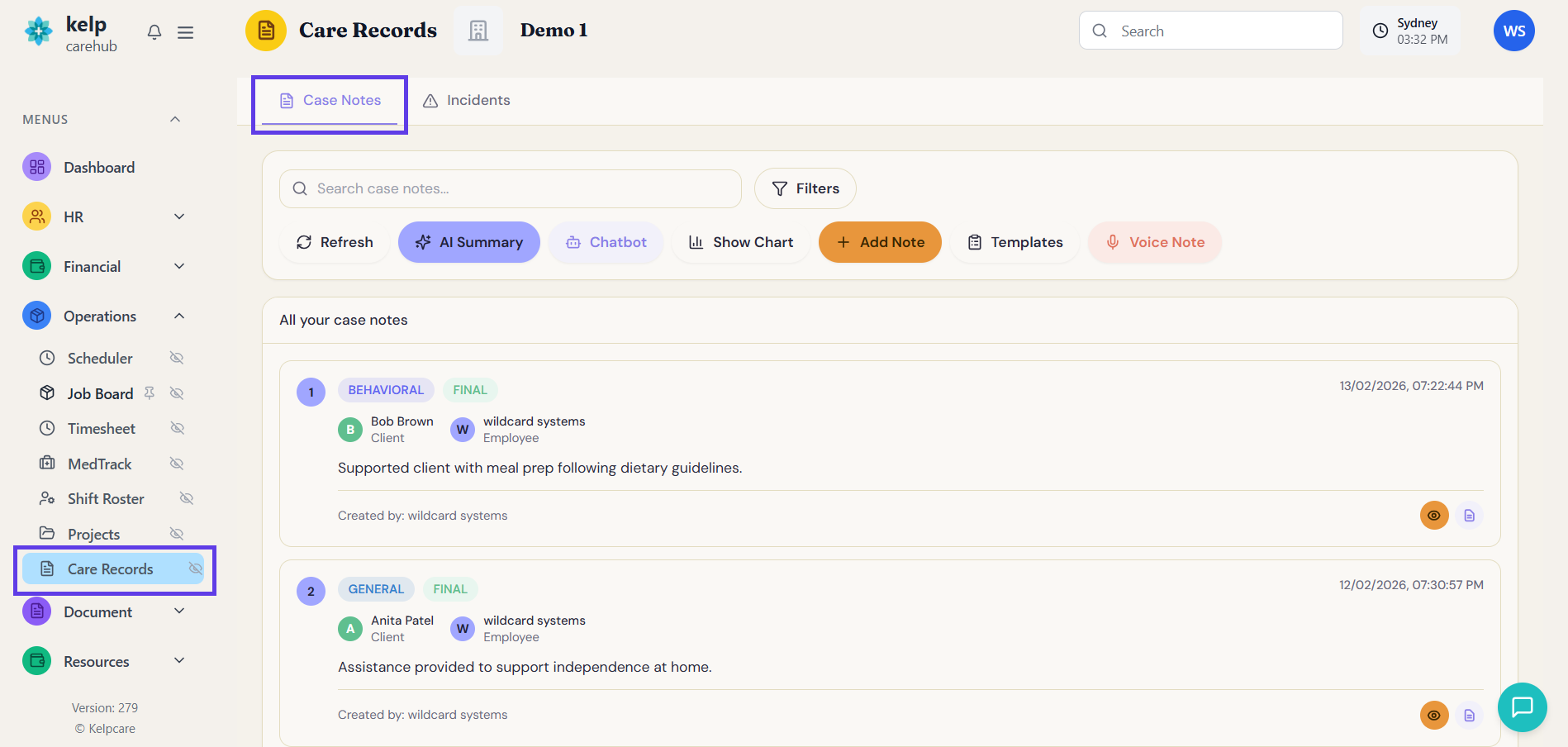

Each note carries two tags:
- BEHAVIORAL
- GENERAL
- INCIDENT
- MEDICATION
- MEDICAL
- CARE PLAN
- DISCHARGE
- PROGRESS
- FINAL
- DRAFT
The first is the note type (what it's about); the second is its status — Draft notes can still be edited, Final notes are locked.
Adding a Case Note
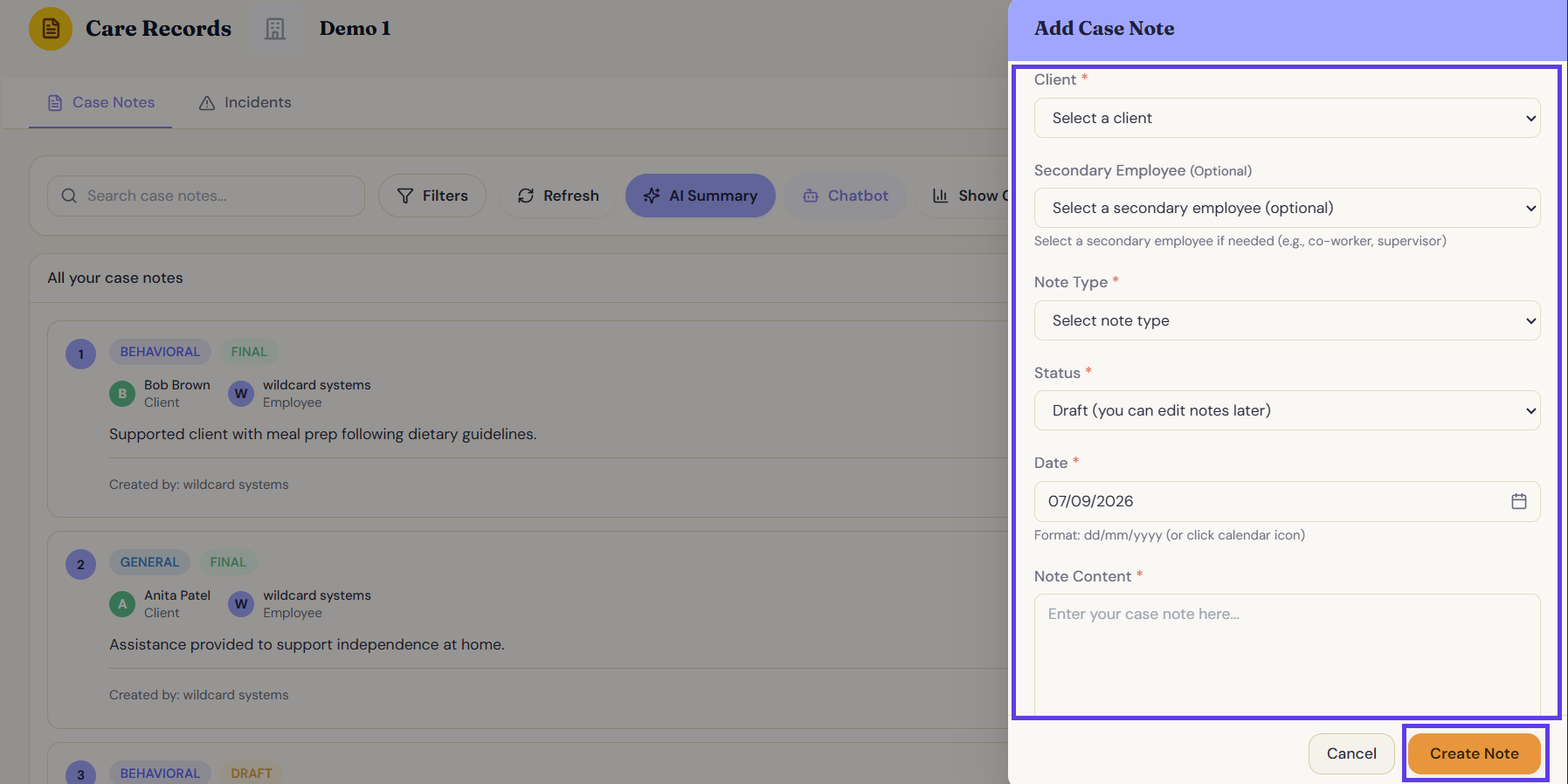
| Field | Notes |
|---|---|
| Client | Required. |
| Secondary Employee | Optional — a co-worker or supervisor also involved. |
| Note Type | Required — Behavioral, General, Incident, and so on. |
| Status | Required — defaults to Draft (you can edit notes later). |
| Date | Required — dd/mm/yyyy, typed or picked from the calendar icon. |
| Note Content | Required — the note itself. |
Click Create Note to save it.
Viewing a Case Note
Click a note to open its full detail:
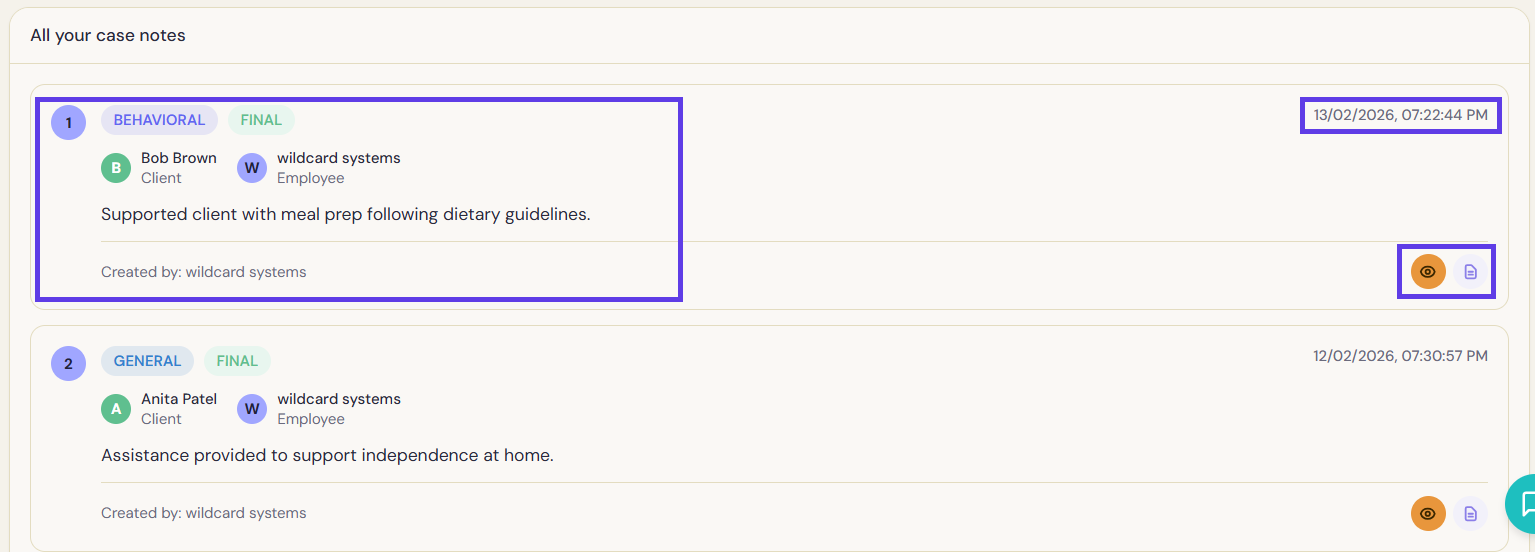
Alongside the note content, this view shows exactly when it was created and last updated, and who created it — useful for audit purposes.
Attaching Documents
Every case note has its own Documents panel underneath it, for attaching supporting files — a photo, a scanned form, a report — directly to that note.
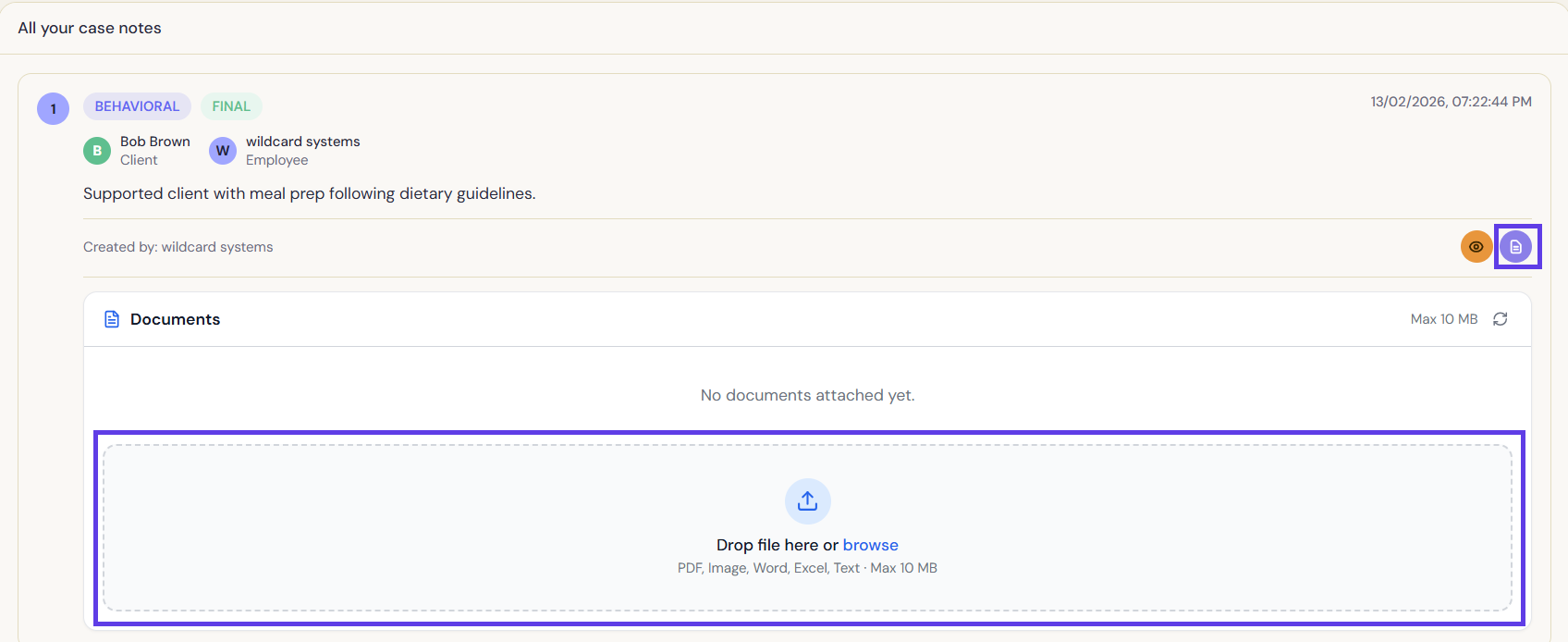
Above the drop zone:
- A running count of attached files, and the Max 10 MB per-file limit
- A refresh icon to reload the attachment list
- "No documents attached yet" until the first file is added
-
Open the note
Click a case note in the list to expand it — the Documents panel appears underneath its content.
-
Drop or browse for a file
Drag a file onto the drop zone, or click browse to pick one from your device.
-
Check the file type and size
PDF, Image, Word, and Excel and Text files are supported, up to 10 MB each.
-
Confirm the upload
Once uploaded, the file replaces "No documents attached yet" in the list above the drop zone, and stays attached to that specific note.
Voice Note
Instead of typing, record a note out loud and let AI transcribe and structure it for you.
-
Choose the client and note type
Select the client and Note Type first — the type determines which Template Guidance fields the AI will try to extract (shown with a field count, e.g. "15 fields").
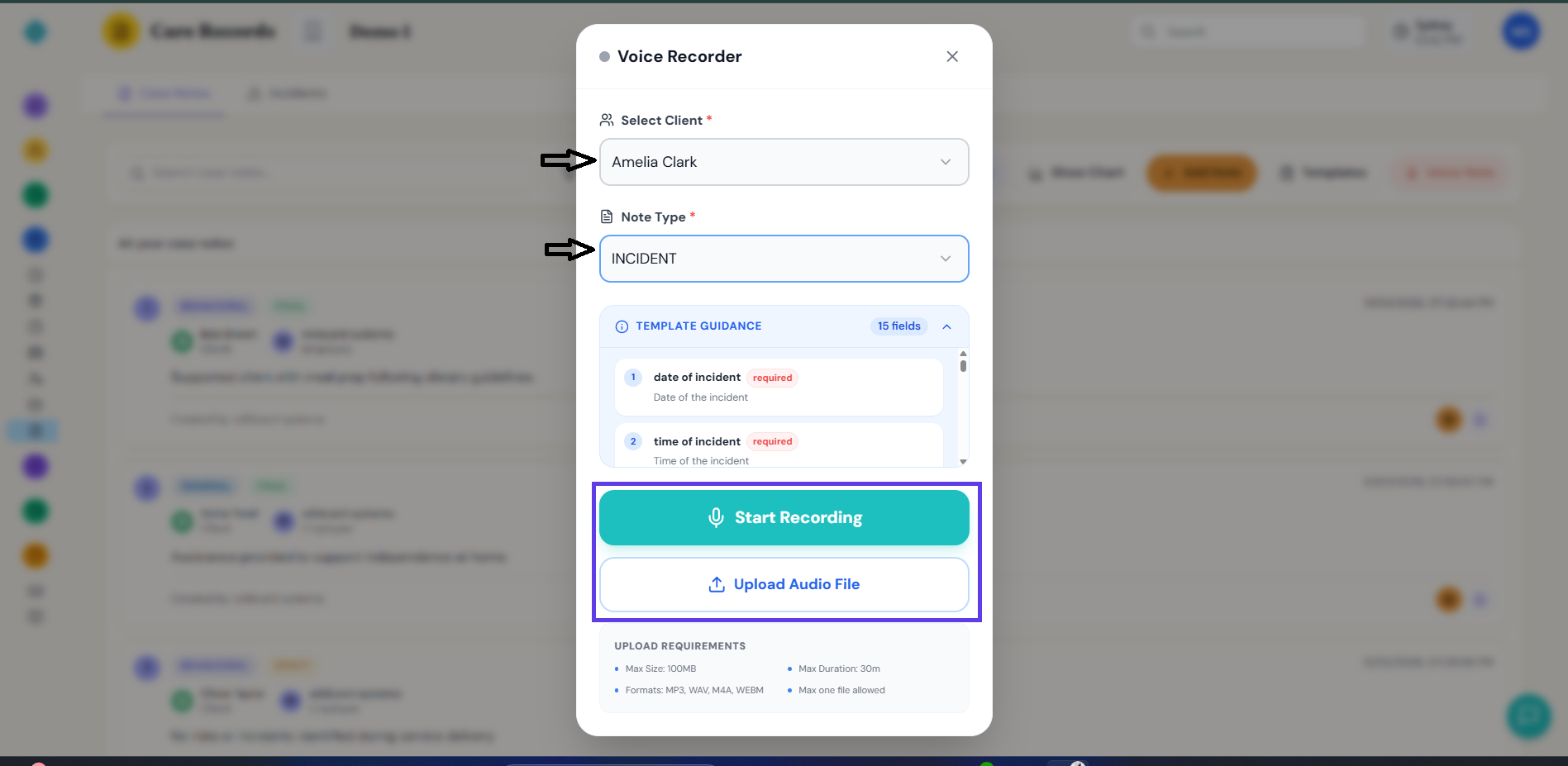
You can record live or upload an existing audio file instead. -
Record
A live waveform and duration counter track the recording (up to 30 minutes). Pause, delete and restart, or stop when you're done.
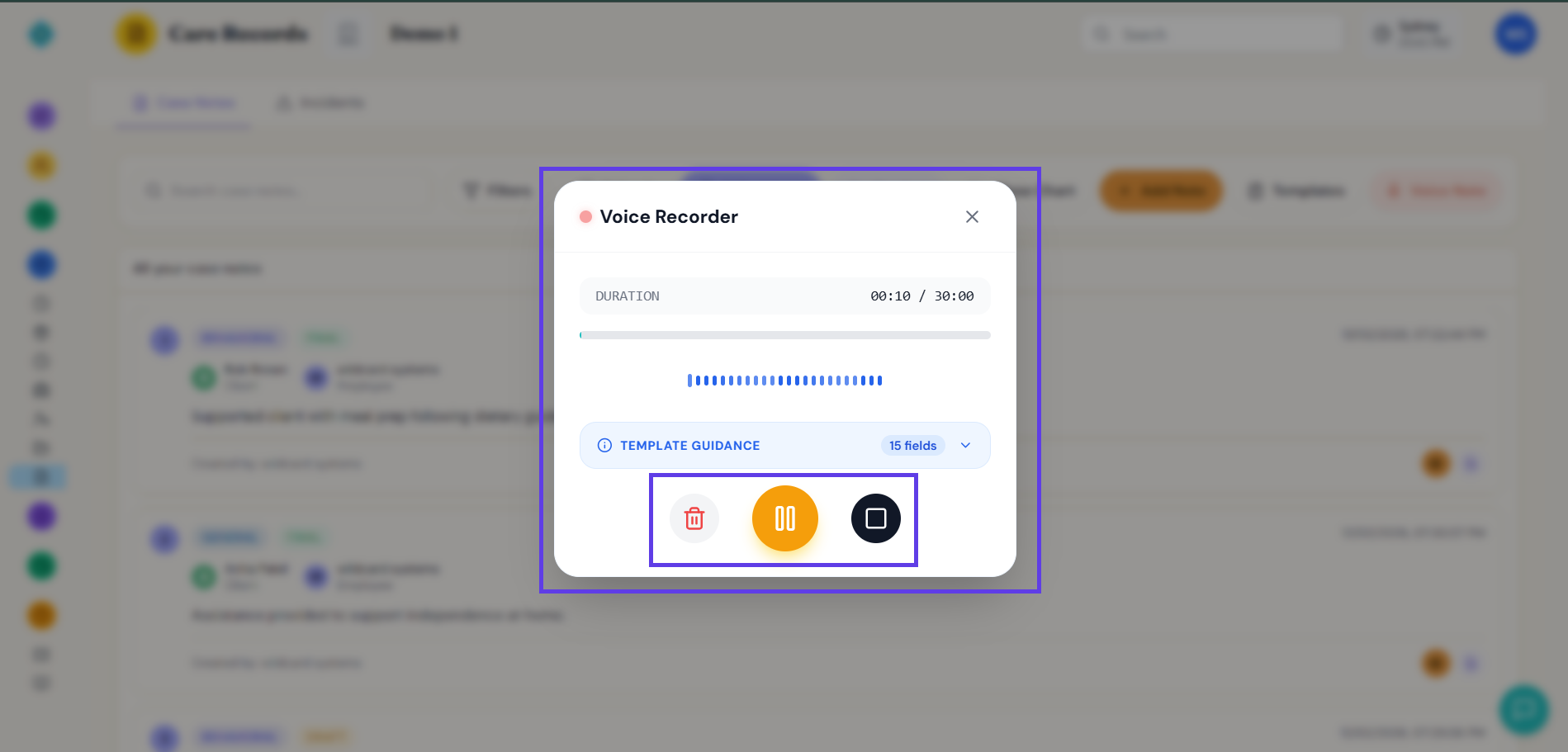
Recording in progress — delete, pause/resume, or stop. -
Review the transcript
Stopping the recording produces an editable transcript. AI transcription isn't always perfect — check it over before continuing.
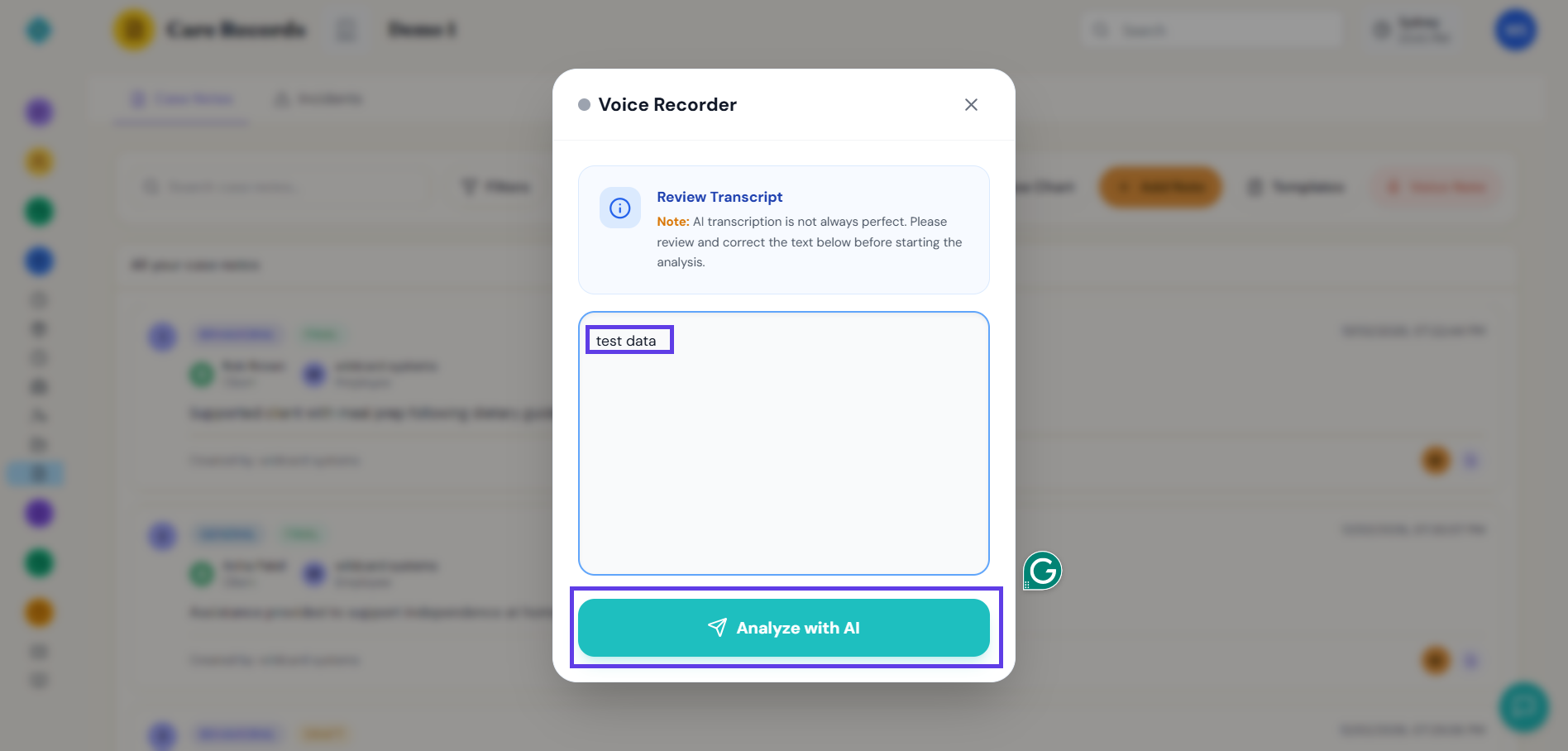
Correct anything the transcription got wrong before analysing it. -
Analyze with AI
AI extracts the transcript into the structured fields defined by the note type's template, ready to review and save as a case note.
Templates
Templates define the structured fields AI extracts into when you use Voice Note. KelpCare ships with system default templates you can't edit, and you can add your own on top.
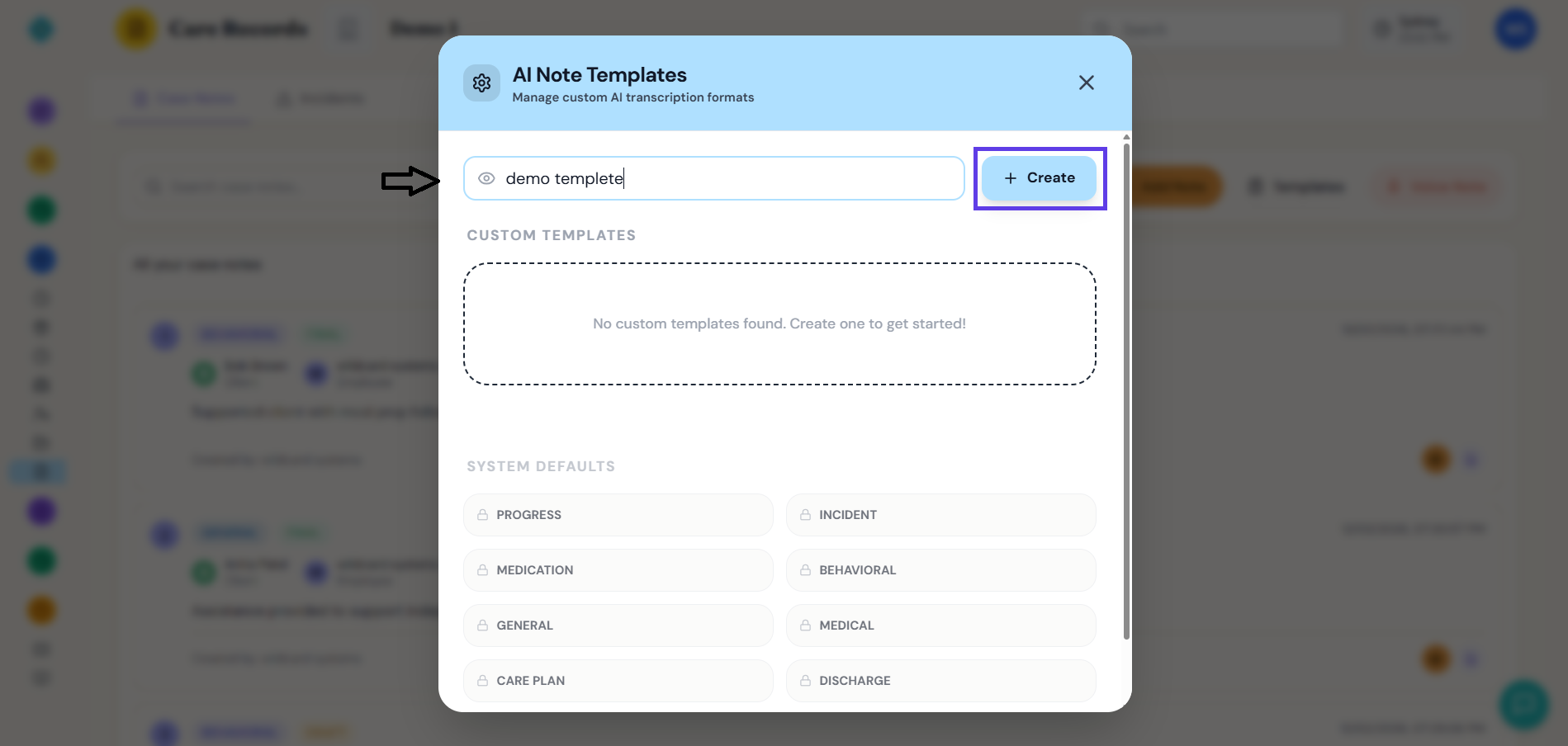
To build your own:
-
Click Create
From the Templates panel, name your template and click Create.
-
Set visibility
Only Me keeps it private; Organization makes it available to your whole team.
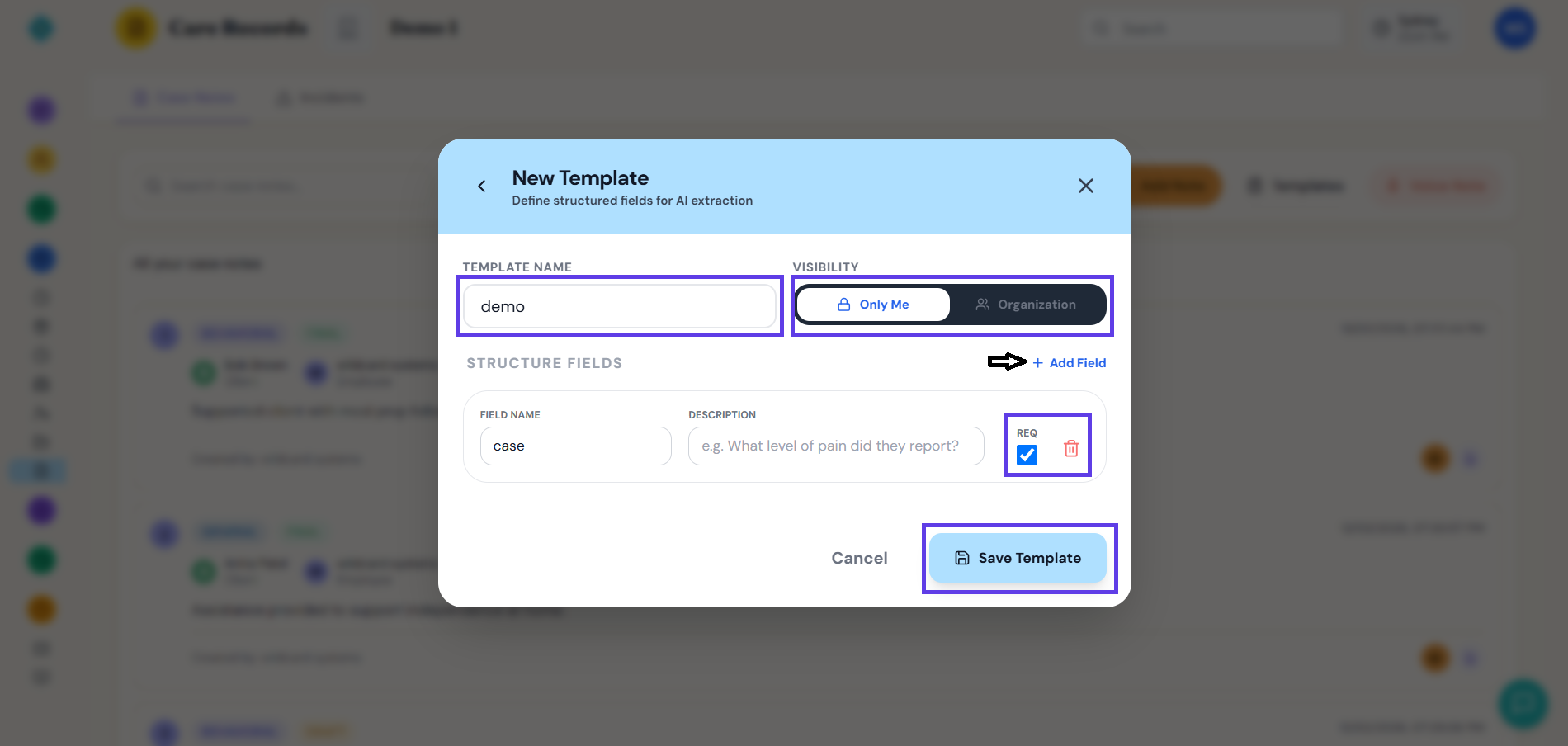
Add as many structure fields as the note type needs. -
Define structure fields
Each field has a name, a description (used as extraction guidance — e.g. "What level of pain did they report?"), and a Req checkbox marking it required. Use + Add Field for more.
-
Save the template
It becomes available as a Note Type option the next time you use Voice Note.
AI Summary
Generates a rolled-up summary across your case notes — useful ahead of a plan review or handover, instead of reading every note individually.
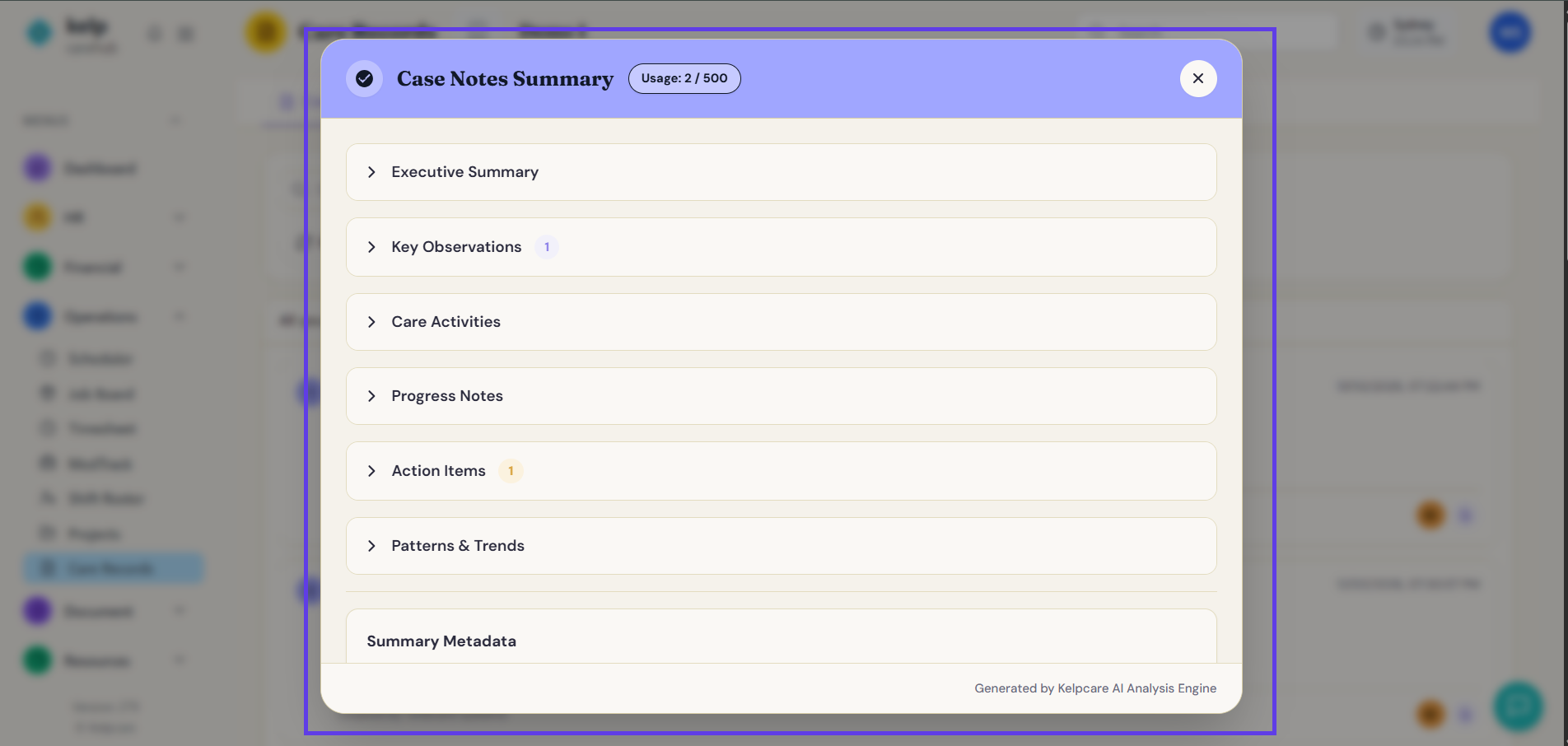
| Section | What it covers |
|---|---|
| Executive Summary | A short overview of the period covered. |
| Key Observations | Notable points pulled from the notes. |
| Care Activities | What support was actually delivered. |
| Progress Notes | How things are trending over time. |
| Action Items | Anything flagged as needing follow-up. |
| Patterns & Trends | Recurring themes across multiple notes. |
| Summary Metadata | Details about the summary itself — e.g. how many notes it drew from. |
Show Chart
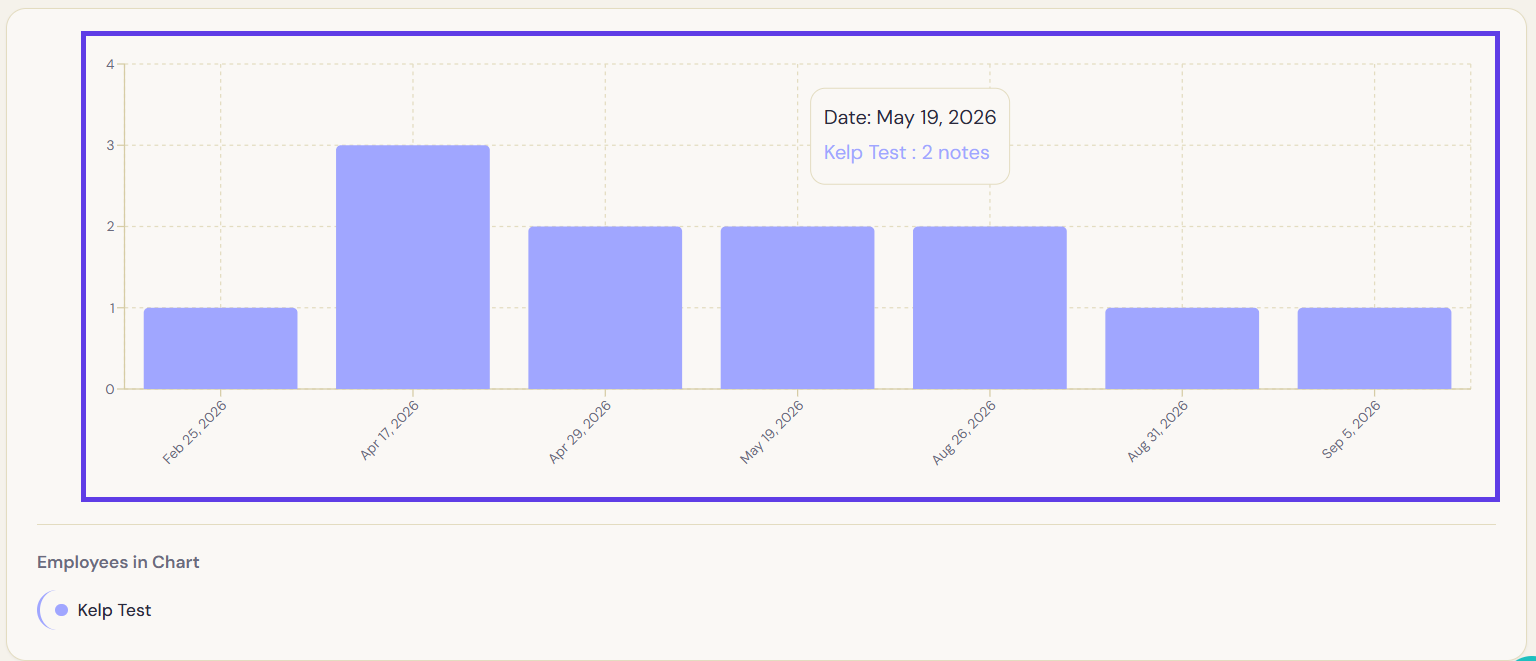
Visualises how many case notes were logged over time, broken down by employee.
Chatbot
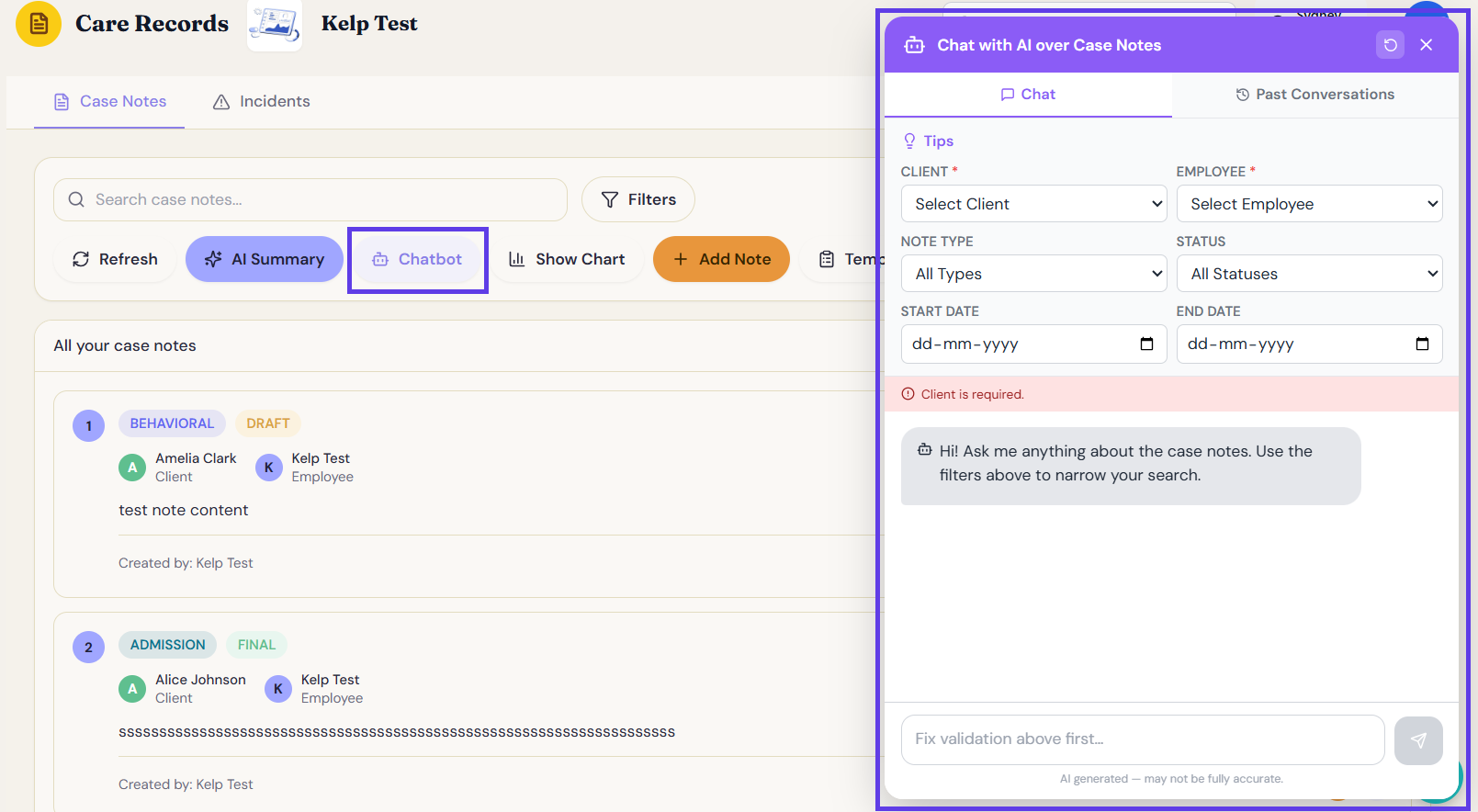
Chat with an AI assistant scoped to your case notes — ask questions in plain language instead of scrolling through the list yourself.
Use the Employees in Chart legend at the bottom to see which staff members are included — helpful for spotting who's logging notes regularly and who might need a nudge.
Need a hand?
Our Australian-based support team is here to help — reach out at reachus@kelpcare.ai