Absence Management System
Complete guide for managing employee leaves and absences. Select a topic below to get started.
System Overview
Learn about the system features, user roles, and permissions.
Accessing the System
How to login and navigate to the absence management module.
Leave Dashboard
Understanding the leave dashboard and statistics.
Leave Requests
Managing and viewing all leave requests.
Applying for Leave
Process for submitting new leave requests.
Approval Process
How to approve or reject leave requests.
Leave Balance Management
Viewing and managing employee leave balances.
Holiday Management
Setting up and managing organizational holidays.
Search & Filter
How to search and filter leave requests effectively.
Pagination
Navigating through multiple pages of leave requests.
Dark Mode
Using the system in dark mode for better visibility.
Permissions & Roles
Understanding user permissions and role-based access.
Troubleshooting
Solutions to common issues and problems.
System Overview
The Absence Management System enables organizations to manage employee leaves, track balances, and handle approvals in a centralized platform.
Key Features
📊 Leave Dashboard
Real-time overview of pending, approved, and rejected leave requests with statistics.
📋 Leave Request Management
Submit, view, and manage all leave requests in one place.
✅ Approval Workflow
Streamlined process for approving or rejecting leave requests with proper tracking.
⚖️ Leave Balance Tracking
Automatic calculation and tracking of employee leave balances by type.
🎄 Holiday Management
Configure organizational holidays that automatically exclude from working days.
🔍 Advanced Search & Filtering
Search by employee name, leave type, status, or date range with real-time filtering.
📄 Pagination
Efficient navigation through large datasets with customizable page sizes.
🌙 Dark Mode Support
Toggle between light and dark themes for better user experience.
Leave Types
| Leave Type | Description | Common Usage |
|---|---|---|
| Annual Leave | Paid time off for vacation or personal reasons | Vacations, personal time |
| Sick Leave | Paid time off for illness or medical appointments | Illness, doctor visits |
| Personal Leave | Unpaid time off for personal matters | Personal emergencies |
| Maternity Leave | Extended leave for childbirth and recovery | Childbirth, postpartum recovery |
| Paternity Leave | Leave for new fathers | Childbirth support |
| Compassionate Leave | Leave for family emergencies or bereavement | Family emergencies, funerals |
| Unpaid Leave | Leave without pay | Extended time off |
| Study Leave | Leave for educational purposes | Exams, courses |
Leave Status Workflow
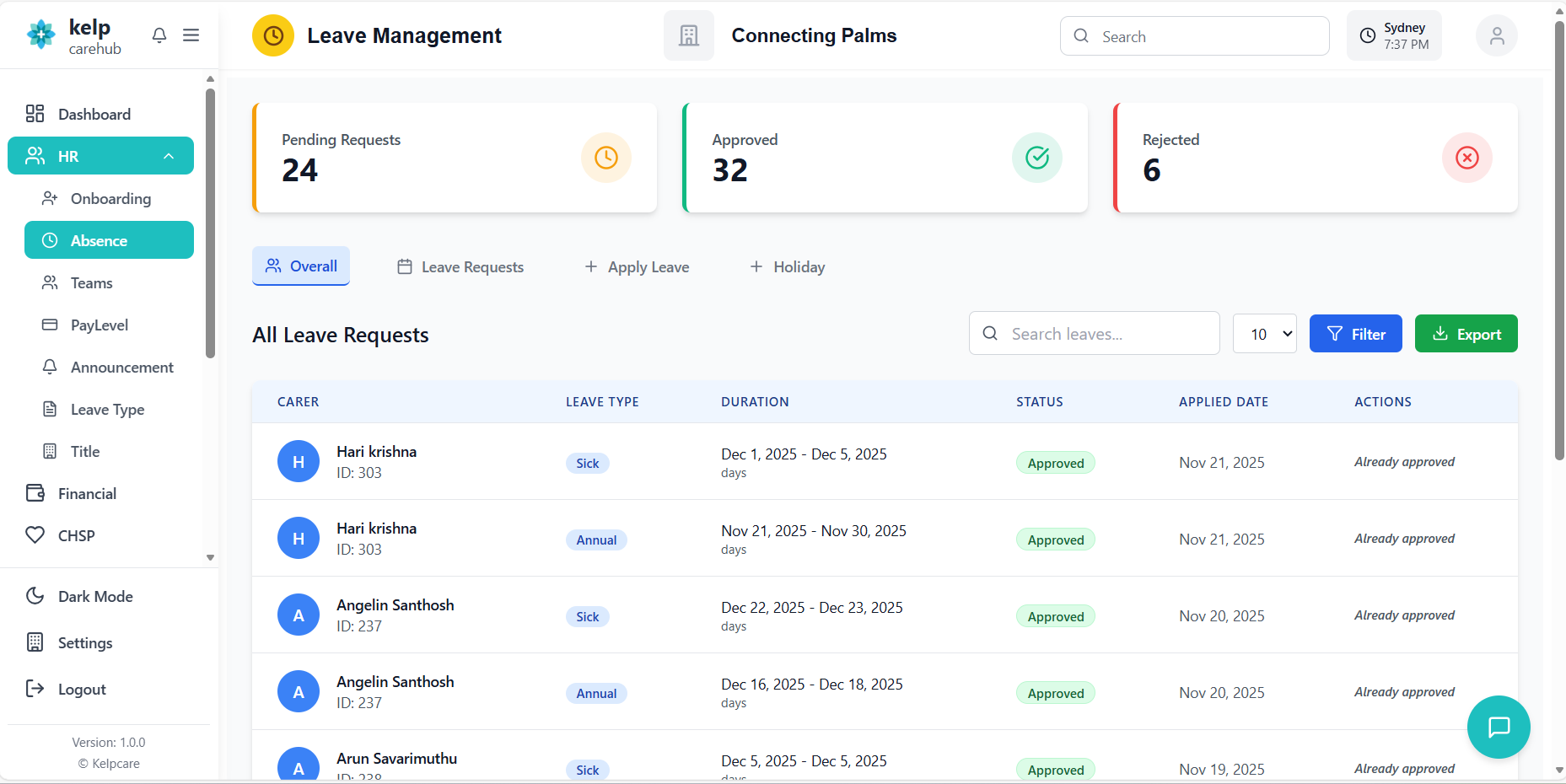
Accessing the Absence System
How to login and navigate to the absence management module.
- Navigate to the application URL
- Enter your username and password
- Click "Login" to access the system
- System automatically detects your permissions based on your role
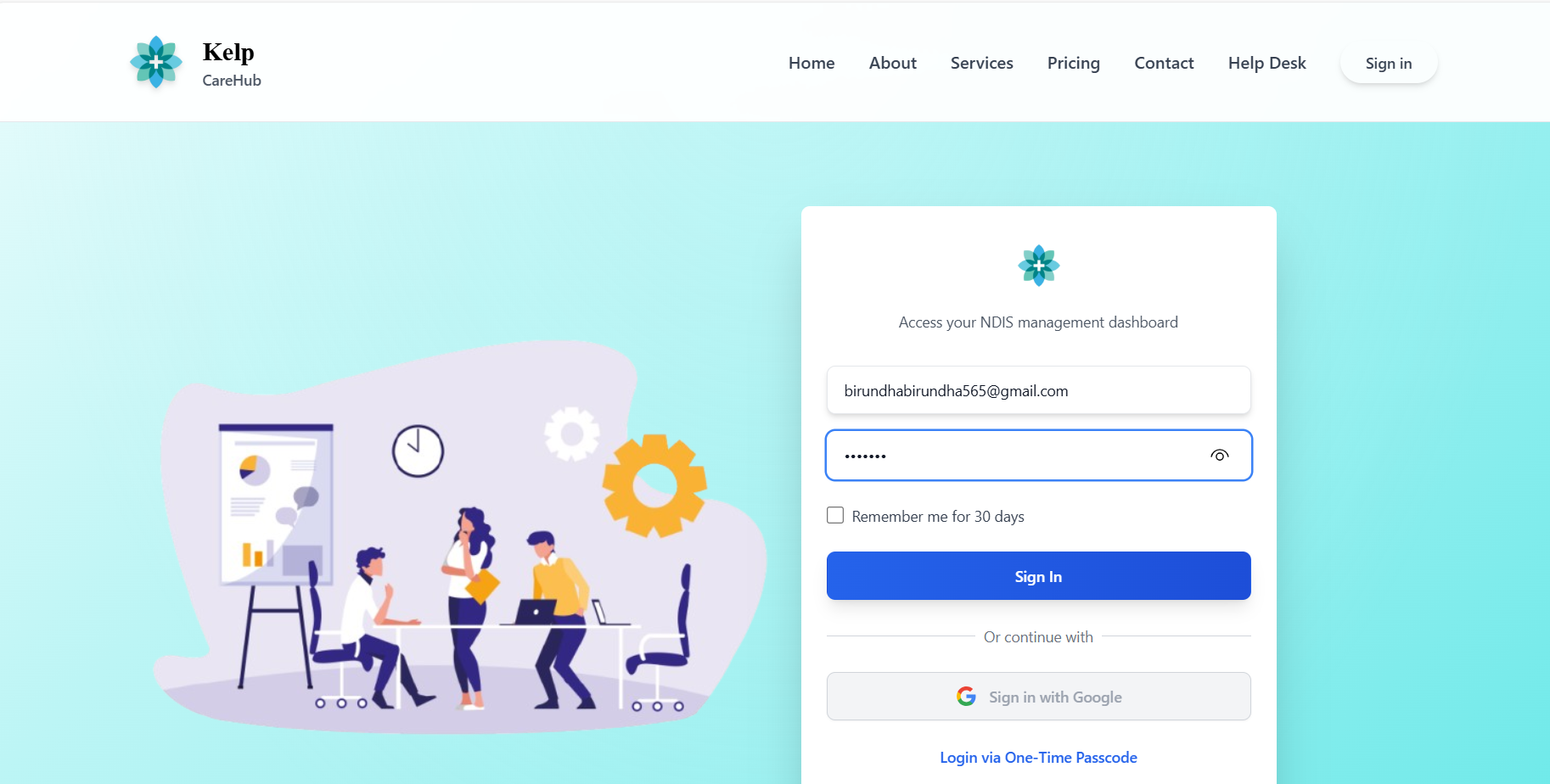
- From the main navigation menu, click on "Absence" or "Leave Management"
- System loads the absence dashboard based on your permissions
- If you have limited permissions, you may only see your own leave requests
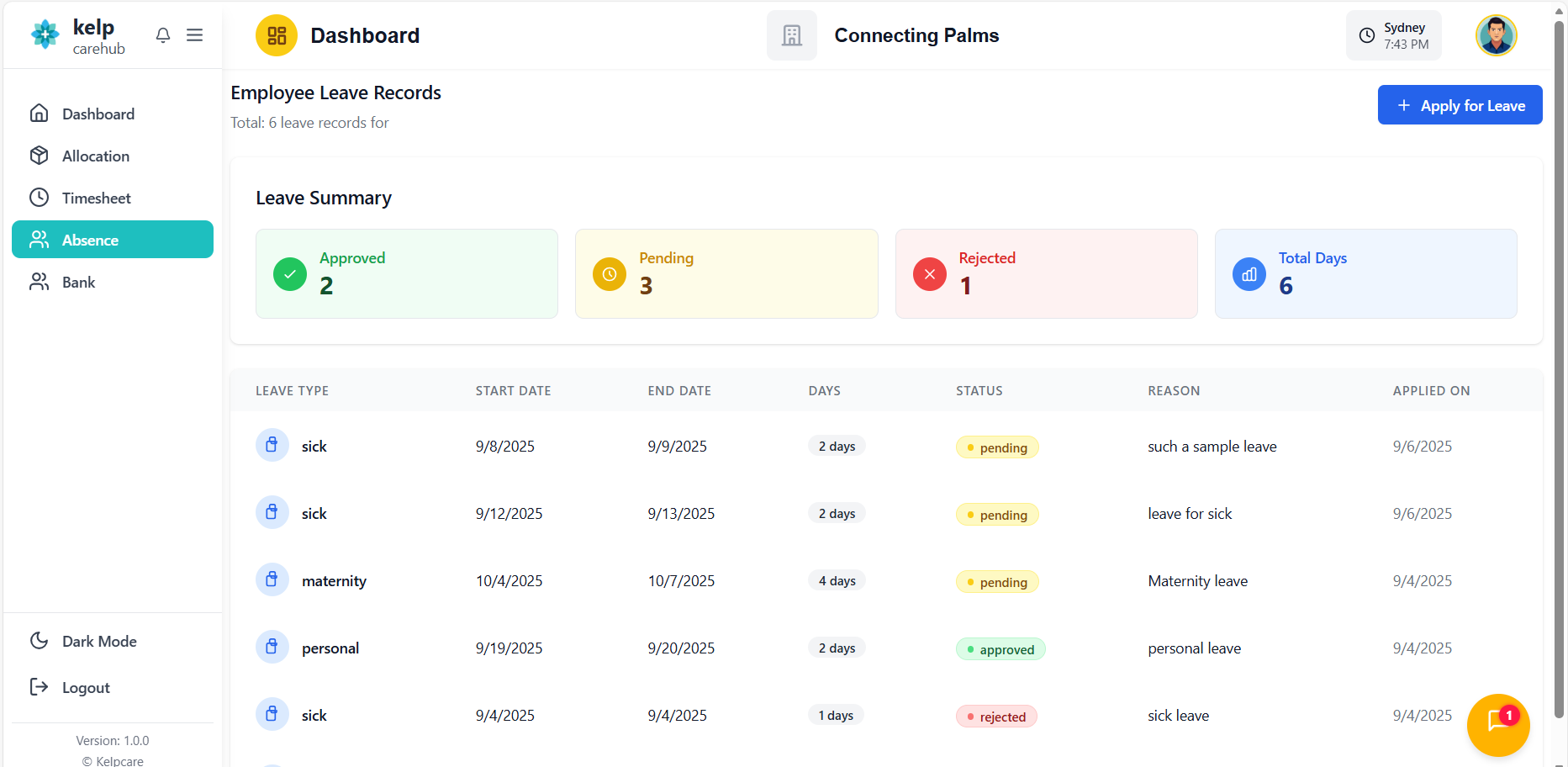
Leave Dashboard
Understanding the leave dashboard interface and statistics.
Dashboard Overview
- Pending Requests: Number of leave requests awaiting approval
- Approved: Number of approved leave requests
- Rejected: Number of rejected leave requests
- Each card shows count with color-coded indicators
- Cards provide quick overview of leave status distribution

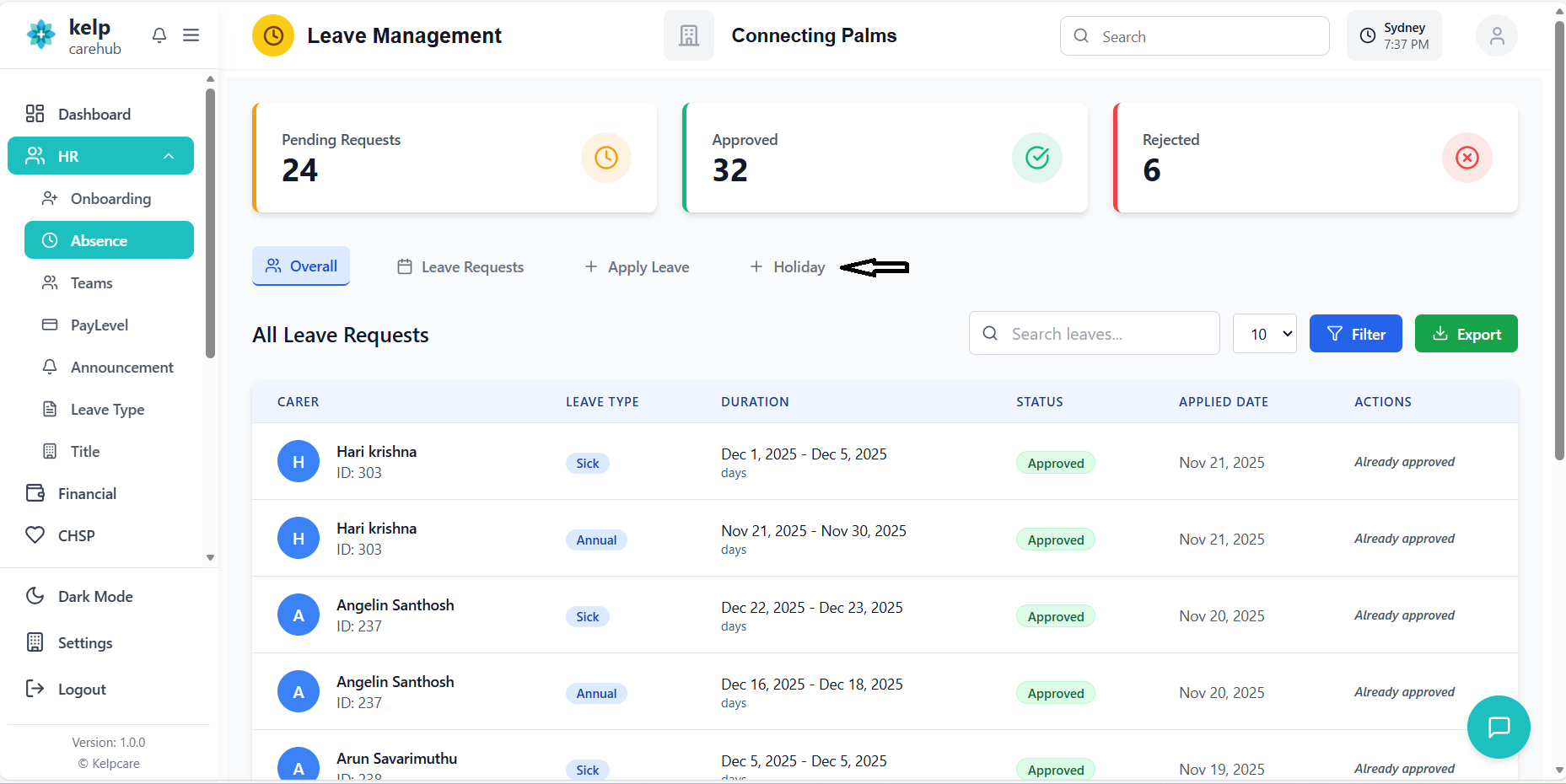
- Overall: Complete view of all leave requests
- Leave Requests: Focused view for managing requests
- Apply Leave: Form to submit new leave requests
- Holiday: Management of organizational holidays
- Active tab highlighted with different background color
Dashboard Features
- Statistics update automatically when leave status changes
- Color coding helps quickly identify status distribution
- Icons provide visual cues for different leave types
- Responsive design adapts to different screen sizes
Leave Requests
Managing and viewing all leave requests in the system.
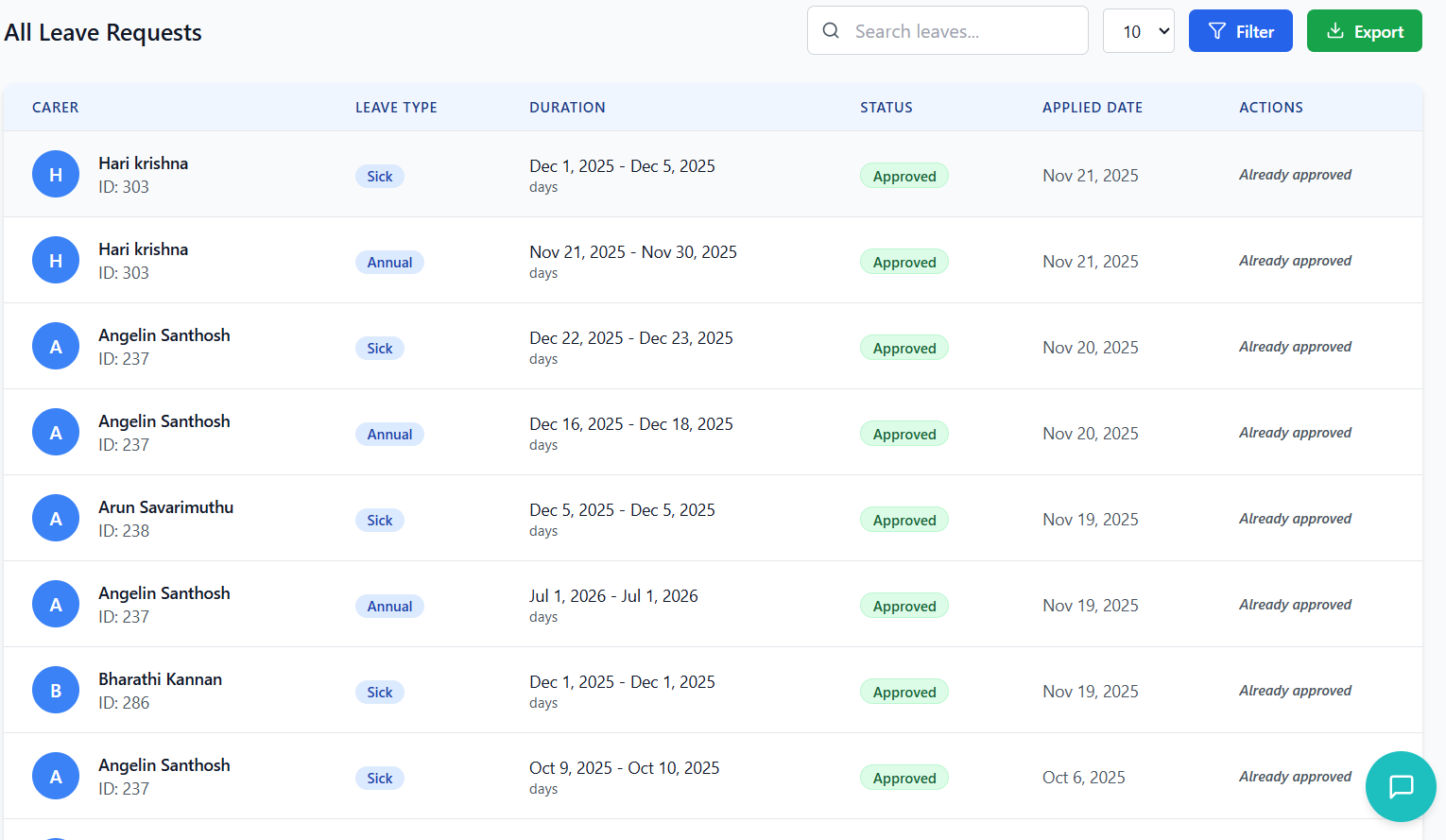
Leave Request Interface
| Column | Description |
|---|---|
| Carer | Employee name with profile icon and ID |
| Leave Type | Type of leave with color-coded badge |
| Duration | Start and end dates with total days |
| Status | Current status with color-coded badge |
| Applied Date | Date when leave was requested |
| Actions | Approve/Reject buttons for pending requests |
- Pending - Yellow: Request awaiting approval
- Approved - Green: Request has been approved
- Rejected - Red: Request has been rejected
- Cancelled - Gray: Request was cancelled
- Completed - Blue: Leave period has passed
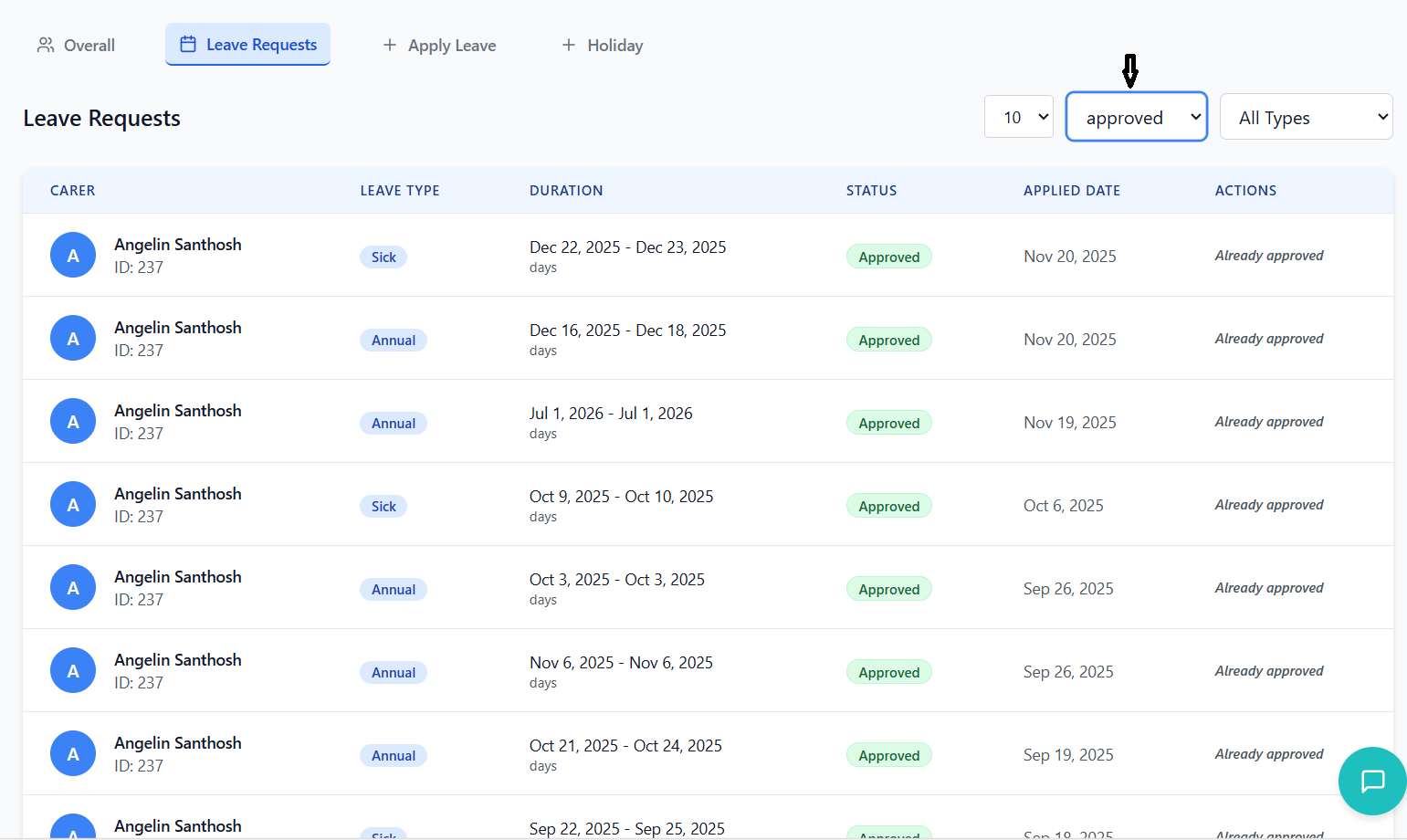
Filtering Options
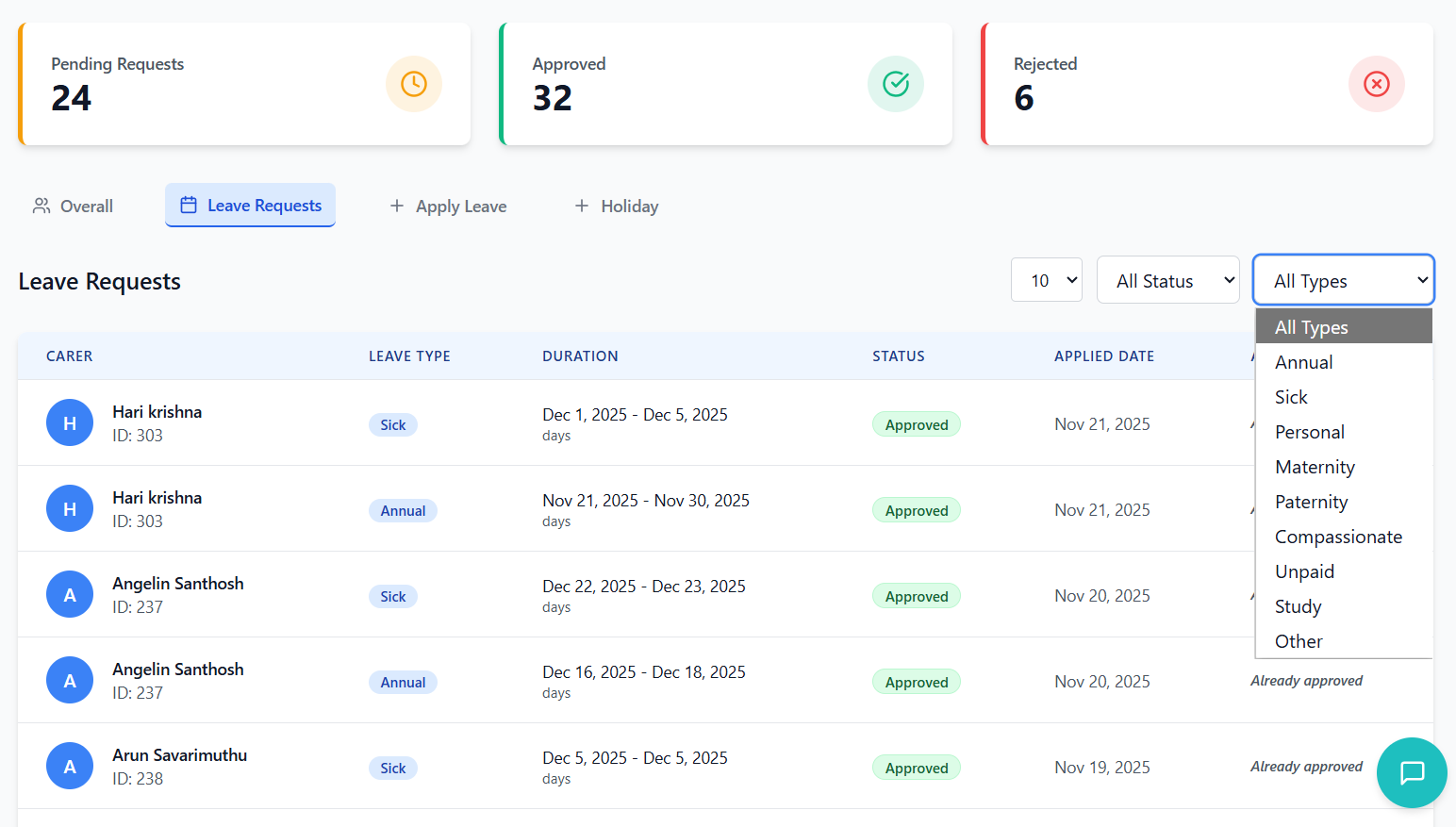
- Located in the Leave Requests tab header
- Dropdown with options: All Status, Pending, Approved, Rejected, etc.
- Filters the table to show only requests with selected status
- Real-time filtering without page reload
- Located next to status filter
- Dropdown with all available leave types
- Filters the table to show only requests of selected type
- Can be combined with status filter for precise results
Applying for Leave
Process for submitting new leave requests in the system.
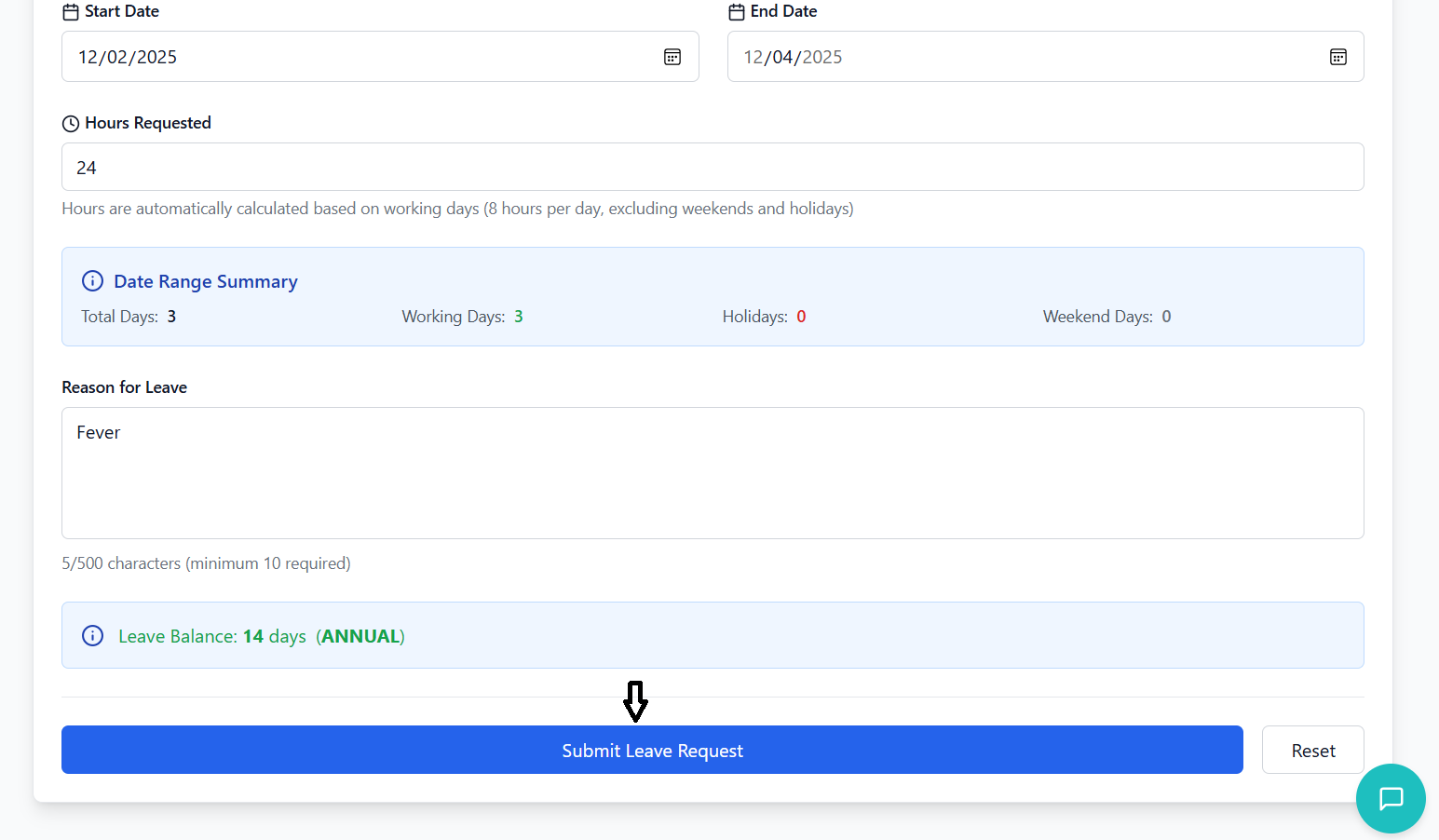
Leave Application Form
- Click on the "Apply Leave" tab in the main navigation
- Form opens with all required fields
- Form validation ensures all necessary information is provided
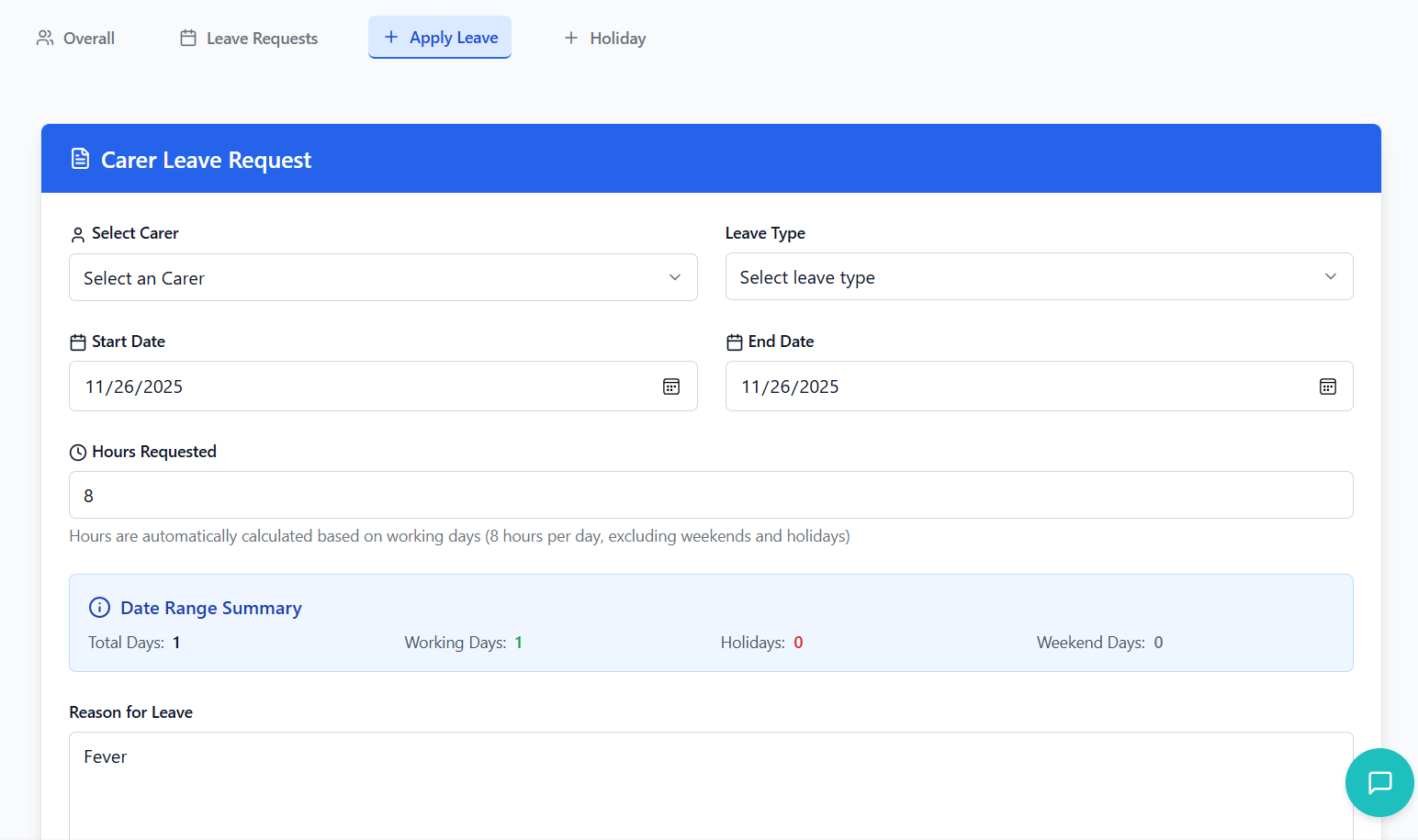
- Select Carer: Choose employee from dropdown (for managers/admins)
- Leave Type: Select from available leave types
- Start Date: First day of leave (cannot be in the past)
- End Date: Last day of leave (must be after start date)
- Reason: Detailed explanation (minimum 10 characters)
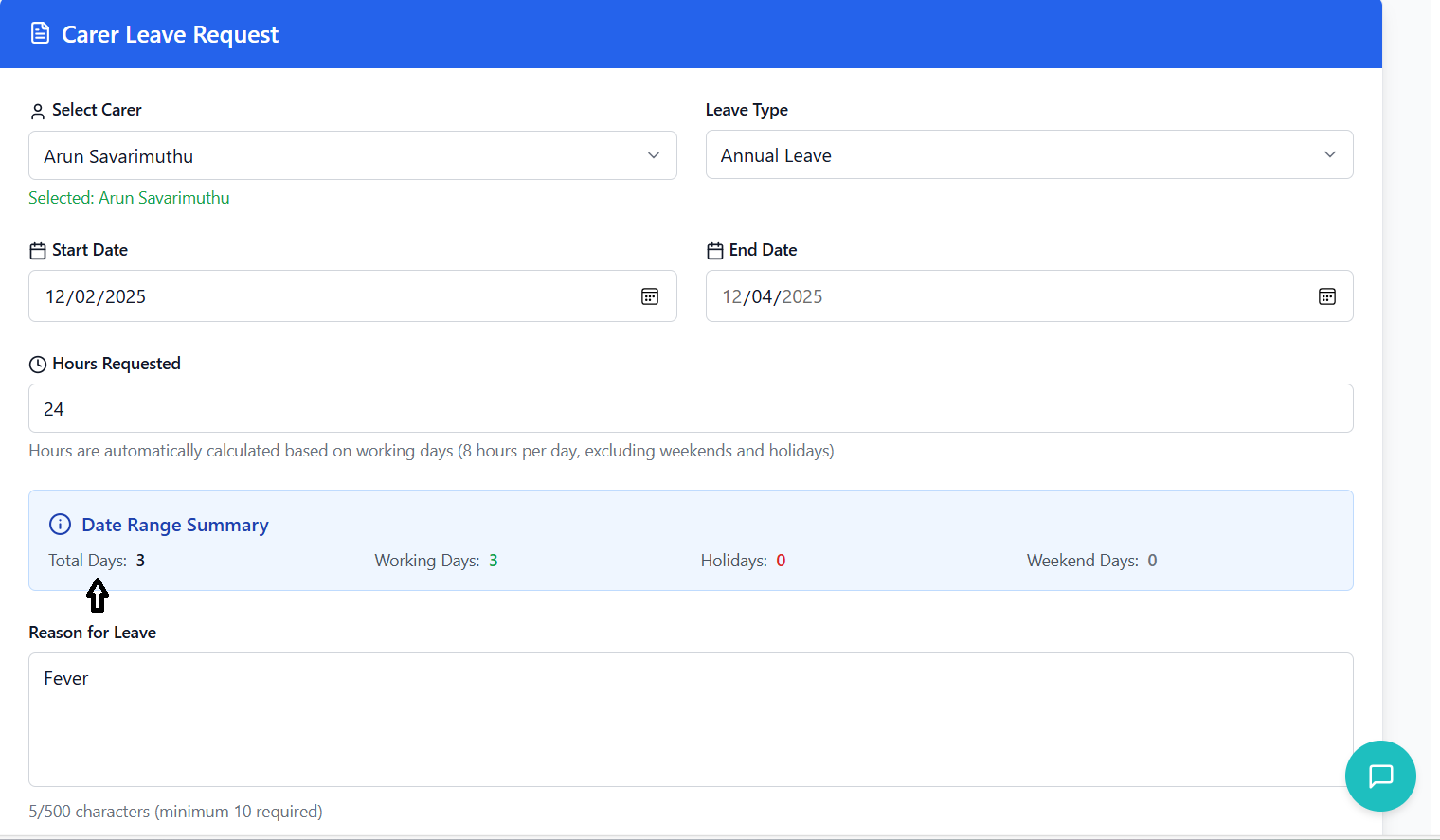
- System automatically calculates total days excluding weekends and holidays
- Hours requested calculated based on working days (8 hours per day)
- Leave balance validation prevents requests exceeding available balance
- Holiday information displayed for selected date range
Form Validation
- Start date cannot be in the past
- End date must be after or equal to start date
- Selected date range must contain at least one working day
- Reason must be at least 10 characters long
- Cannot exceed available leave balance for selected type
- All required fields must be completed
Submission Process
- Click "Submit Leave Request" button
- System validates all fields
- If validation passes, request is submitted
- Success message displayed with confirmation
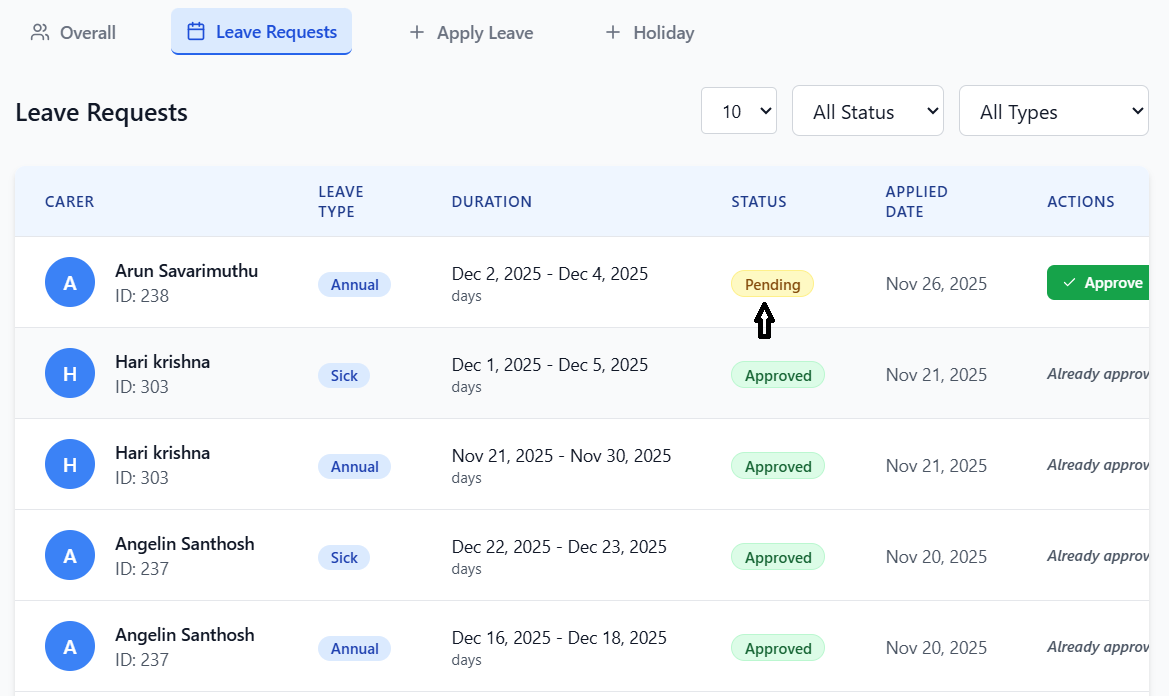
- Request appears in the leave requests table with "Pending" status
- Approvers receive notification of new request
- Employee can track request status in their dashboard
- Leave balance is temporarily reserved until approval/rejection
Approval Process
How to approve or reject leave requests as a manager or administrator.
Identifying Pending Requests
- Pending requests display with yellow Pending badge
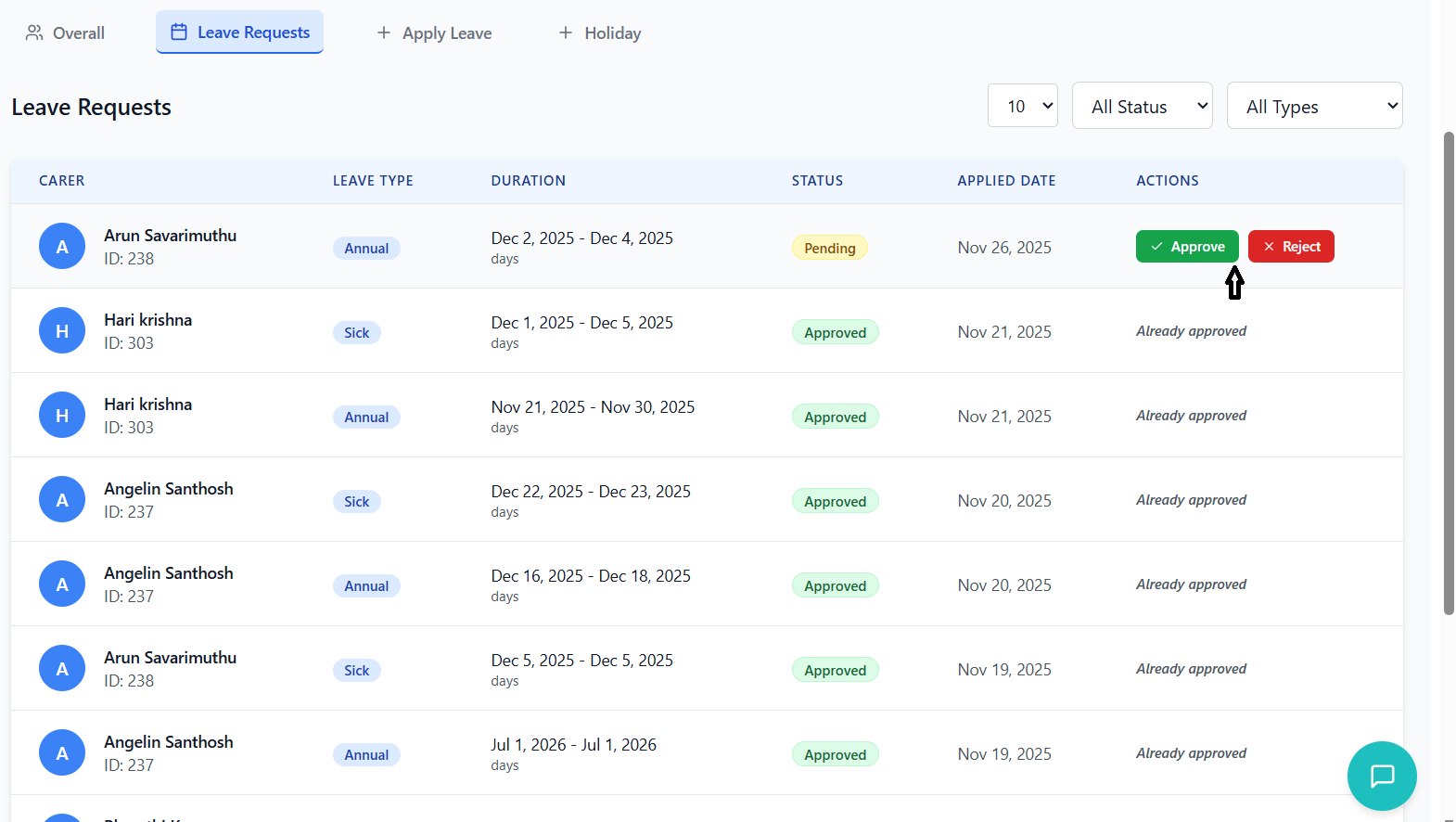
- Action buttons (Approve/Reject) are visible for pending requests
- Requests are sorted with pending ones typically at the top
- Dashboard shows count of pending requests
Approval Actions
- Click the green "Approve" button (checkmark icon)
- System validates that leave balance is available
- Request status changes to "Approved"
- Employee receives notification of approval
- Leave balance is deducted for the employee
- Click the red "Reject" button (X icon)
- Request status changes to "Rejected"
- Employee receives notification of rejection
- Temporarily reserved leave balance is released
- Reason for rejection can be added (if configured)
Approval Considerations
- Check employee's leave balance before approval
- Consider team coverage and workload distribution
- Verify that requested dates don't conflict with important deadlines
- Ensure multiple team members aren't on leave simultaneously
- Review reason for leave to ensure appropriateness
Bulk Actions
- Use filters to group similar requests (by date, type, or employee)
- Process multiple requests in one session to save time
- Use search to quickly find specific employee requests
- Export data for offline review if needed
Leave Balance Management
Viewing and managing employee leave balances in the system.
Understanding Leave Balances
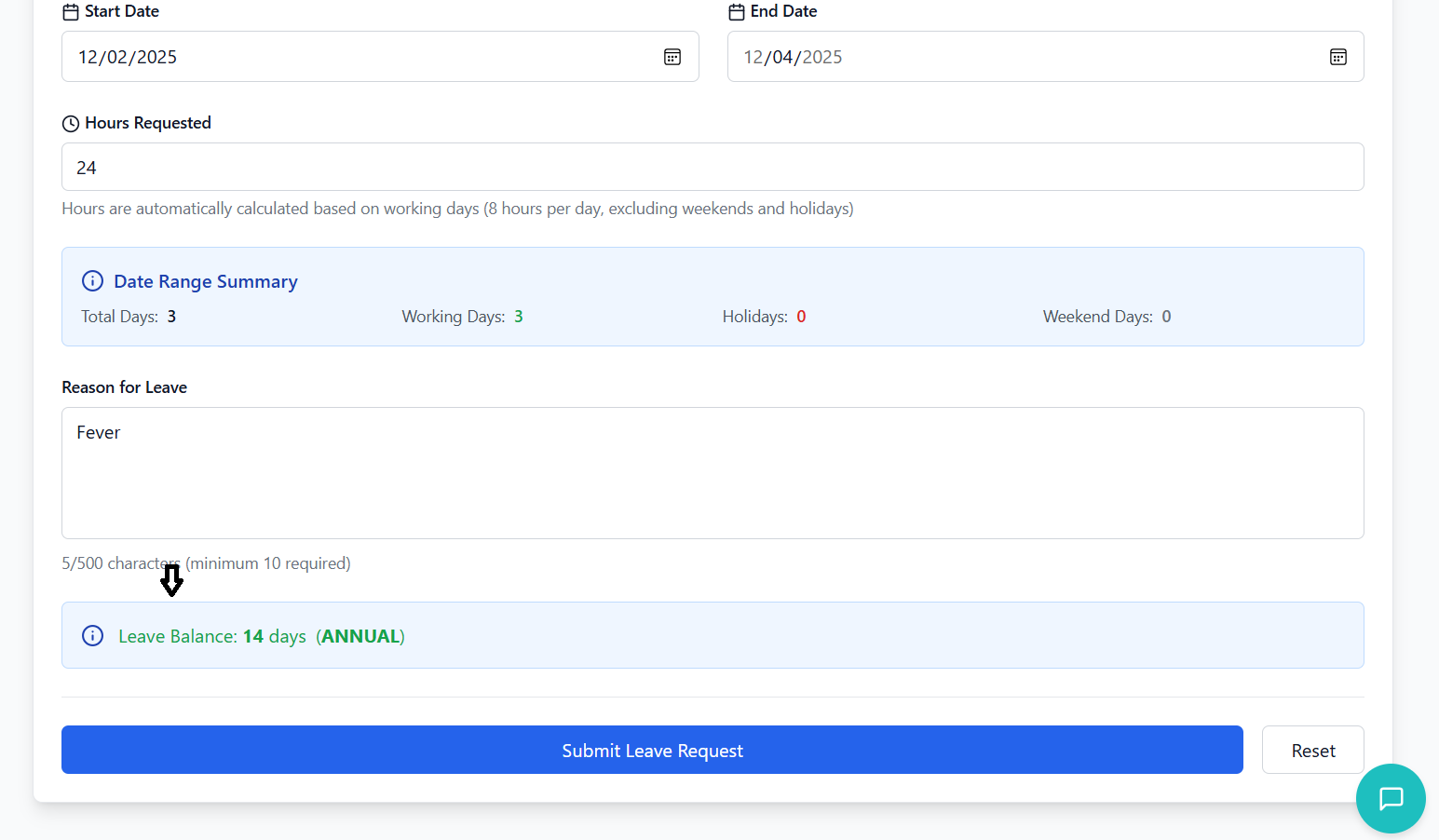
- Leave balances are displayed when applying for leave
- Shows available days for each leave type
- Automatically updates when leaves are approved
- Prevents requests that exceed available balance
- Balances are typically set annually or based on employment date
- System automatically deducts approved leave days
- Pending requests temporarily reserve balance
- Rejected or cancelled requests release reserved balance
Balance Types
| Balance Type | Description | Accrual Method |
|---|---|---|
| Annual Leave | Paid time off for vacations | Annual allocation or monthly accrual |
| Sick Leave | Paid time off for illness | Annual allocation or monthly accrual |
| Personal Leave | Unpaid time off | As needed, no accrual |
| Maternity/Paternity | Extended leave for parents | As per organizational policy |
| Compassionate Leave | Leave for emergencies | As needed, typically limited |
Balance Management
- Managers can view balances for their team members
- HR administrators can adjust balances if needed
- System prevents negative balances through validation
- Balance history can be tracked for audit purposes
Holiday Management
Setting up and managing organizational holidays in the system.
Holiday Management Interface
- Click on the "Holiday" tab in the main navigation
- Interface shows form to add new holidays and list of existing holidays
- Calendar view for easy date selection
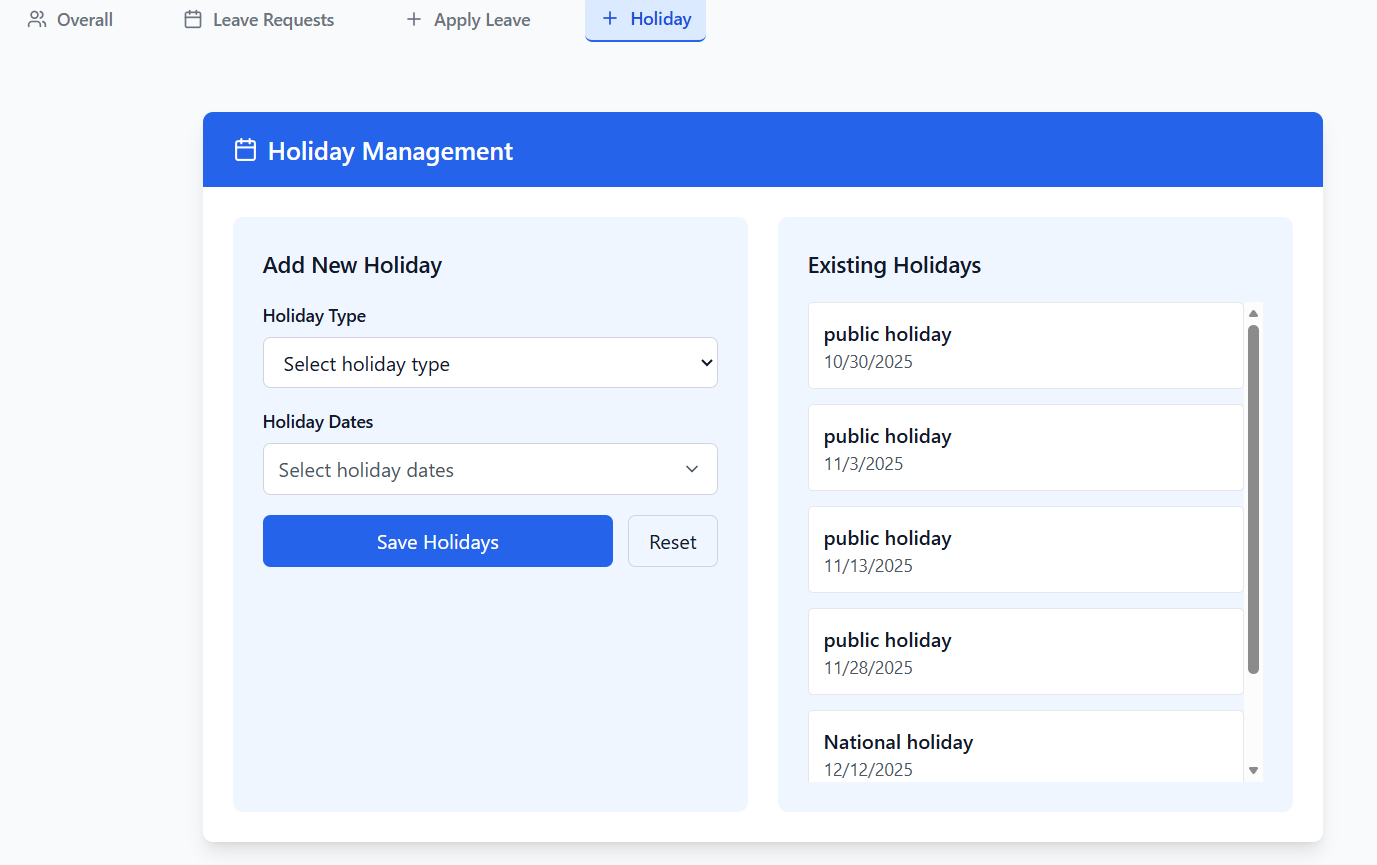
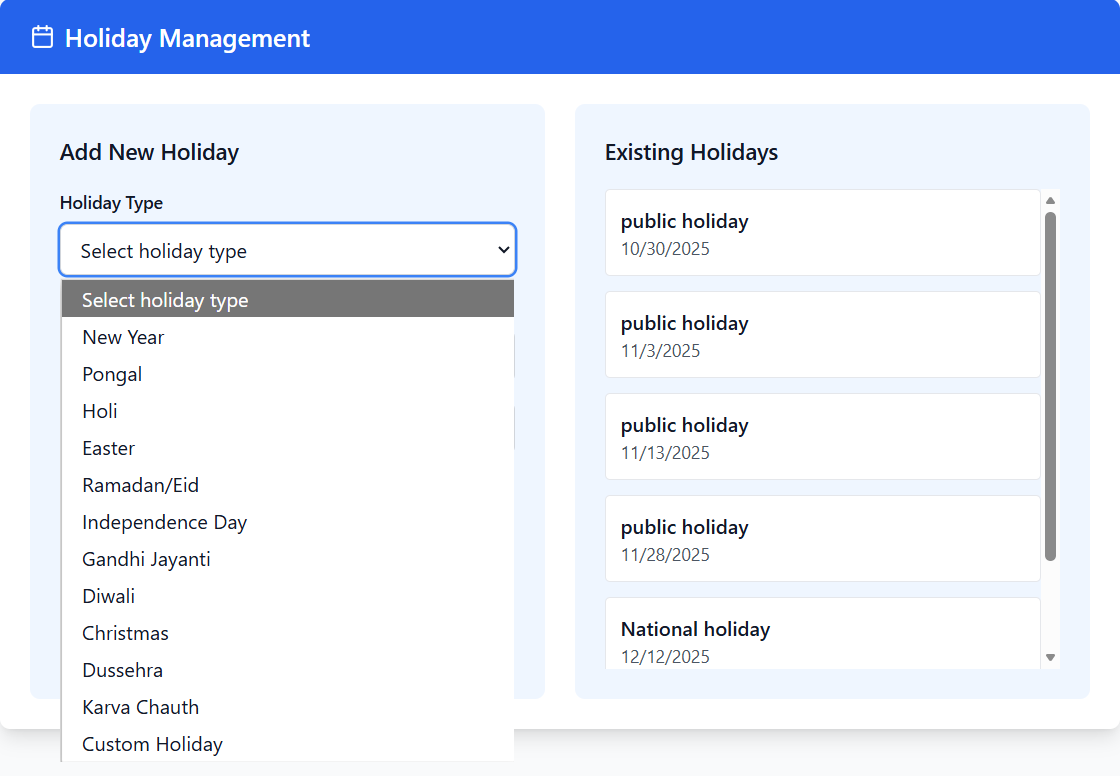
- Holiday Type: Select from predefined types or custom
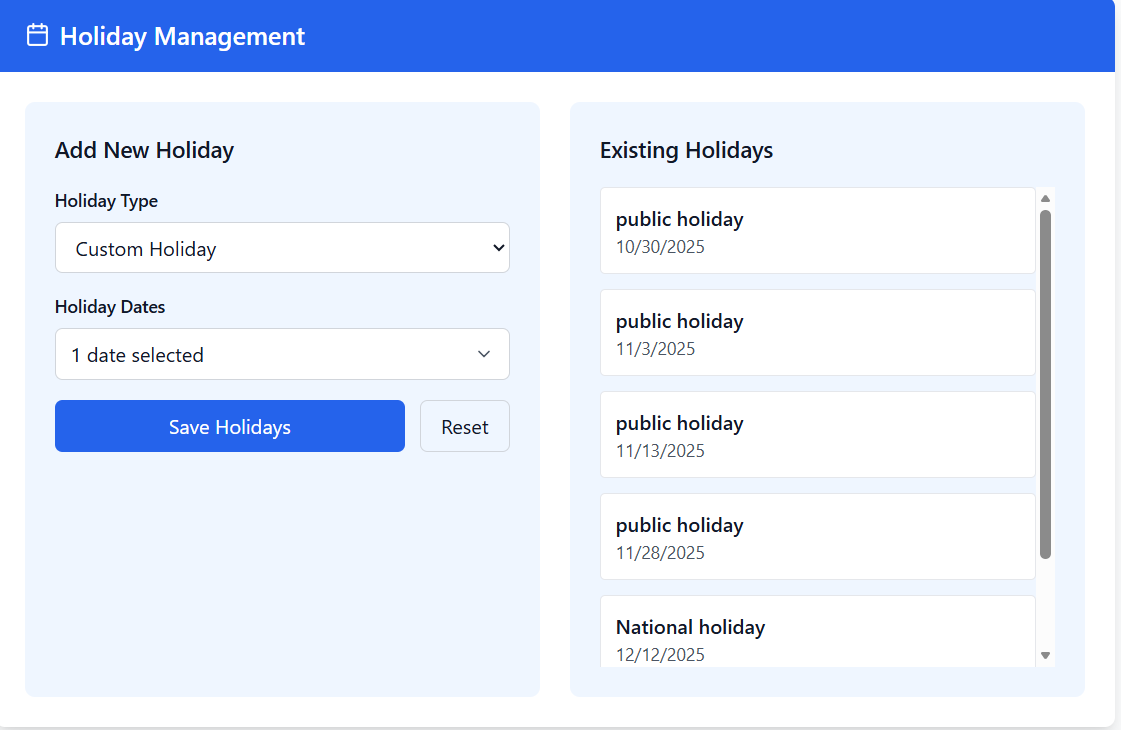
- Holiday Dates: Select one or multiple dates using calendar
- Predefined types include common holidays with suggested dates
- Custom type allows for organization-specific holidays
Predefined Holiday Types
| Holiday Type | Description | Common Dates |
|---|---|---|
| New Year | New Year's Day celebration | January 1 |
| Pongal | Harvest festival | Mid-January (multiple days) |
| Holi | Festival of colors | March (varies yearly) |
| Easter | Christian holiday | March/April (varies yearly) |
| Ramadan/Eid | Islamic holidays | Based on lunar calendar |
| Independence Day | National independence celebration | August 15 |
| Gandhi Jayanti | Birthday of Mahatma Gandhi | October 2 |
| Diwali | Festival of lights | October/November (varies yearly) |
| Christmas | Christian holiday | December 25-26 |
Holiday Impact on Leave
- Holidays are automatically excluded from working day calculations
- Leave requests spanning holidays only count actual working days
- Holiday information displayed when selecting leave dates
- Hours requested automatically adjusted for holidays
Search & Filter
How to search and filter leave requests effectively.
Search Functionality
- Located at the top of the leave requests table
- Placeholder text: "Search leaves..."
- Real-time filtering as you type
- Searches across multiple fields: employee name, leave type, status
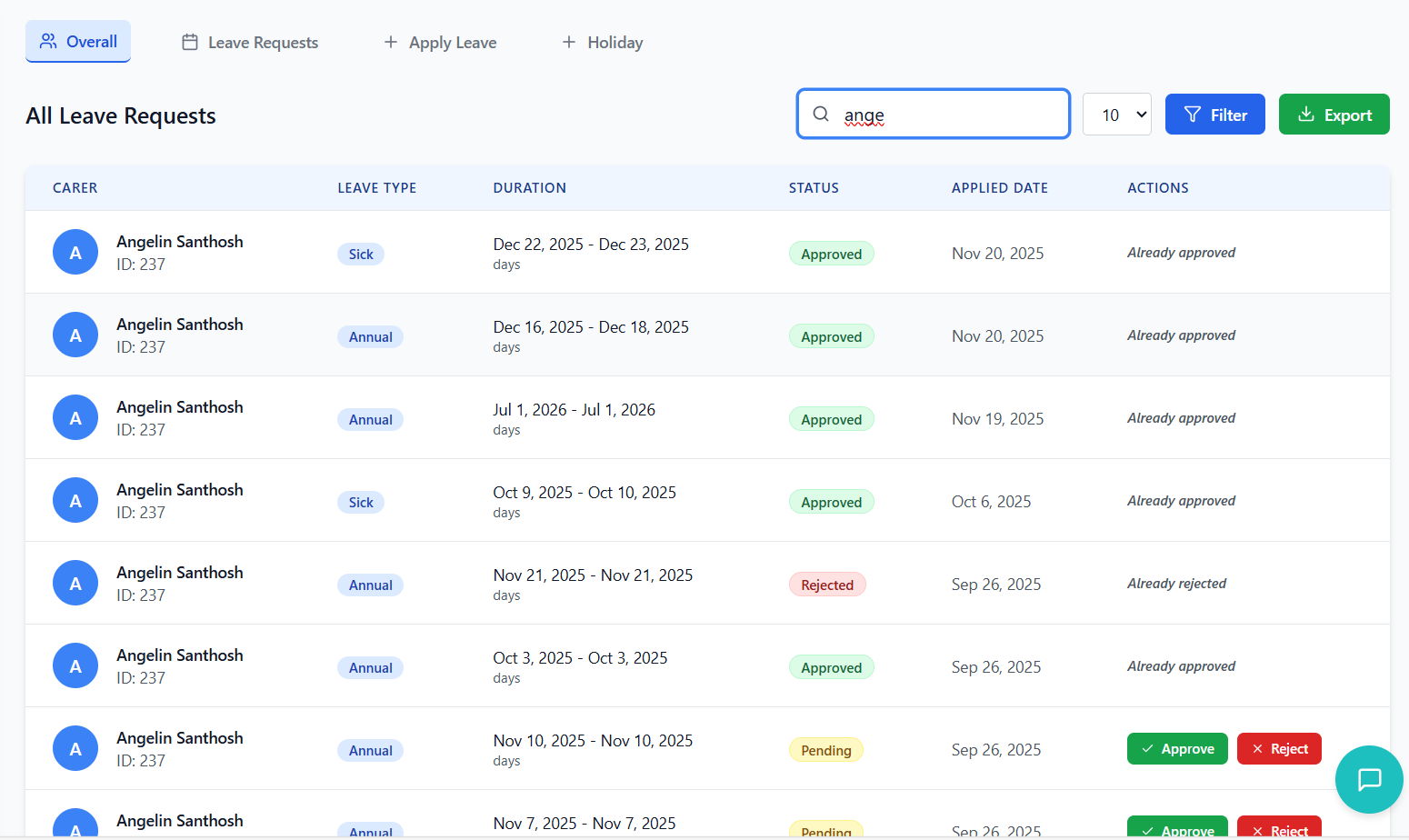
- Use partial matches - search will find matching text anywhere in fields
- Search is case-insensitive
- Clear the search field to see all requests again
- Combine search with filters for precise results
Filtering Options
- Located in the Leave Requests tab header
- Dropdown with options: All Status, Pending, Approved, Rejected, etc.
- Filters the table to show only requests with selected status
- Real-time filtering without page reload
- Located next to status filter
- Dropdown with all available leave types
- Filters the table to show only requests of selected type
- Can be combined with status filter for precise results
Advanced Filtering
- Use multiple filters together for precise results
- Search can be combined with status and type filters
- Filters persist when switching between tabs
- Clear all filters by resetting search and dropdowns
Pagination
Navigating through multiple pages of leave requests efficiently.
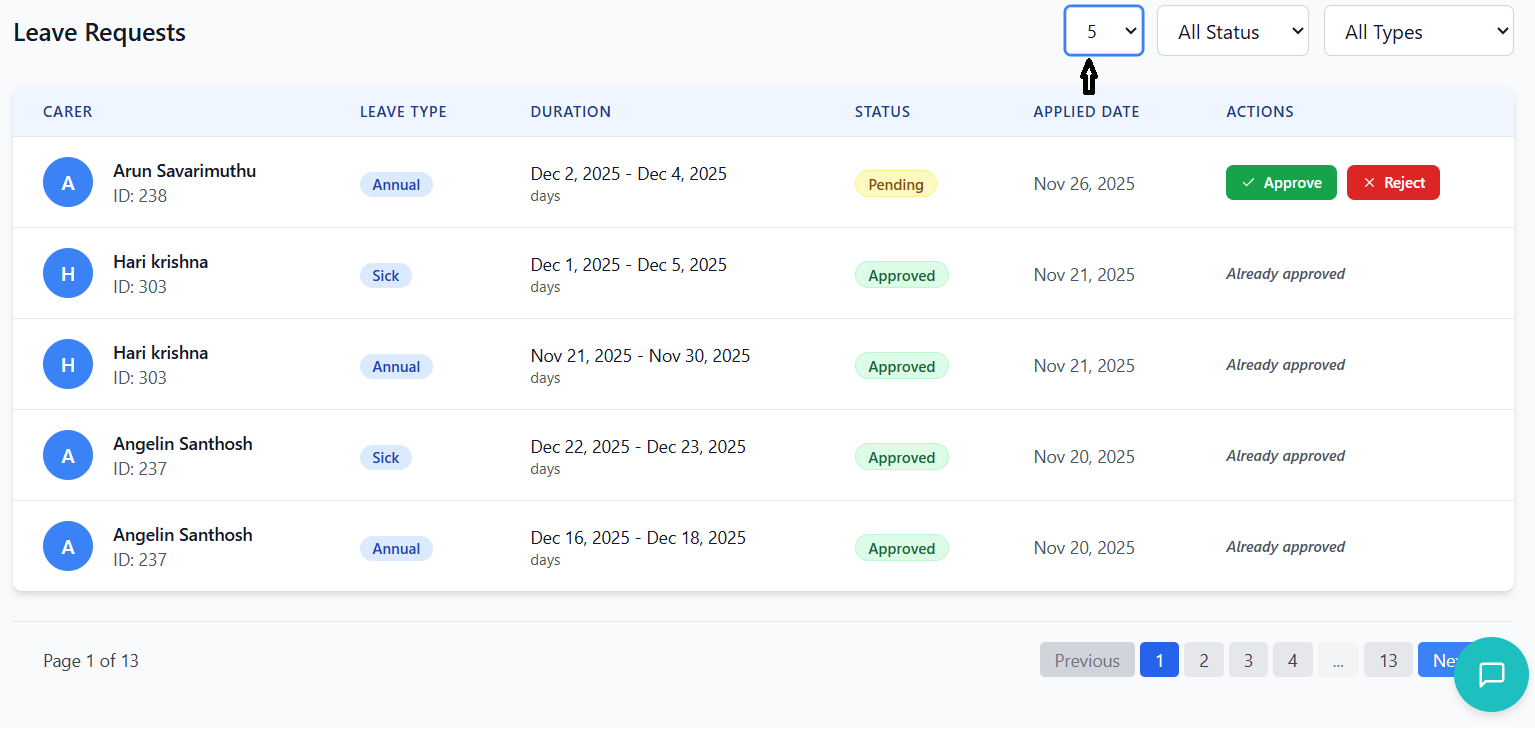
Page Size Selection
- Located in the header next to the record count
- Dropdown with options: 5, 10, 20, 50, 75
- Changes the number of leave requests displayed per page
- Automatically resets to first page when changed
Page Navigation
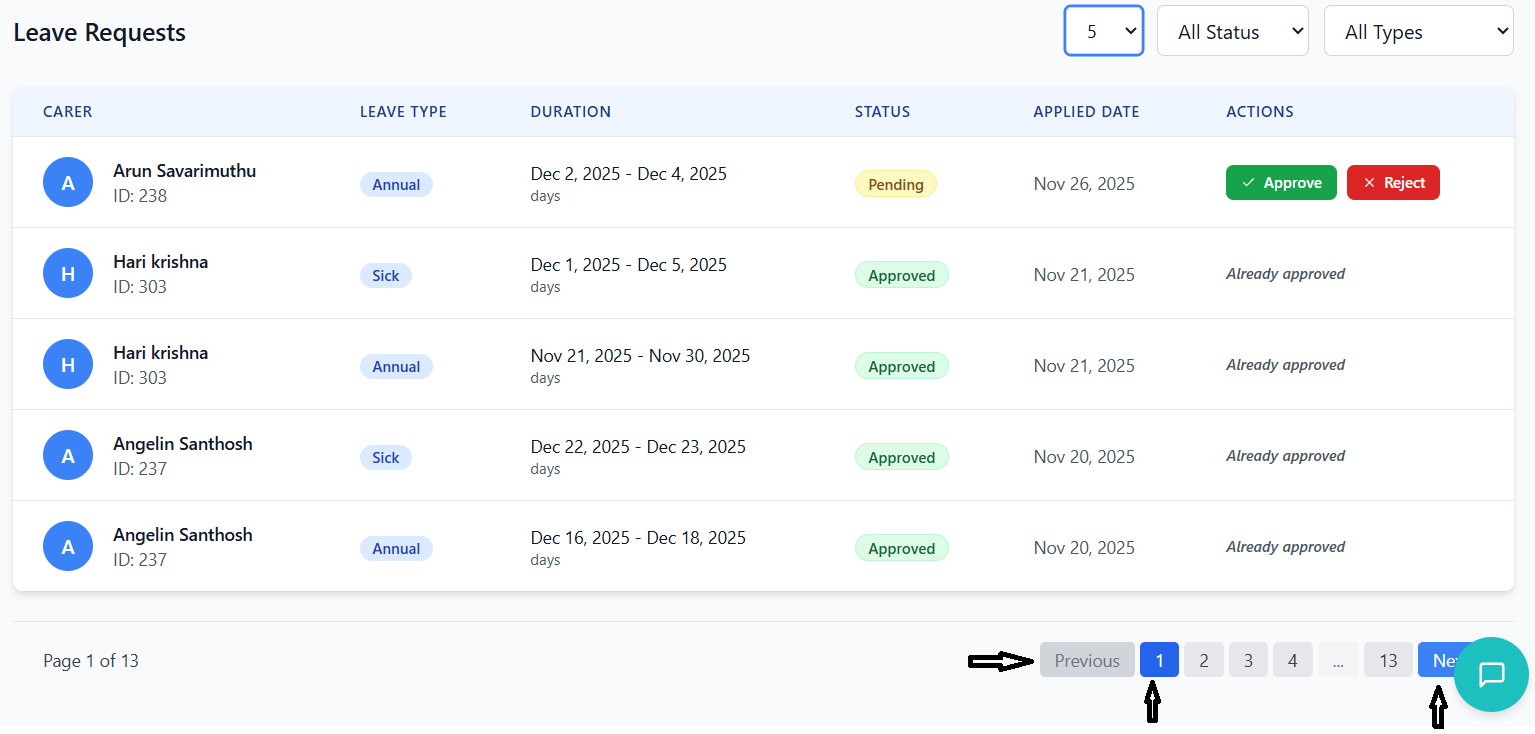
- Located at the bottom of the leave requests table
- Shows current page and total number of pages
- Previous/Next buttons for sequential navigation
- Page number buttons for direct navigation
- Ellipsis (...) indicates skipped pages in large datasets
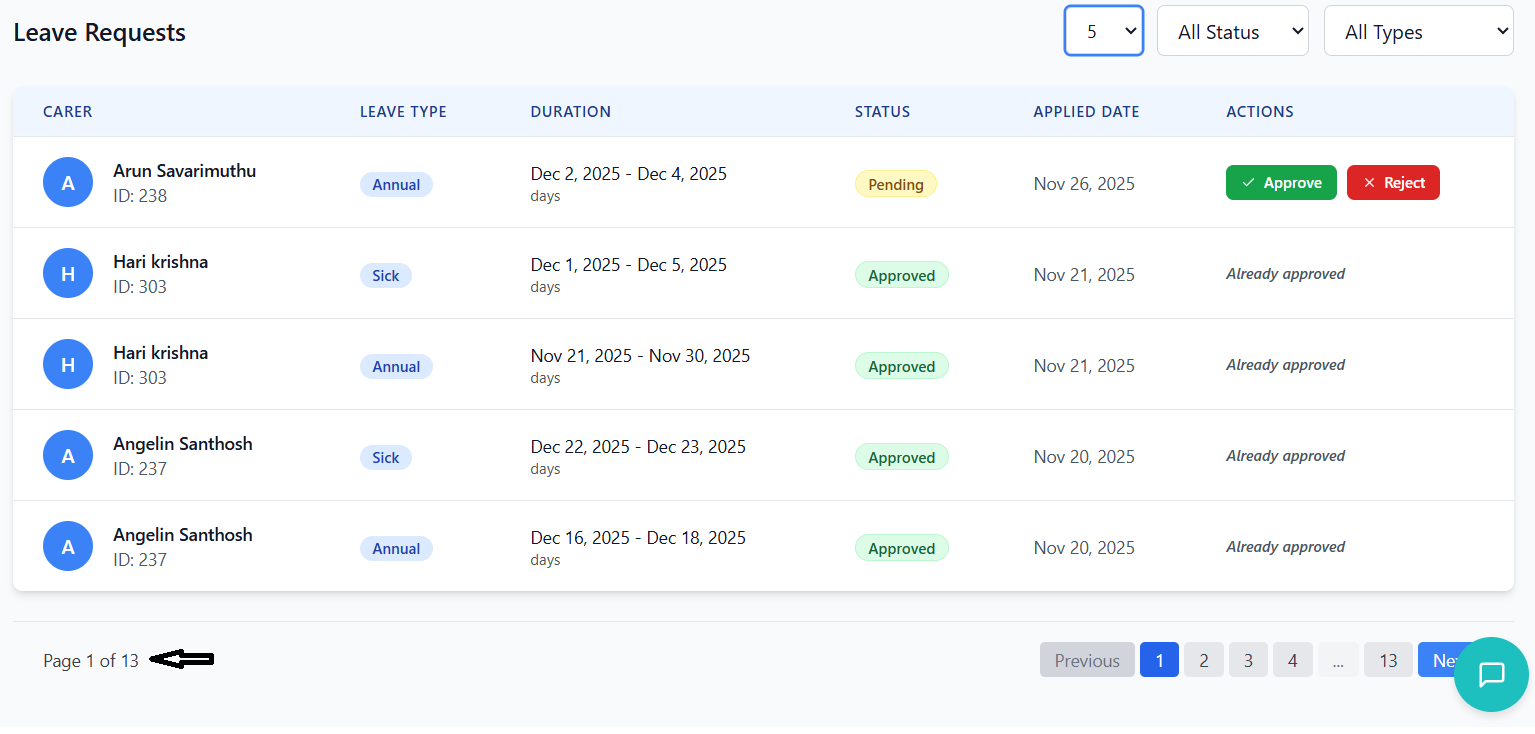
- Displays current page number and total pages
- Shows range of records displayed (e.g., "1-10 of 45")
- Updates automatically when filters or search change
Pagination Tips
- Use larger page sizes for fewer pages when reviewing many requests
- Use smaller page sizes for faster loading when searching for specific requests
- Combine with search and filters to reduce total pages
- Use direct page number navigation when you know the approximate page
Dark Mode
Using the system in dark mode for better visibility and reduced eye strain.
Enabling Dark Mode
- Dark mode is typically enabled through system settings or user preferences
- May be automatically applied based on system/browser settings
- Some implementations have a toggle switch in the header
Dark Mode Benefits
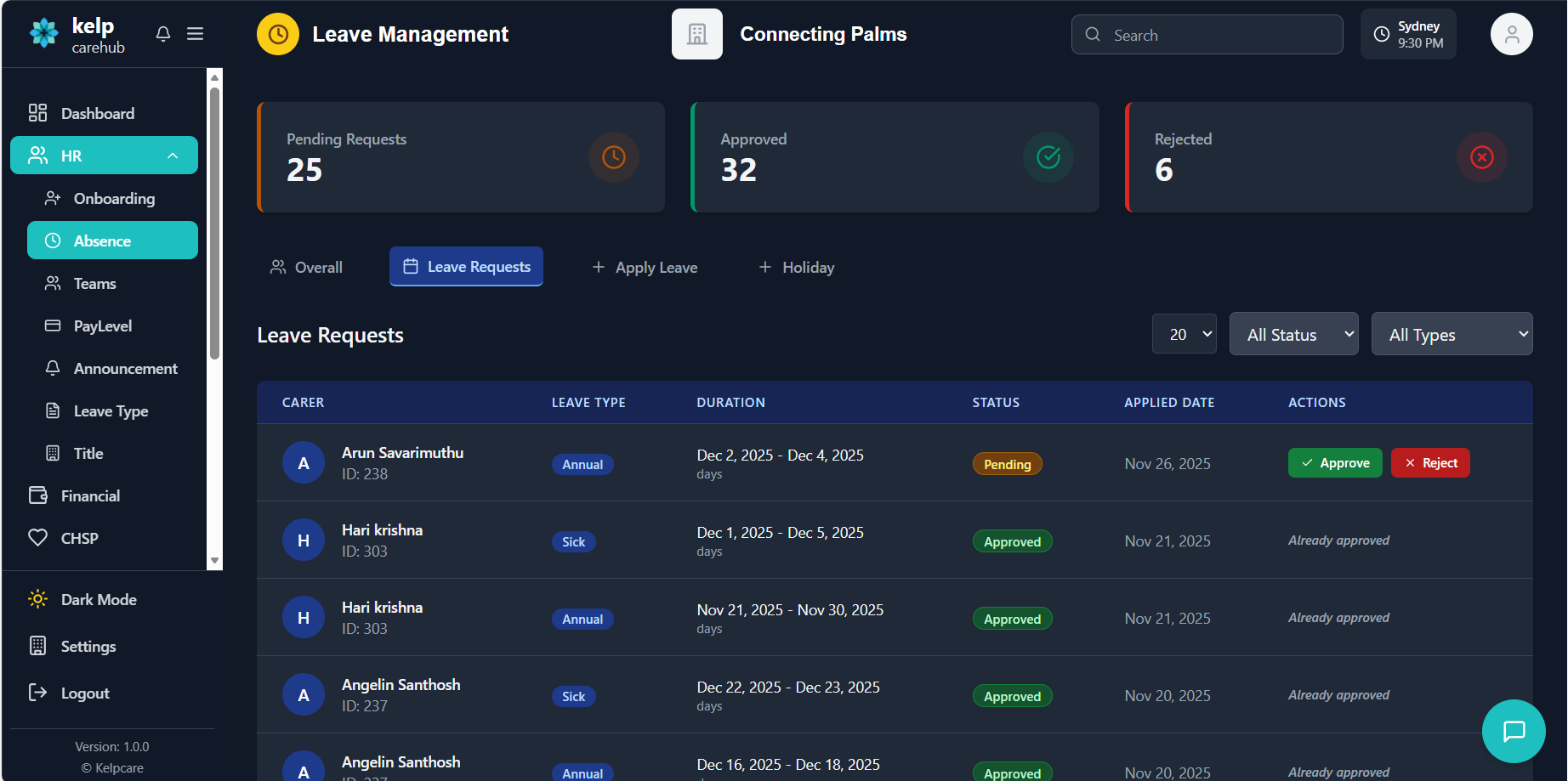
- Reduced eye strain in low-light environments
- Lower power consumption on OLED/AMOLED displays
- Minimized blue light exposure, especially in evening hours
- Can help users with photophobia or light sensitivity
- Modern, sleek appearance preferred by many users
Visual Elements in Dark Mode
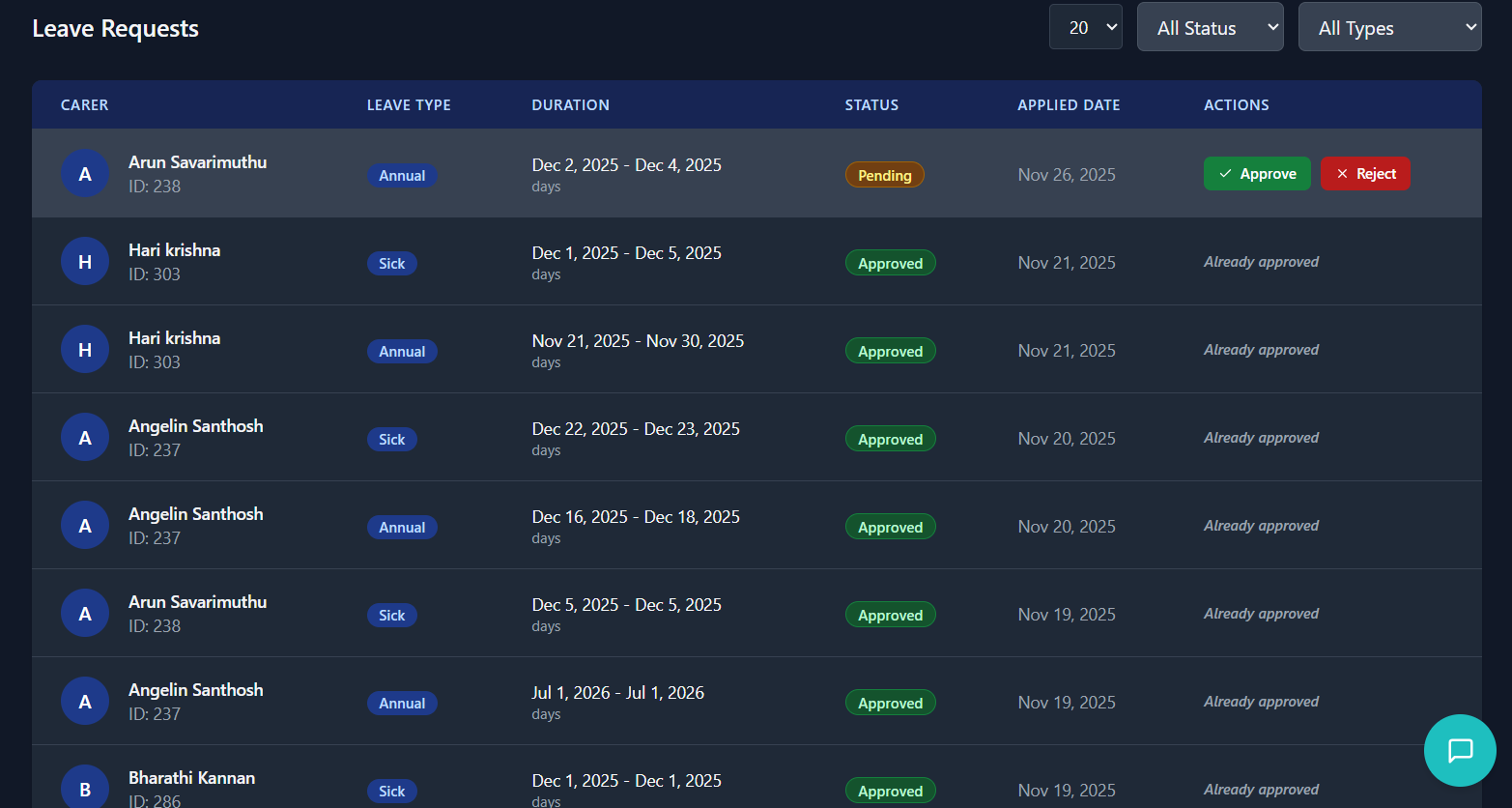
- Background changes from light gray to dark gray/black
- Text changes from dark to light for better contrast
- Cards and containers have darker backgrounds
- Border colors are adjusted for visibility
- Status badges maintain their color meanings with adjusted shades
Permissions & Roles
Understanding user permissions and role-based access in the absence management system.
Permission System Overview
The absence management system uses a role-based permission system where:
- Users are assigned to roles (Employee, Manager, Administrator)
- Roles have specific permissions for different features
- Permissions are checked before allowing actions
- UI elements are shown/hidden based on user permissions
User Roles & Permissions
| Feature | Employee | Manager | Administrator |
|---|---|---|---|
| View Own Leave Requests | ✓ | ✓ | ✓ |
| Apply for Leave | ✓ | ✓ | ✓ |
| View Team Leave Requests | ✗ | ✓ | ✓ |
| Approve/Reject Leave Requests | ✗ | ✓ | ✓ |
| View All Leave Requests | ✗ | ✗ | ✓ |
| Manage Holidays | ✗ | ✗ | ✓ |
| Manage Leave Balances | ✗ | ✗ | ✓ |
| Export Leave Data | ✗ | ✓ | ✓ |
User Experience with Limited Permissions
- Can only view their own leave requests
- Can apply for new leave
- Cannot see approval buttons for any requests
- Cannot access holiday management
- Can view leave requests for their team members
- Can approve/reject pending requests for their team
- Can apply for leave for themselves
- Cannot manage holidays or system-wide settings
Requesting Additional Permissions
If you require additional permissions to perform your duties:
- Contact your system administrator
- Specify which features you need access to
- Explain the business need for the additional permissions
- Administrators can modify role permissions in the system settings
Troubleshooting Guide
Solutions to common issues and problems you may encounter in the absence management system.
Common Issues
Possible Causes:
- Missing manager permissions
- Request is not in pending status
- User role restrictions
Solutions:
- Contact administrator to verify permissions
- Check if you're logged in with the correct account
- Verify that the request is still pending approval
Possible Causes:
- Insufficient leave balance
- Validation errors in form
- Selected dates contain no working days
- Network or server issues
Solutions:
- Check your leave balance for the selected type
- Review form for validation error messages
- Adjust dates to include working days
- Try again later if network issues
Possible Causes:
- Pending requests reserving balance
- System calculation error
- Manual adjustment needed
Solutions:
- Check for pending requests that might be reserving balance
- Contact HR for balance verification
- Request manual adjustment if needed
Possible Causes:
- Holidays not configured for organization
- Date range doesn't include holidays
- System cache issue
Solutions:
- Contact administrator to verify holiday configuration
- Check if holidays exist for selected date range
- Refresh page to clear cache
Possible Causes:
- Search term too specific
- Filters applied limiting results
- Data not in expected format
Solutions:
- Try broader search terms
- Clear filters to see all results
- Check spelling of search terms
Error Message Reference
| Error Message | Meaning | Solution |
|---|---|---|
| "Insufficient leave balance" | Not enough days available for selected leave type | Select different dates or leave type, contact HR |
| "Selected date range contains no working days" | All selected dates are weekends or holidays | Adjust dates to include working days |
| "Start date cannot be in the past" | Attempting to apply for leave with past start date | Select current or future start date |
| "End date must be after start date" | Invalid date range selected | Ensure end date is after start date |
| "Reason must be at least 10 characters" | Leave reason too short | Provide more detailed reason for leave |
| "Failed to load leave data" | Network or server issue | Check connection, refresh page, contact support |
Contact Support
- Persistent errors after trying solutions
- System performance issues
- Missing data or incorrect information
- Permission issues that aren't resolved by administrator
- Feature not working as expected
Information to Provide:
- Your user ID and name
- Detailed description of the issue
- Steps to reproduce the problem
- Screenshot of any error messages
- Browser and operating system information
- Date and time the issue occurred